Excel Collaboration: Share, Comments and Notes
Share workbooks, co-author and use comments and notes.
- Notes and comments
- Add a note
- Read and edit
- Show all notes
- Comments and sharing
- The silent note trap
- Recap
Step by step
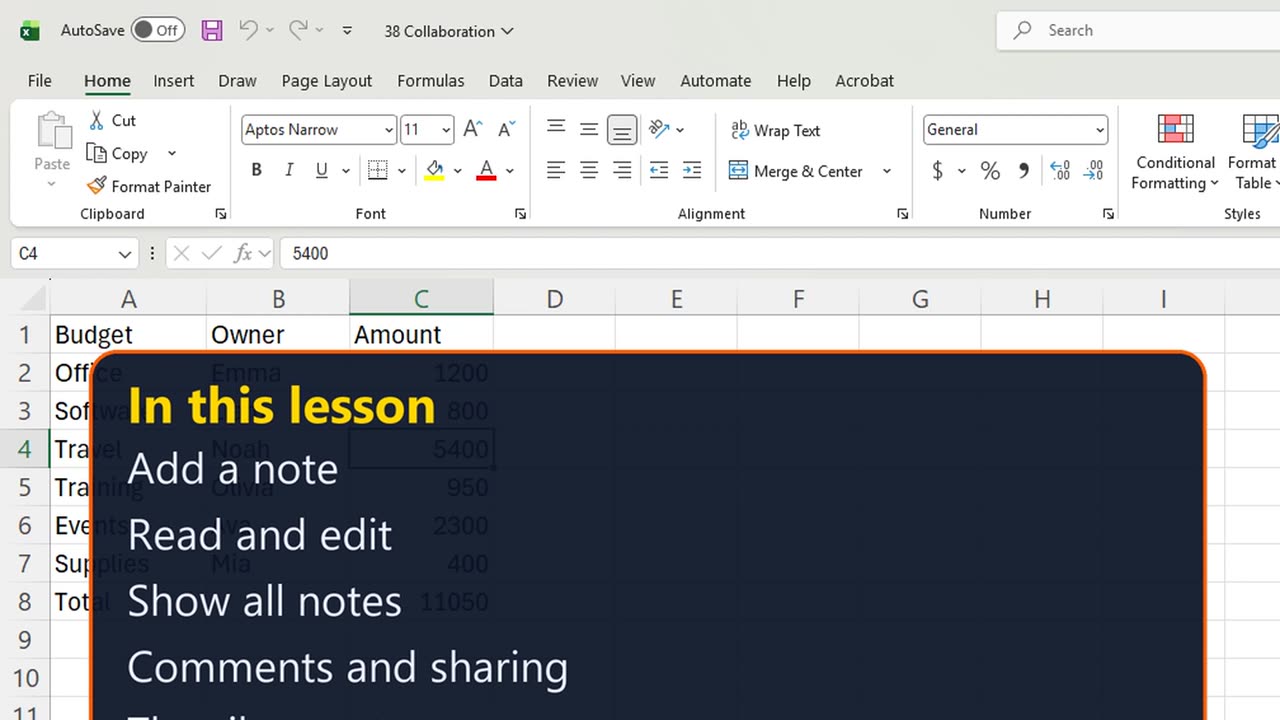
1. Notes and comments
A number looks wrong, and you want to tell the owner without changing it. Excel gives you two tools for that: notes and comments.
You will add a note, read and edit it, show every note at once, and learn when a comment is the better choice.
2. Add a note
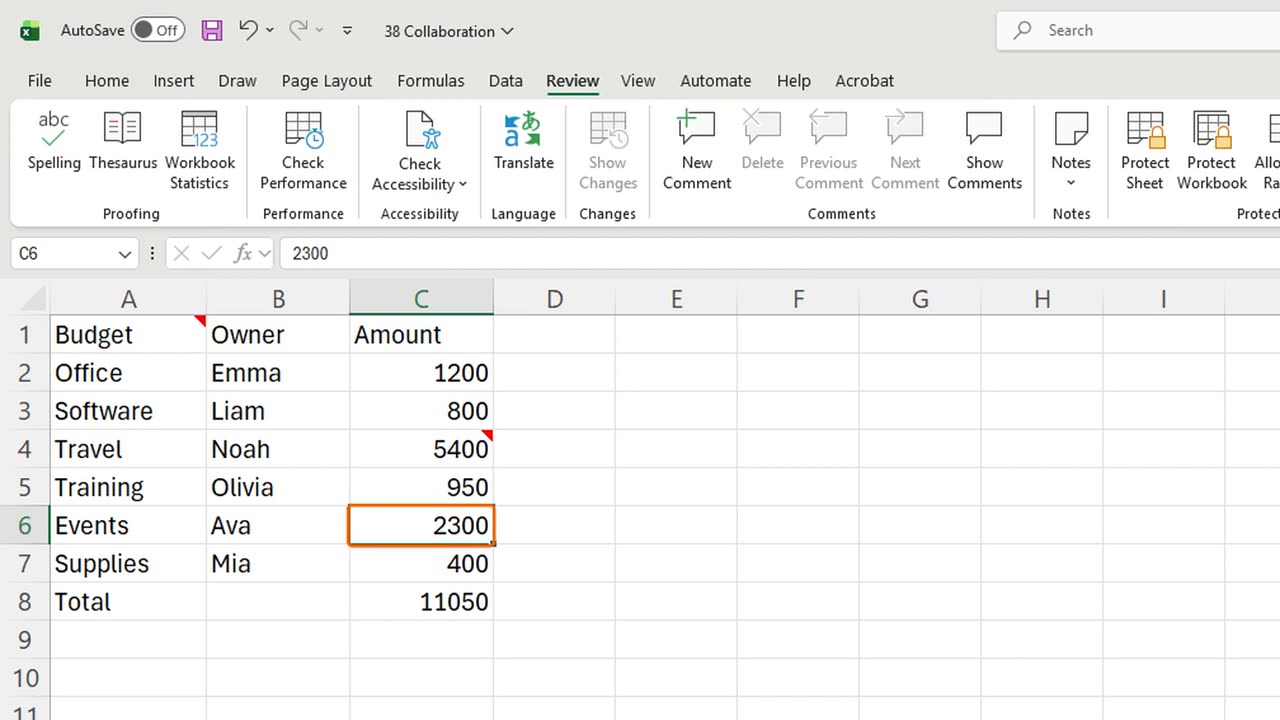
Click C4, the travel budget, and press Shift and F2. A yellow note box opens, signed with your name.
Type: This looks too high, please check the hotel costs. Then press Escape twice to leave the note.
3. Read and edit
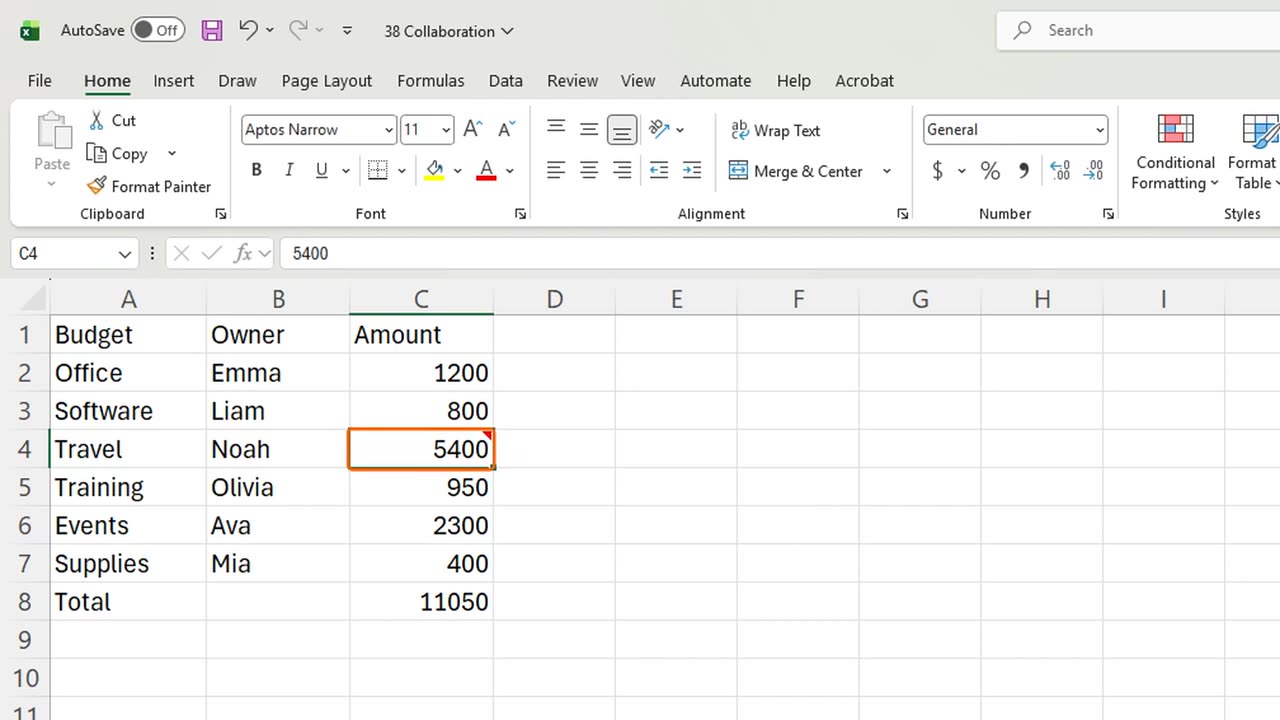
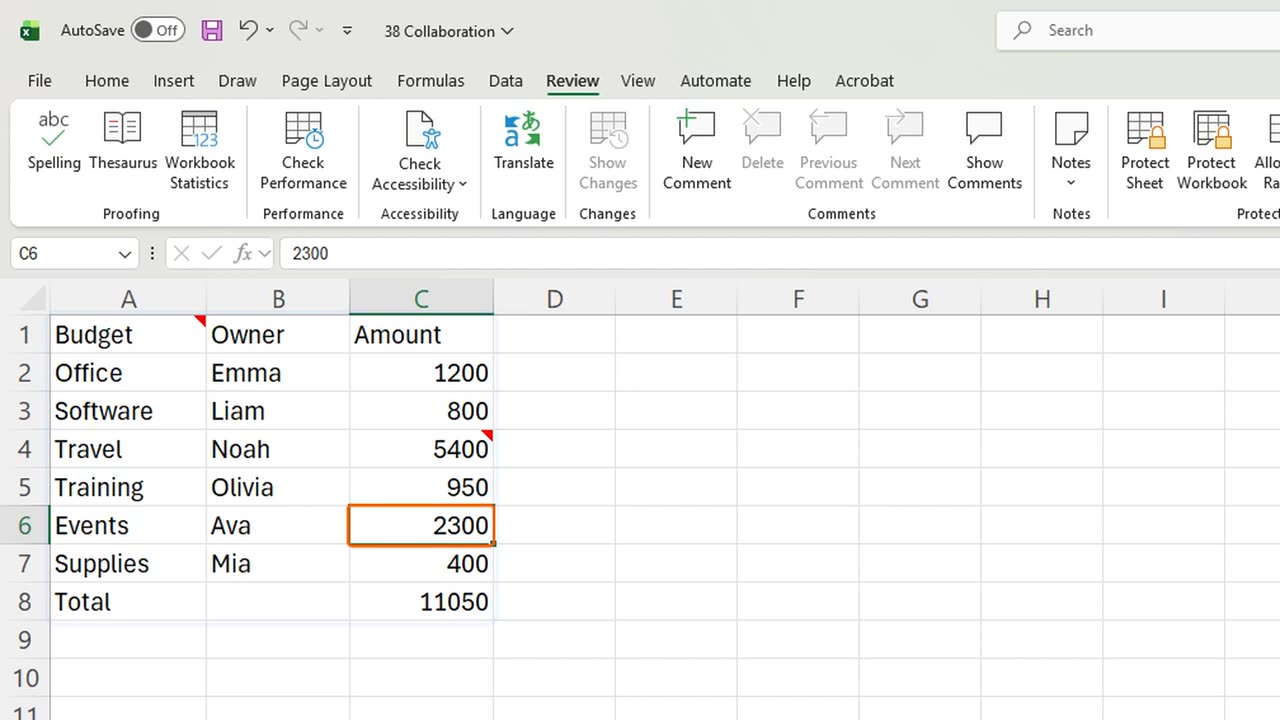
C4 now has a small red triangle in its corner. Move the mouse over it, and the note appears.
To change it, select the cell and press Shift and F2 again. Add: Thanks.
Add a second note on C6: Is this the final number? Shift F2, type, Escape twice.
Quick pause: if your team leaves notes in files, a like really helps the channel. Now, how to see them all.
4. Show all notes
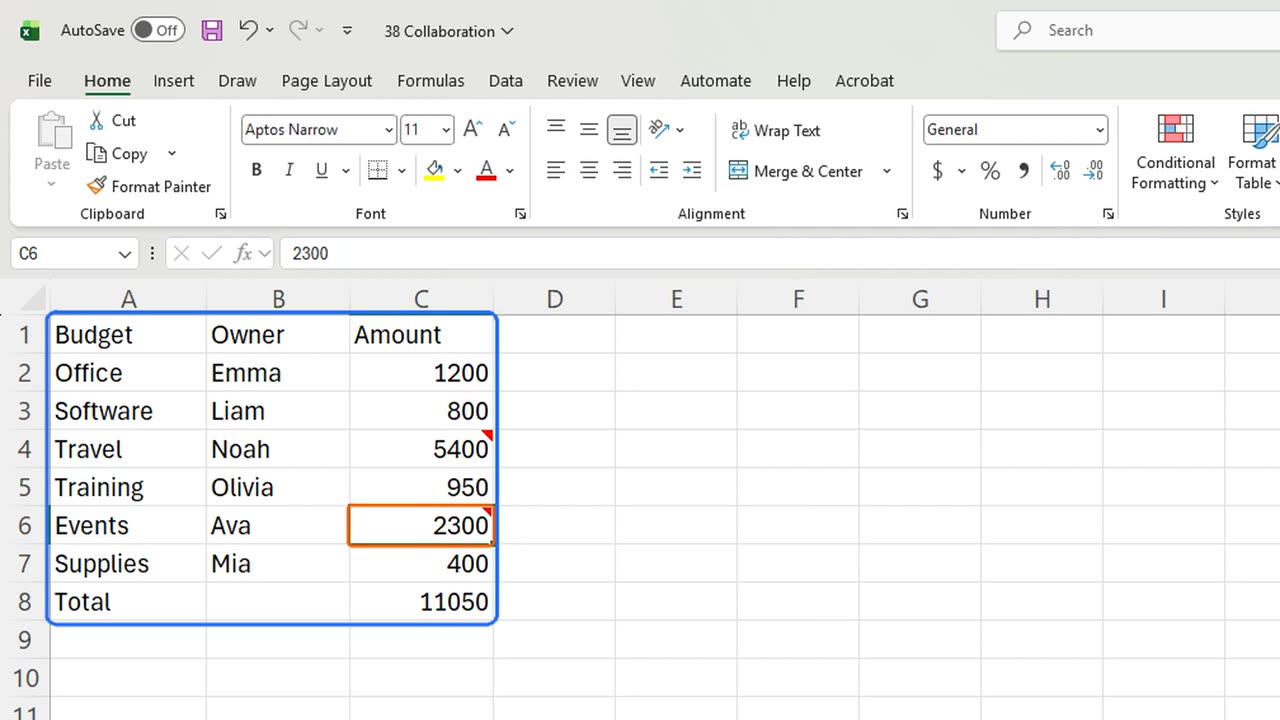
Review, Notes, Show All Notes: Alt, R, T, N, S. Every note stays open, so you can read them in one pass. The same keys hide them again.
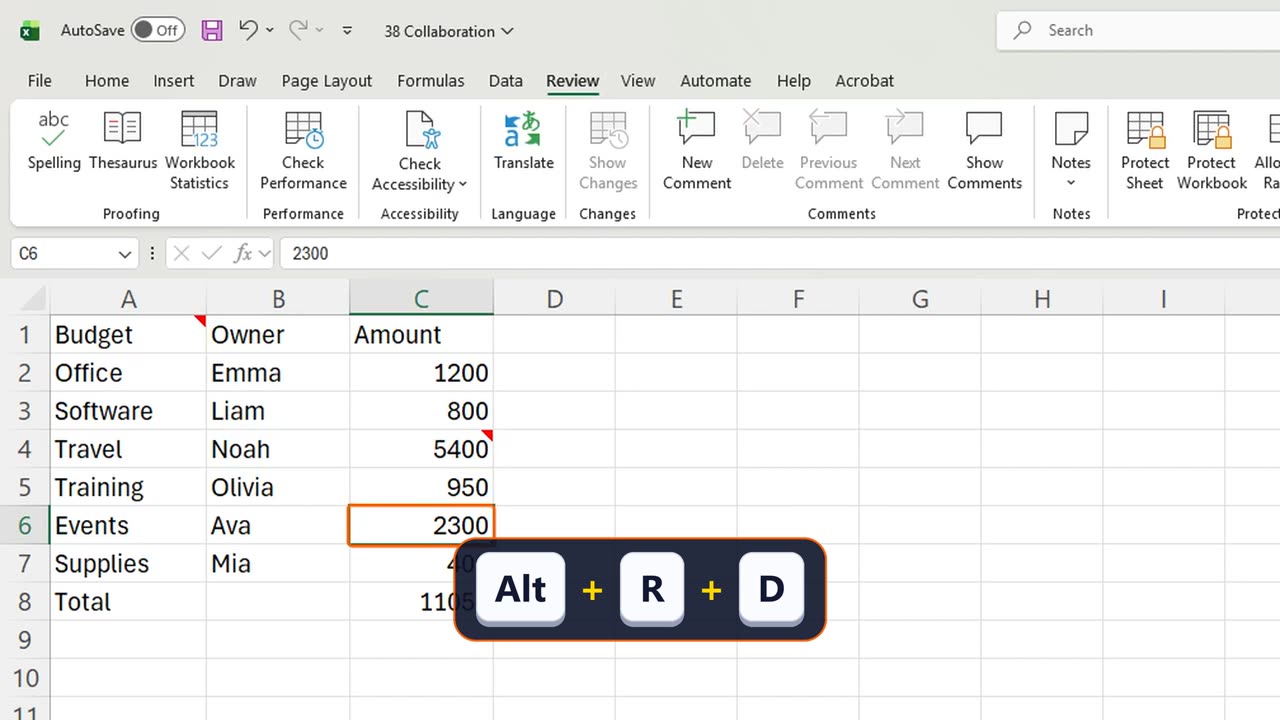
When the question is answered, delete the note: select C6 and press Alt, R, D.
5. Comments and sharing
Comments are the other tool. A comment is a conversation: people reply in a thread, and when you mention a colleague with the at sign, they get an email.
To work on the same file at the same time, save it to OneDrive and use the Share button at the top right. Everyone edits one copy, no more versions by email.
6. The silent note trap
Here is the trap. A note is silent. Nobody is told it exists. A question in a note can sit there for weeks.
So use notes for labels and explanations that stay, and comments with a mention for questions that need an answer.
7. Recap
Recap: Shift F2 adds or edits a note, Alt R T N S shows them all, Alt R D deletes one, and comments with a mention start a conversation.
In the next lesson, you will clean messy data automatically with Power Query.
Does your team use notes, comments, or email for questions about a file? Tell me in the comments.
← Previous tutorial: Protect Excel Sheets and Workbooks (Passwords and Locking)
Next tutorial: Power Query Intro in Excel (Clean and Combine Data) →