An Excel Chart Title That Updates Itself
Link a chart title to a cell, and fix the date that turns into a strange number with TEXT.
- Titles that lie
- Build the title in a cell
- Link the title
- The date trap
- The test
Step by step
1. Titles that lie
A chart titled Sales, sitting on a monthly report. Next month, somebody forgets to retype it, and the dashboard lies.
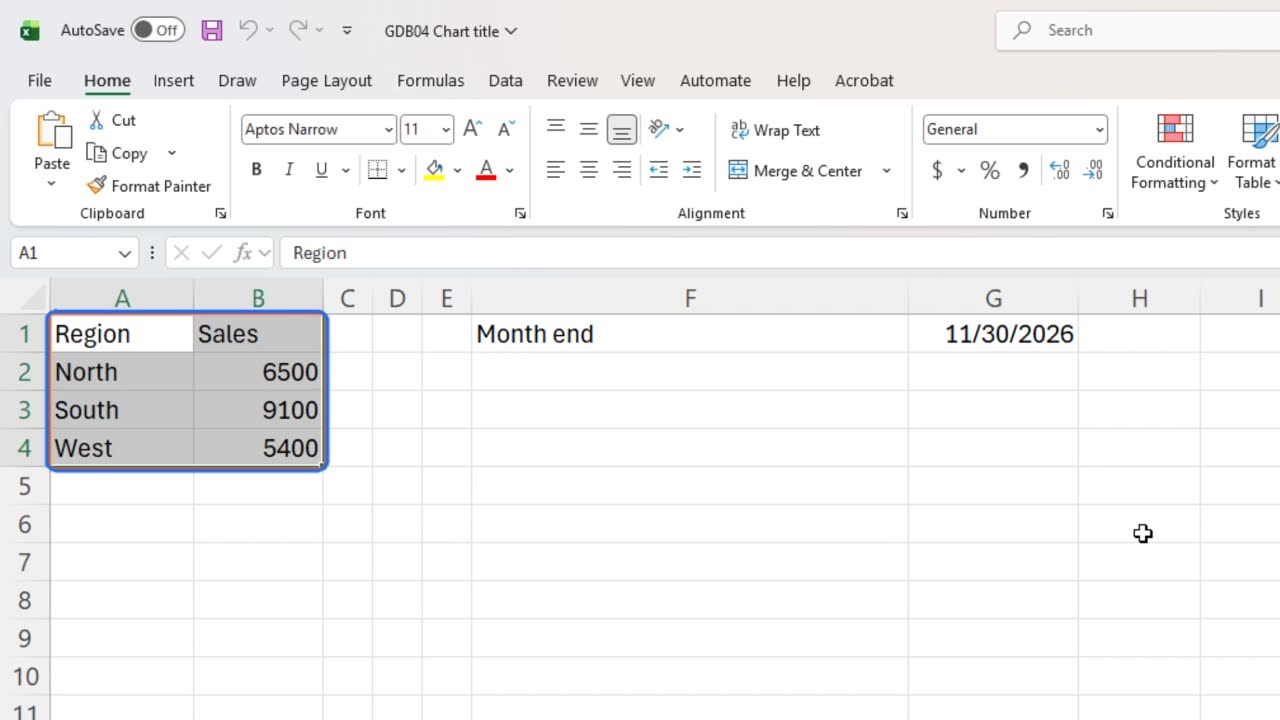
2. Build the title in a cell
The fix: build the title in a cell. In F2, type equals, quote, Sales by region, dash, quote, ampersand, G1.
="Sales by region - "&G1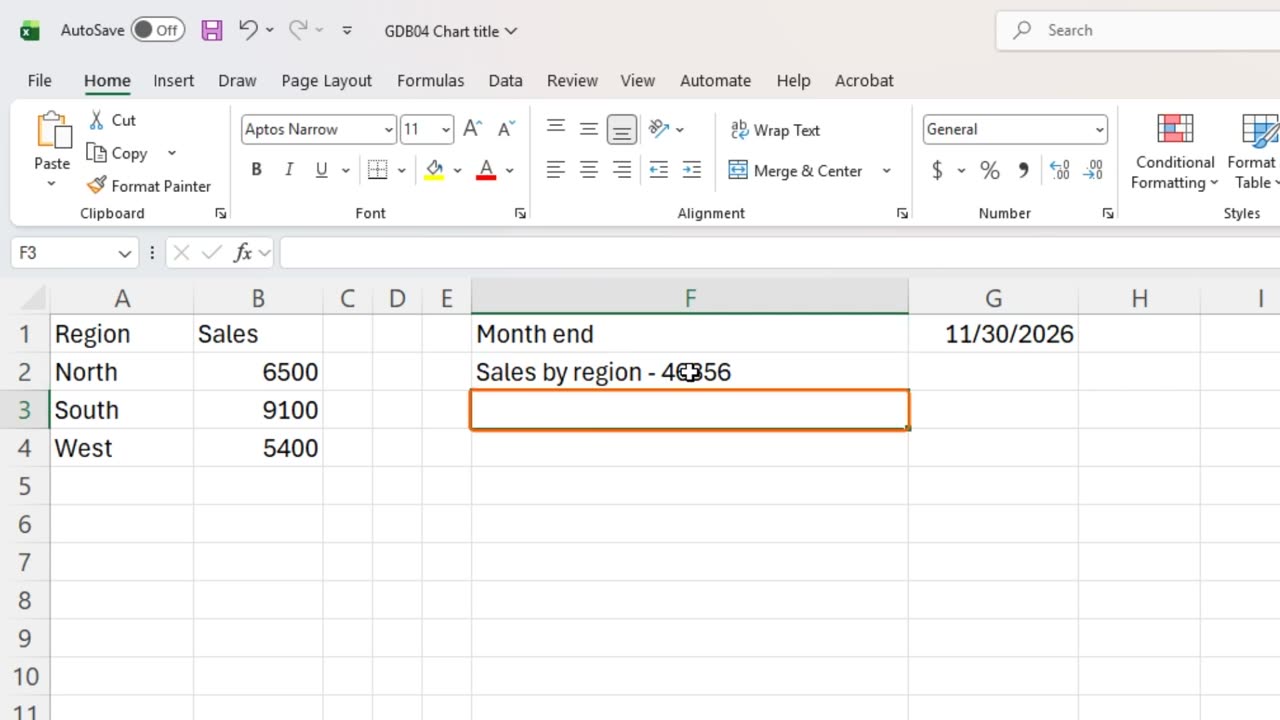
3. Link the title
Now the chart. Select the data and press Alt and F1.
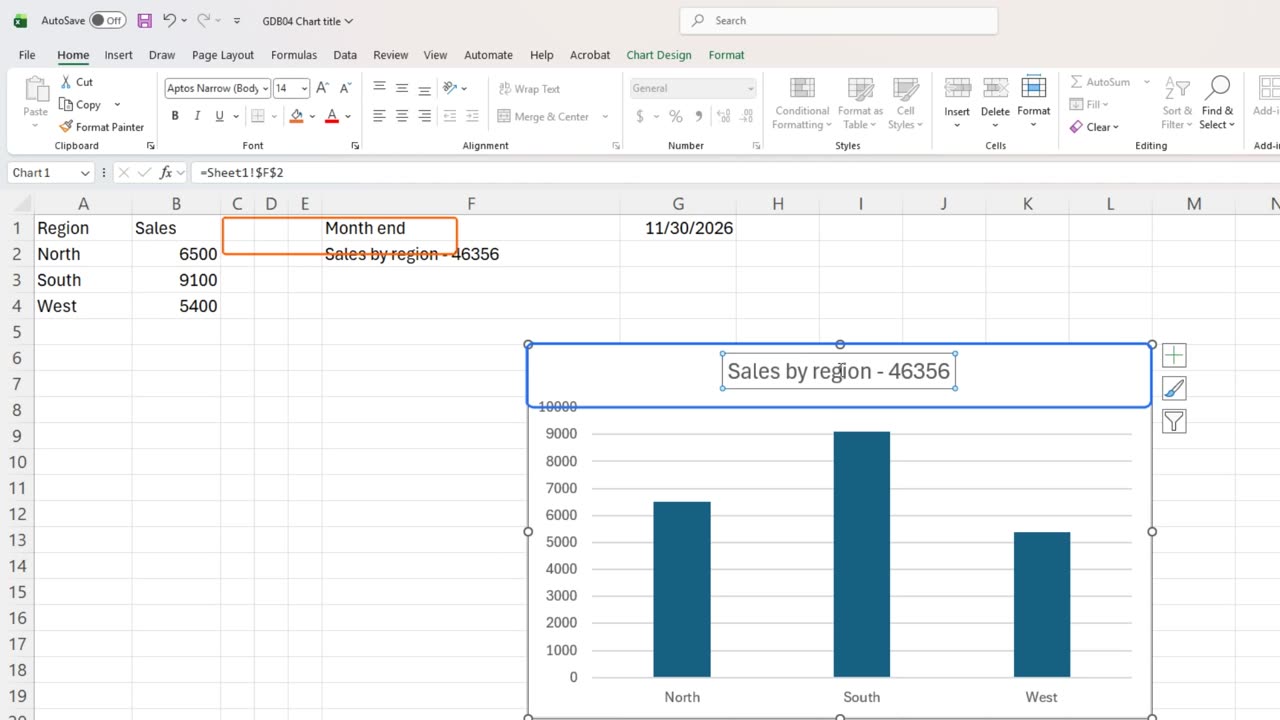
Click the chart title once to select it. Do not type straight into the title. Type an equals sign: it goes into the formula bar.
Then the cell: Sheet1, exclamation mark, F2. Press Enter, and the title now reads from the cell.
=
4. The date trap
But look at the title. Instead of a date, it ends with a strange number.
That is the trap. Excel stores a date as a number of days, and when you join it to text, the formatting is lost and the raw number shows.
The fix is TEXT. Click F2 and type the formula again, with TEXT, G1, and the pattern m m m m, space, y y y y.
The cell reads November twenty twenty-six, and the chart title follows at once.
="Sales by region - "&TEXT(G1,"mmmm yyyy")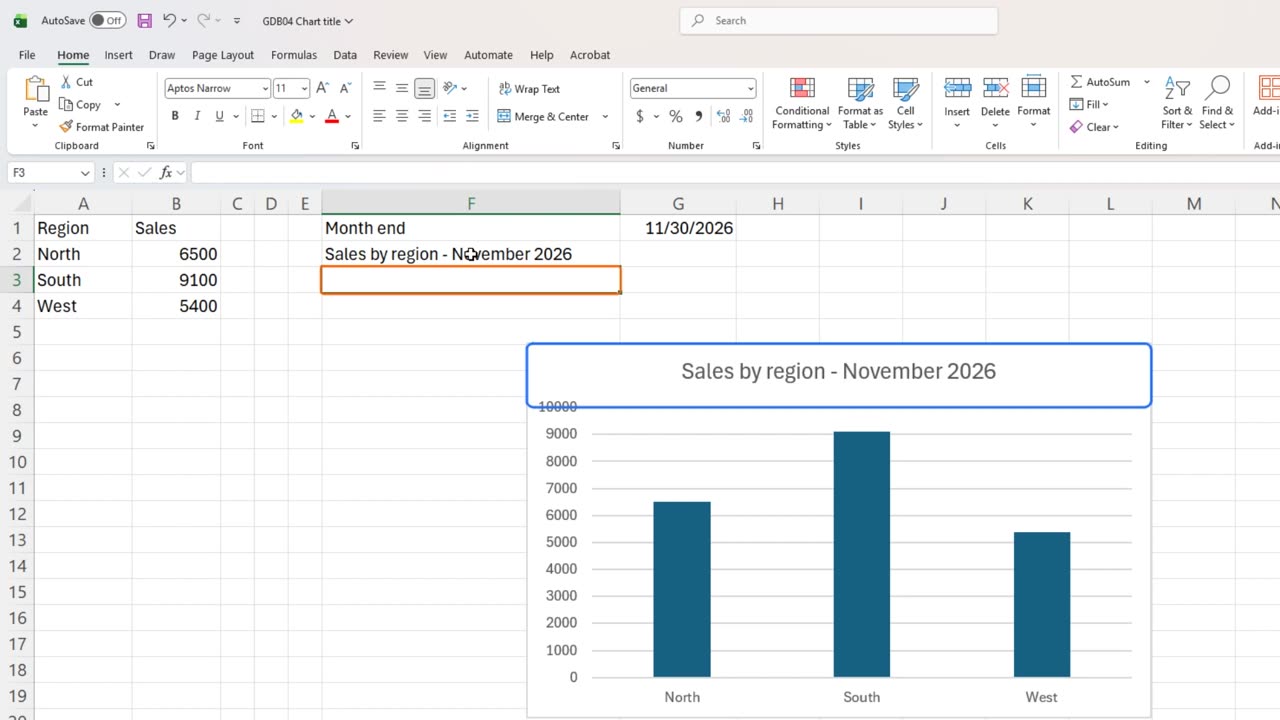
5. The test
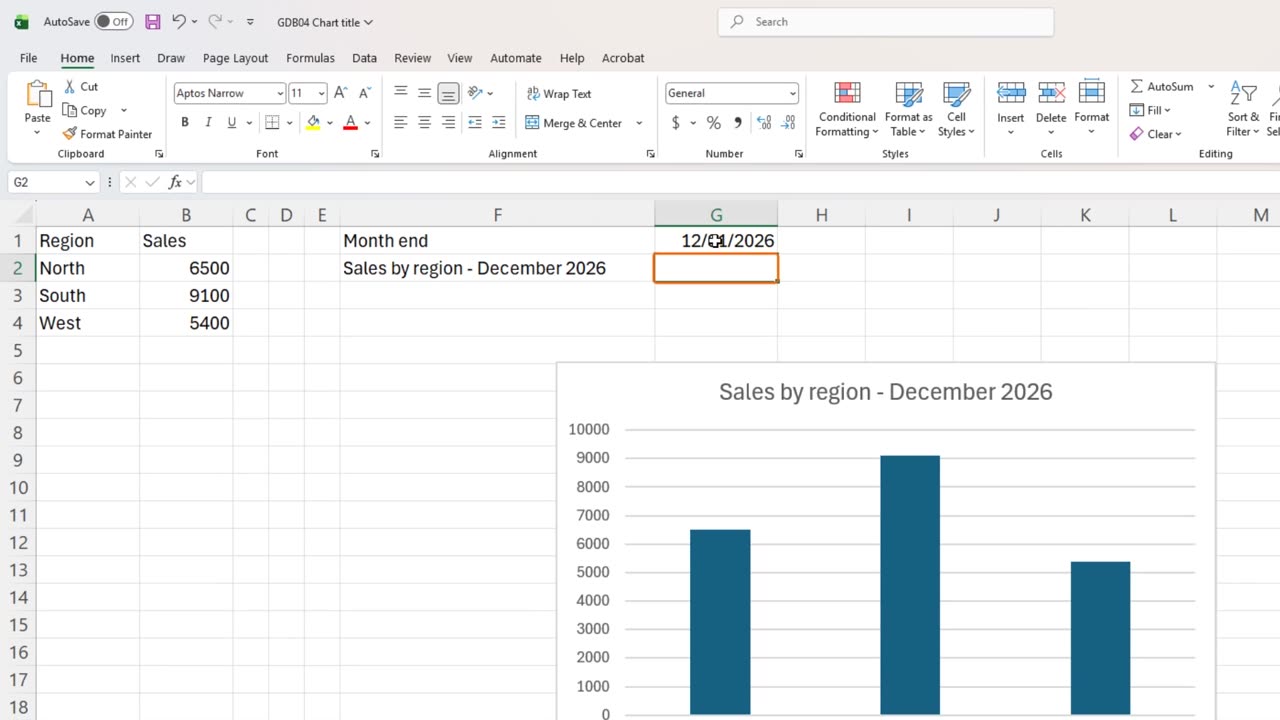
Now the real test. Next month, type the new date in G1: twelve slash thirty-one slash twenty twenty-six.
December 2026. Nobody retyped the chart, and nobody ever has to again.
What else on your report should update by itself? Tell me in the comments.
← Previous tutorial: Turn a Grid of Numbers into a Picture in Excel
Next tutorial: Tiny Charts Inside Excel Cells (Sparklines) →