Excel Templates: Find, Use and Create Your Own
Use built-in templates and save your own.
- Build it once
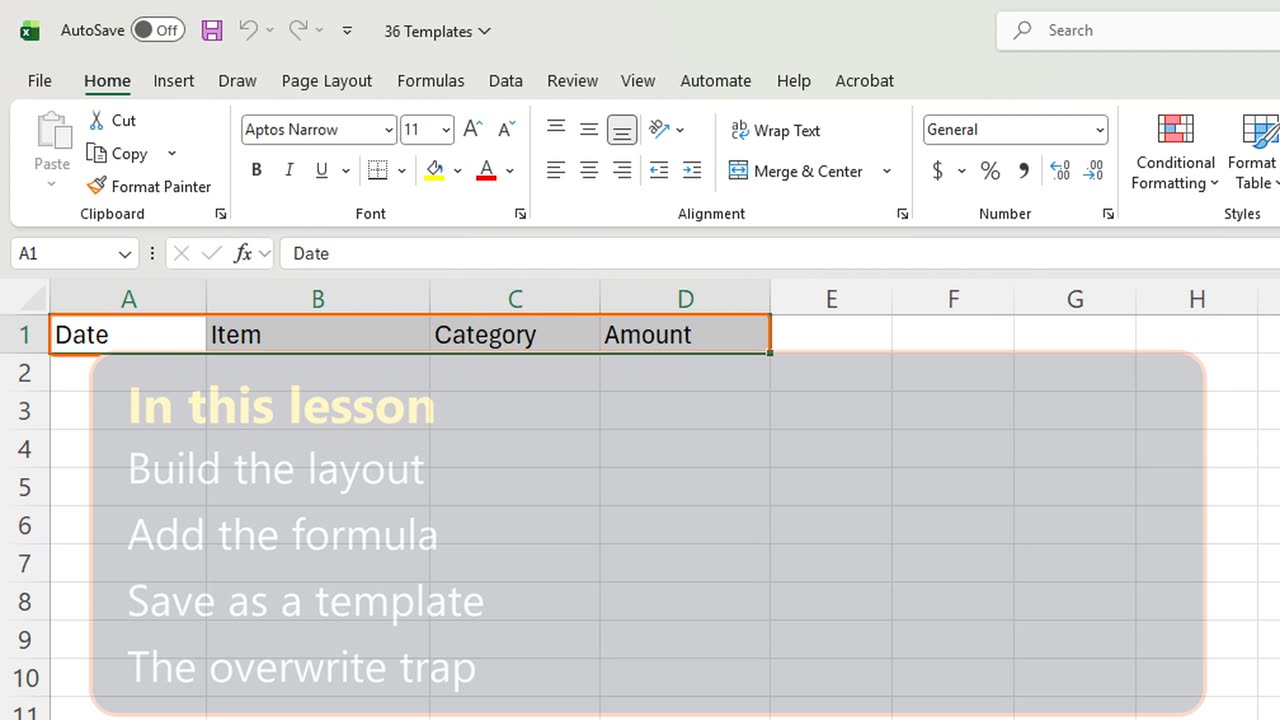
- Build the layout
- Add the formula
- Save as a template
- The overwrite trap
- Recap
Step by step
1. Build it once
You build the same report every month, from scratch. A template means you build it once, and every new copy starts ready.
Excel has ready-made templates under File, New. Today you will make your own: an expense report your whole team can reuse.
2. Build the layout
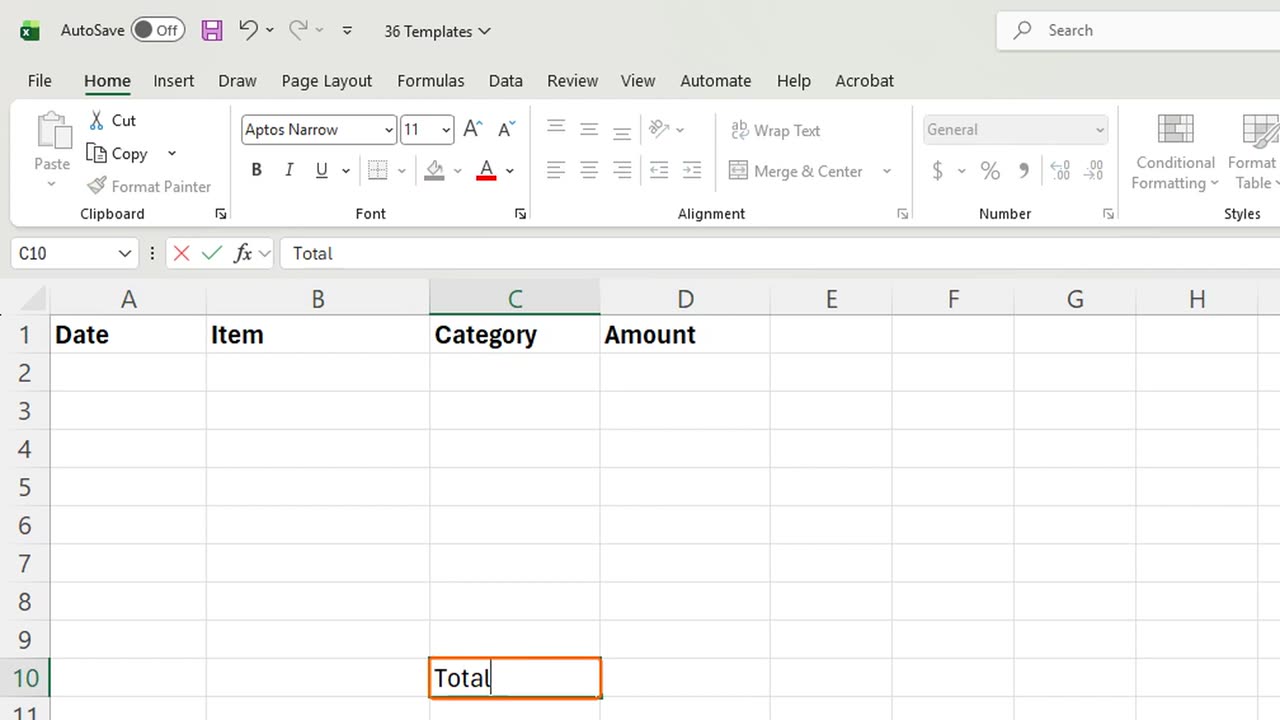
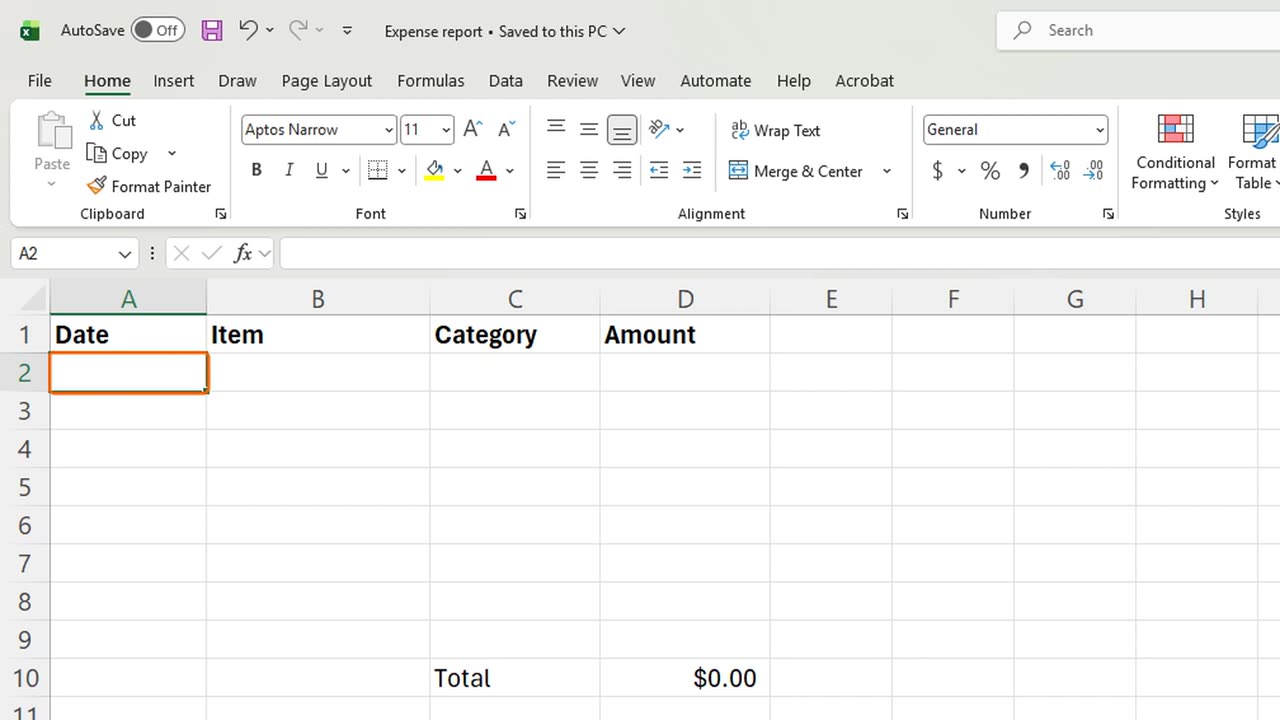
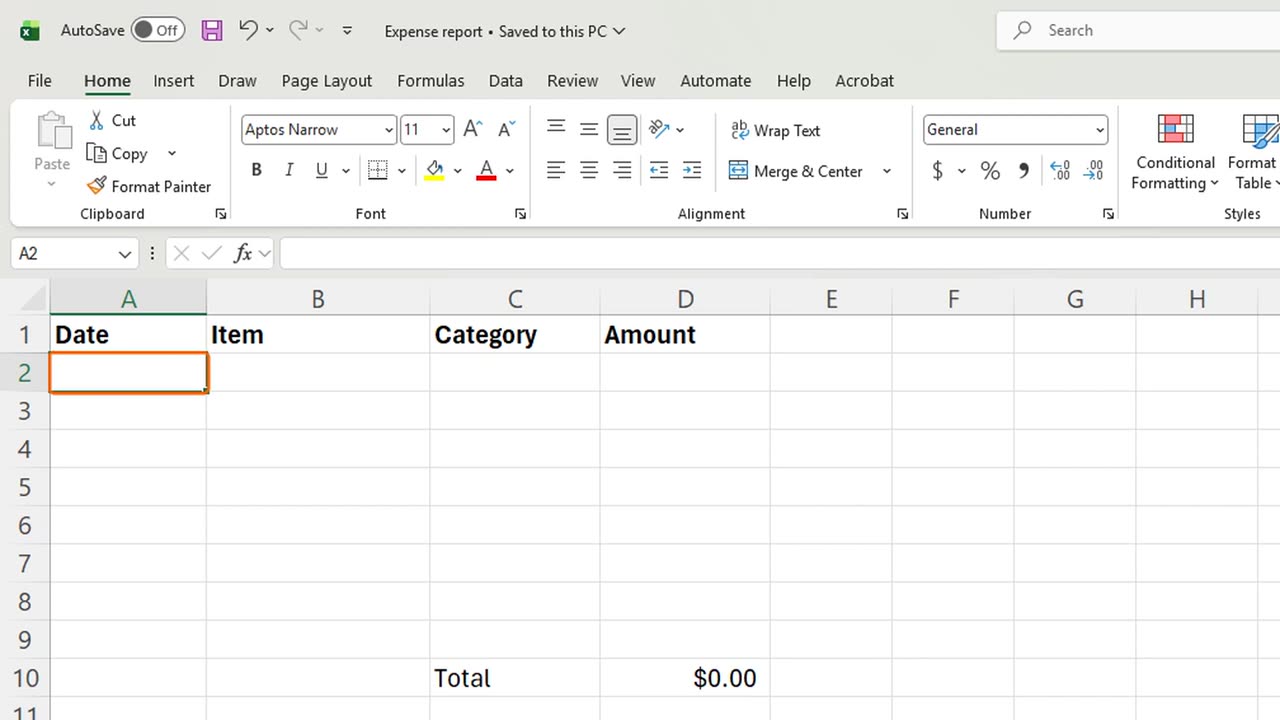
The headers are in place: Date, Item, Category, Amount. Make them bold with Control B.
Leave rows two to nine empty. That is where people will type. Under them, in C10, type Total.
3. Add the formula
In D10, type equals SUM of D2 to D9, and Enter. It shows zero for now, and it will add up whatever people type.
Format the Amount column as money: select D2 to D10 and press Control, Shift and 4.
Quick pause: if a template would save you time every month, a like really helps the channel. Now let's save it the right way.
=SUM(D2:D9)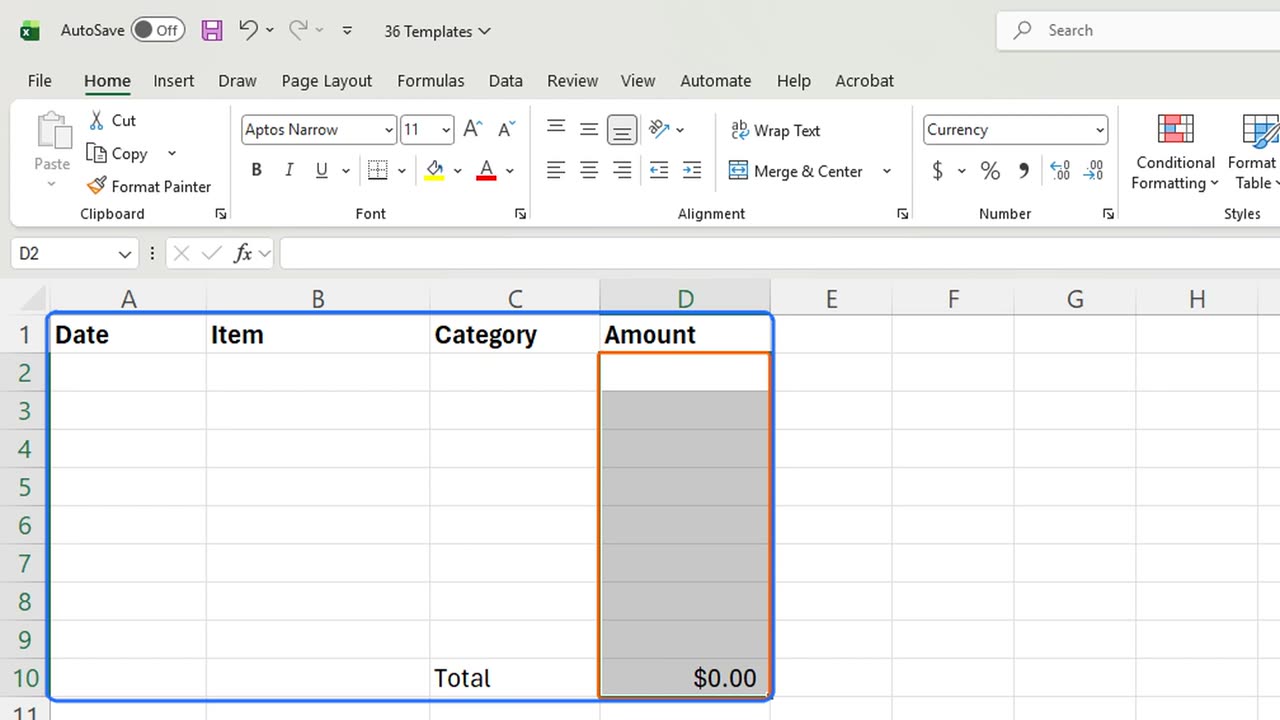
4. Save as a template
Press F12 for Save As. Under Save as type, open the list with Alt and T, and pick Excel Template. Then type the folder and the name, and press Enter.
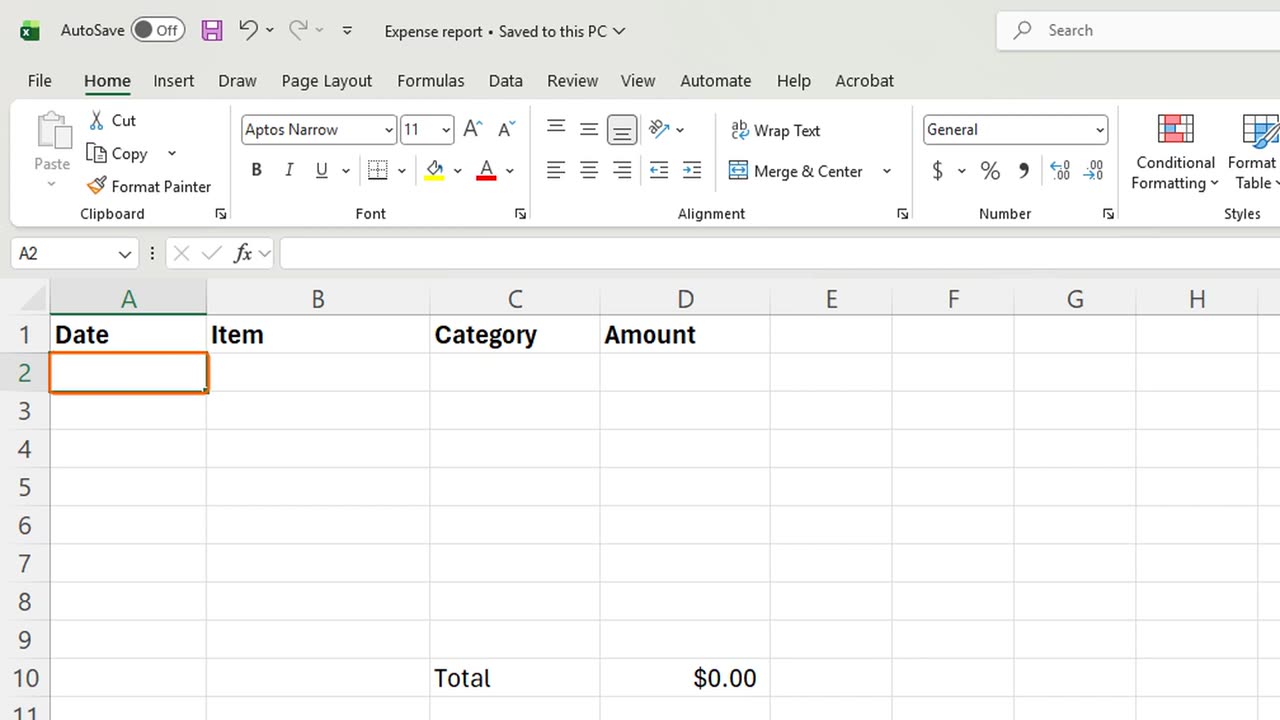
The title bar now shows Expense report, the template itself. Close it. From now on, nobody should open this file to fill it in.
5. The overwrite trap
Here is the trap. If you save it as a normal workbook, the first person who fills it in and presses Control S overwrites your clean report.
A template is different. Double-click the x l t x file, and Excel opens a new copy called Expense report 1. The original stays clean.
6. Recap
Recap: build the layout once, leave the input cells empty, add the formulas, and save with F12 as dot x l t x.
In the next lesson, you will lock the formula cells so nobody breaks your template by accident.
Which report would you turn into a template first? Tell me in the comments.
← Previous tutorial: 25 Excel Keyboard Shortcuts Every Beginner Should Know
Next tutorial: Protect Excel Sheets and Workbooks (Passwords and Locking) →