Filter a PivotTable by Month in One Click (Timeline)
Build a PivotTable and a Timeline from the keyboard, filter by month with one click, and learn what a timeline does not filter.
- Filter by month
- The PivotTable
- Insert a timeline
- One click per month
- The trap
Step by step
1. Filter by month
Filtering a report by month usually means fighting a list of dates. A timeline turns it into one click on a calendar bar.
2. The PivotTable
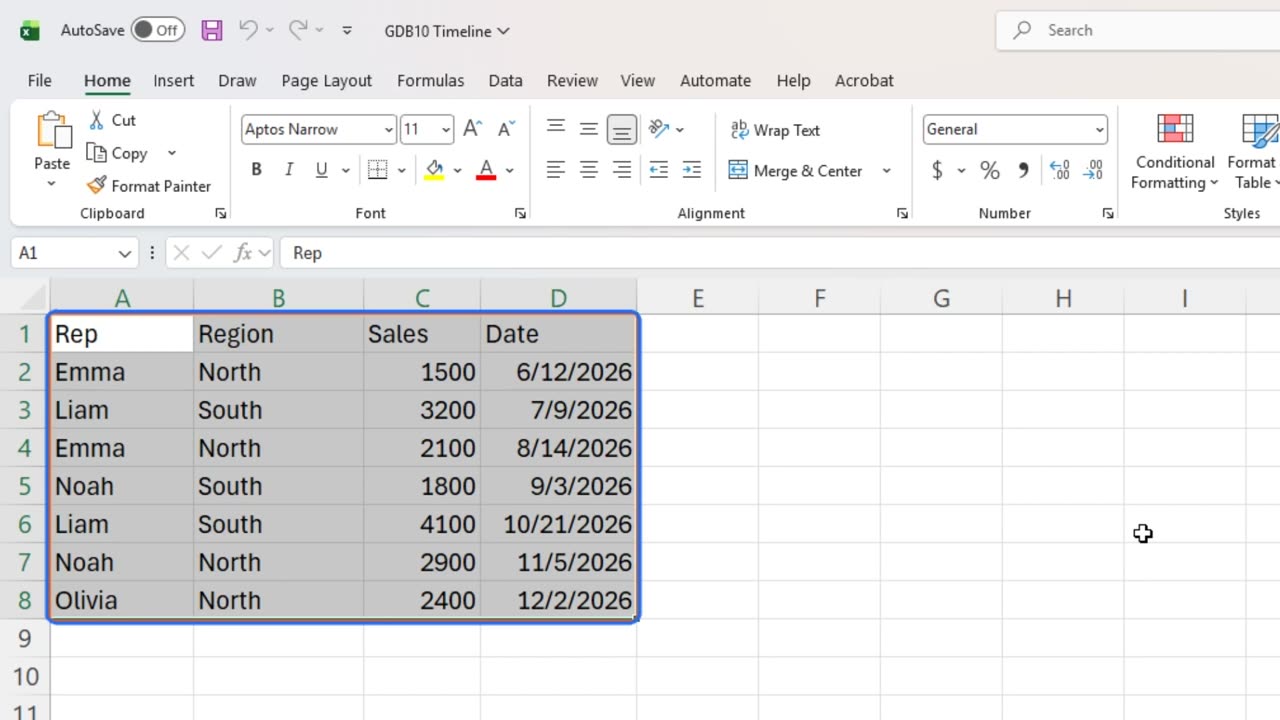
Timelines work with PivotTables. First a Table: select the data and press Control and T, then Enter.
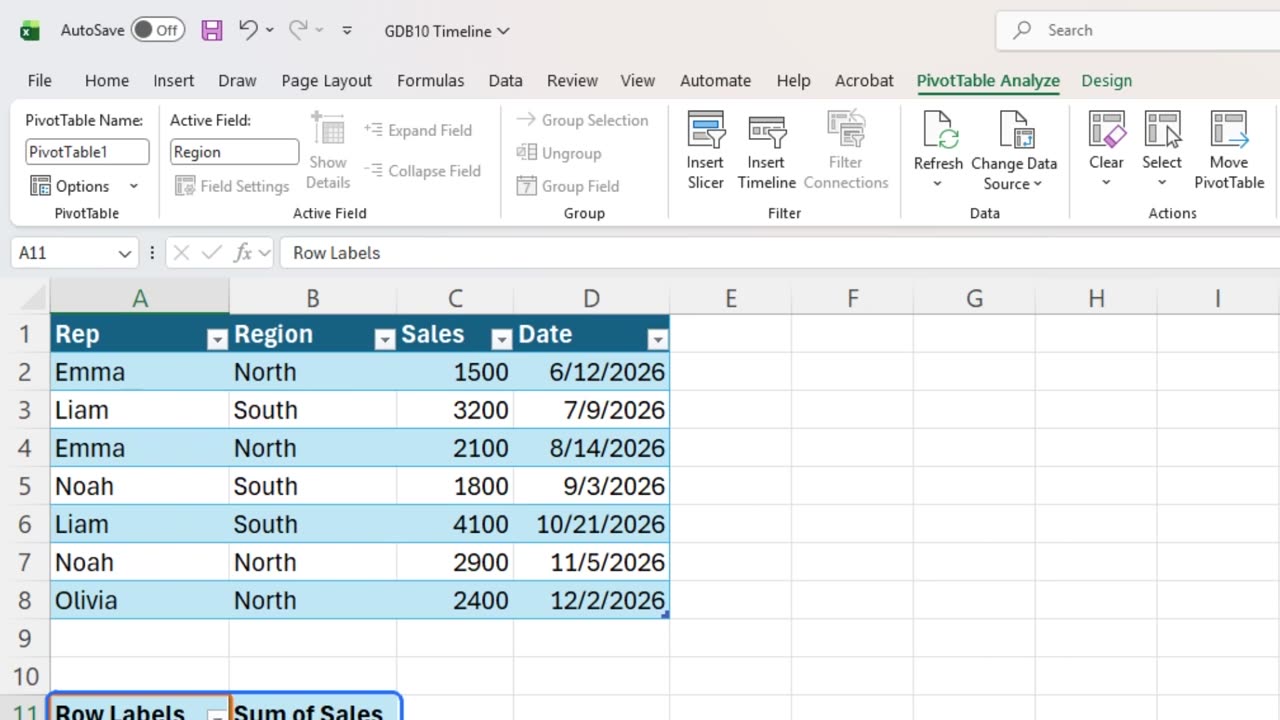
Now the PivotTable. Press Alt, N, V, T. Choose Existing worksheet with Alt and E, then Alt and L for the location.
Type Sheet1, exclamation mark, A11, so it sits right under the data, and press Enter.
In the field list on the right, tick Region, then Sales.
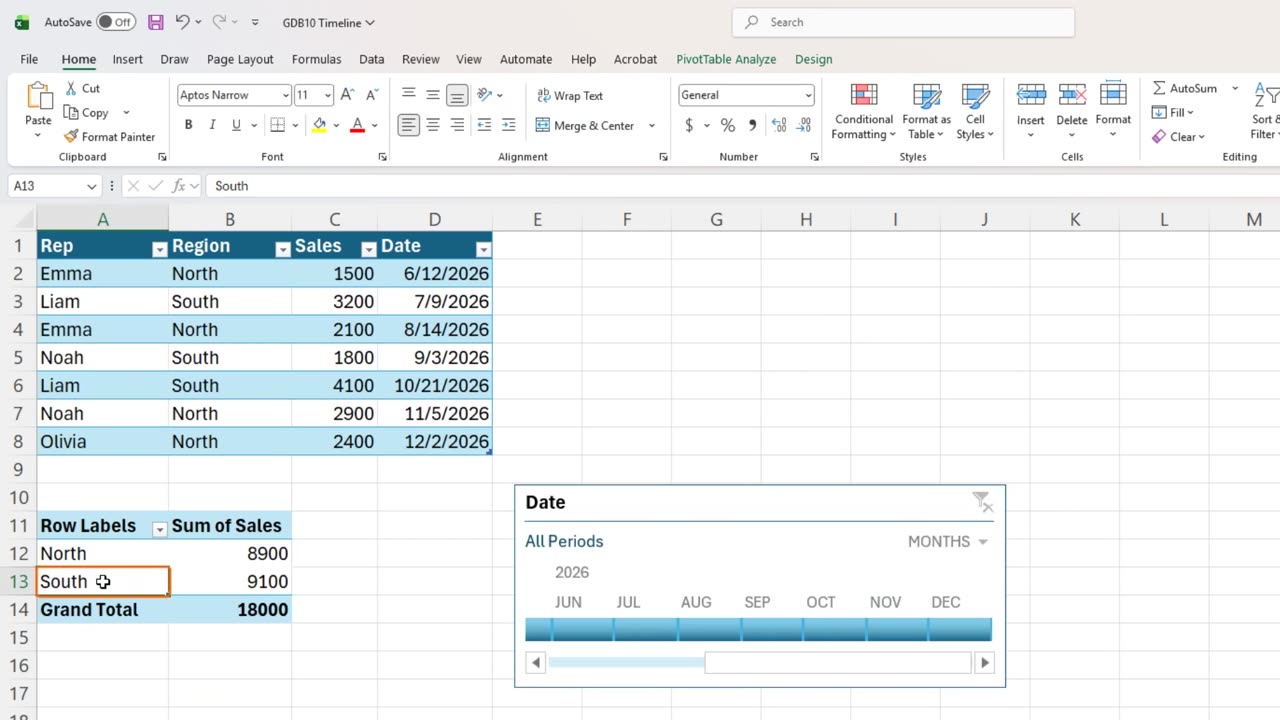
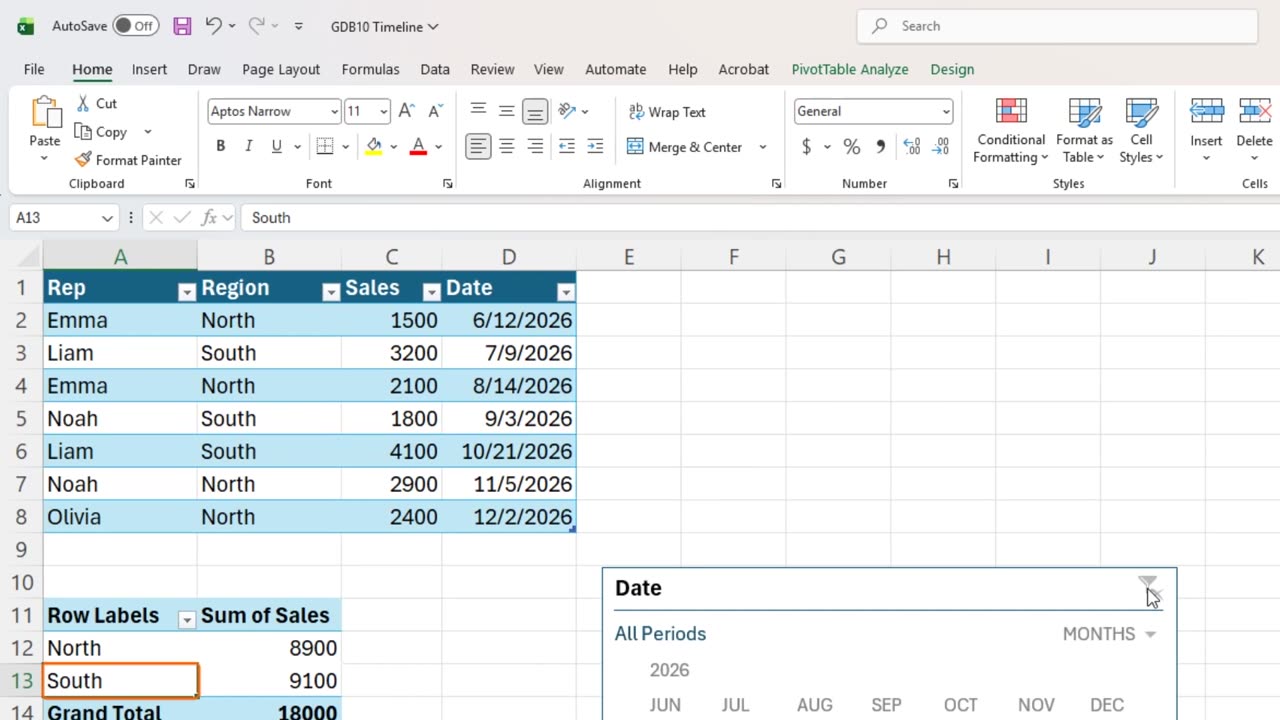
Sales by region, eighteen thousand in total.
Shortcut: Ctrl + T
3. Insert a timeline
Click inside the PivotTable and press Alt, N, S, T. That is Insert, Timeline.
Excel only offers fields that hold real dates. Press Space to tick Date, and Enter.
4. One click per month
A calendar bar, one tile per month. Click August.
The PivotTable shows August only: two thousand one hundred, all from North.
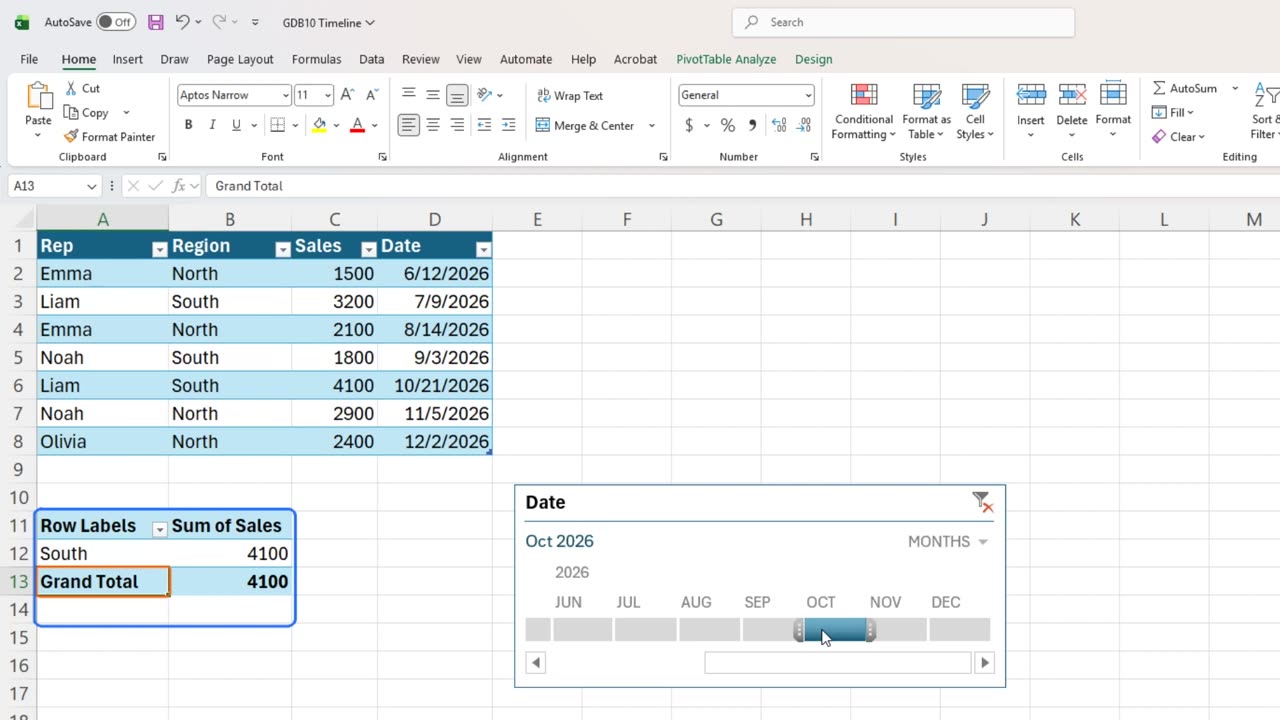
Click October, and it switches: four thousand one hundred, from South.
5. The trap
Now the trap. Look up at the Table. Every row is still there, all seven months.
A timeline filters only the PivotTable it is connected to. Any formula on the source data, or a second report, ignores it. Build every number the timeline should control from that PivotTable.
To see every month again, click the clear filter icon in the timeline's corner.
That completes the dashboard toolkit. Which of these ten secrets will you use first? Tell me in the comments.
← Previous tutorial: Excel's Live Picture Trick for Dashboards
Next tutorial: Fill 5,000 Rows in Excel in One Second (No Dragging) →