Excel's Live Picture Trick for Dashboards
Paste a range as a linked picture from the keyboard, watch it update live, and remove the gridlines that give it away.
- The layout problem
- Paste a linked picture
- It stays live
- The gridline trap
Step by step
1. The layout problem
Dashboards fight the grid: one table needs wide columns, another needs narrow ones. A linked picture ends that fight.
2. Paste a linked picture
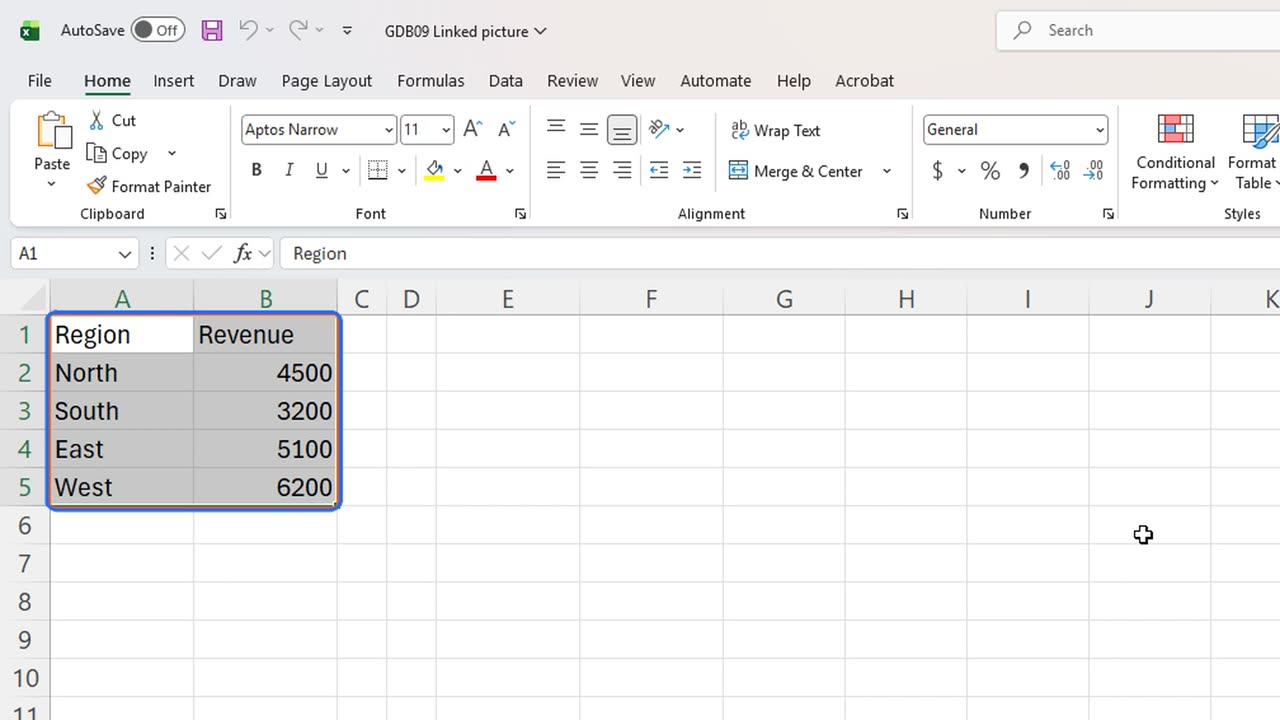
Select the table and copy it with Control and C.
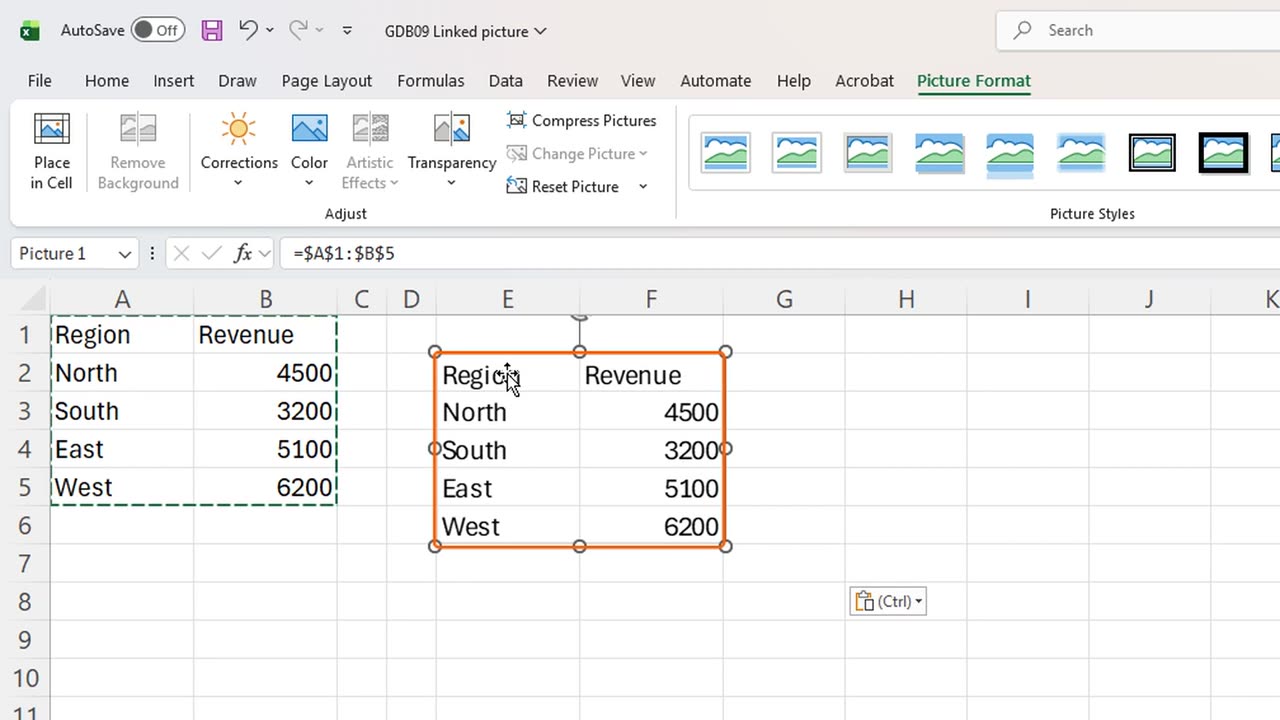
Click where the dashboard should show it, E2, and press Alt, H, V, I. That is Paste, Linked Picture.
It looks like the table, but it is a picture floating above the grid. You can move it or resize it, and the columns underneath never change.
Shortcut: Ctrl + C
3. It stays live
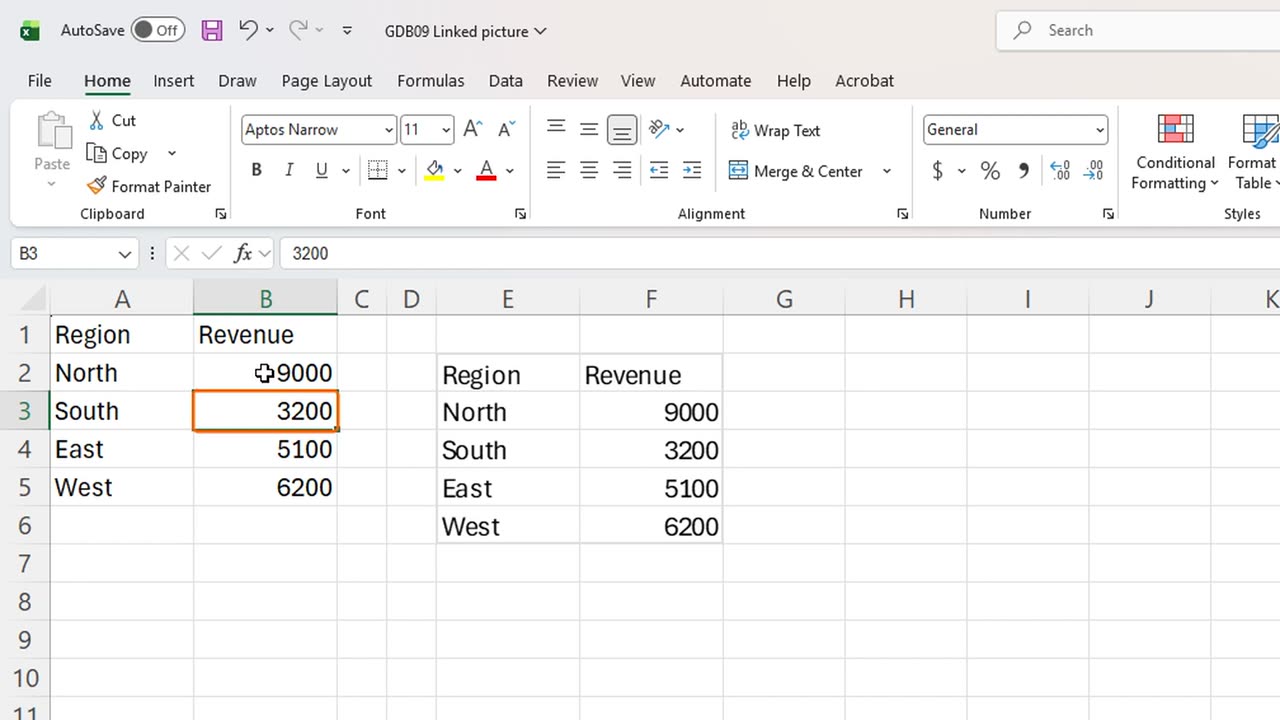
And it is live. Press Escape, click B2, and type nine thousand for North.
The picture updates at once, because it is a window onto the cells, not a snapshot.
4. The gridline trap
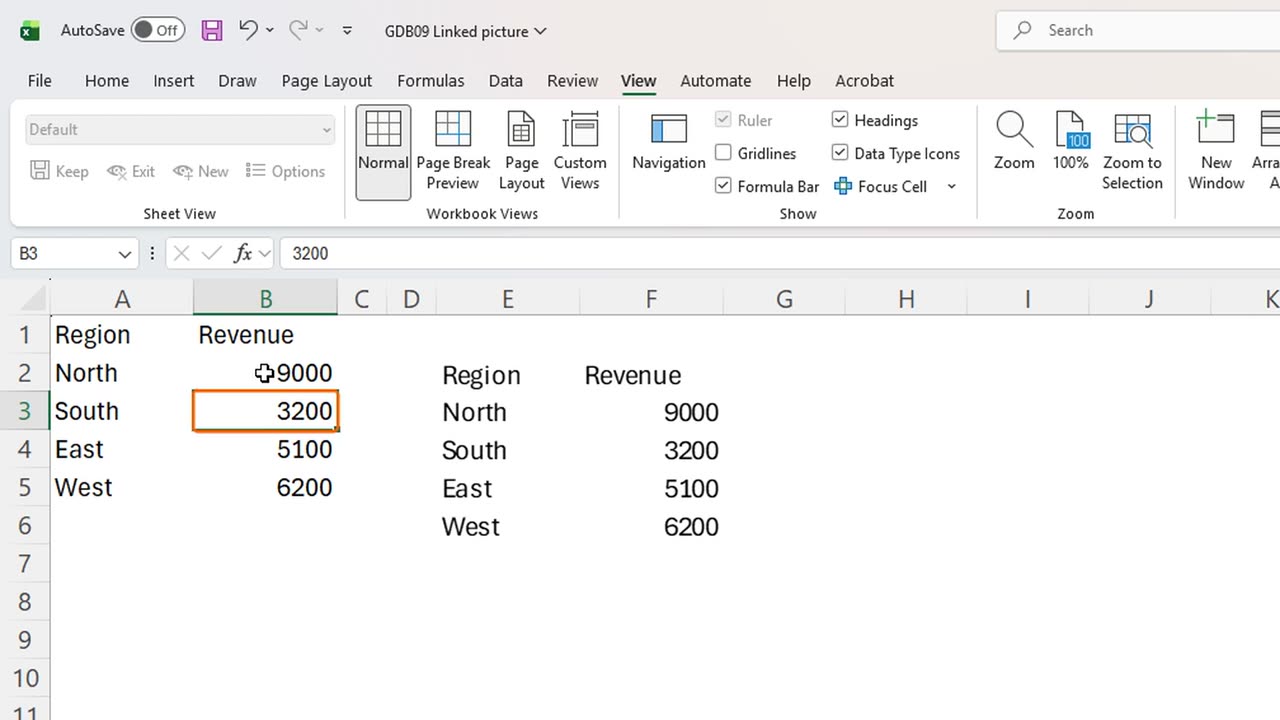
The trap: the picture copies everything it sees, gridlines included, so it looks like a piece of spreadsheet stuck on the dashboard.
Turn the gridlines off with Alt, W, V, G. That is View, Gridlines.
Now the picture is clean: just the table, sitting wherever you place it.
Would you build a dashboard from linked pictures? Tell me in the comments what you would put on it.
← Previous tutorial: Excel Icon Sets: Why Zero Gets a Green Arrow
Next tutorial: Filter a PivotTable by Month in One Click (Timeline) →