Clean Messy Data with Copilot in Excel
Use Copilot to trim spaces, fix capitalization, convert text numbers and dates, and remove duplicates and blank rows, and learn to review and verify each fix.
- Welcome
- Spot the problems
- Keep a backup
- Clean with Copilot
- Review, then proceed
- Numbers, dates and duplicates
- Use the clean data
- Ask what changed
- Four habits
Step by step
1. Welcome
Welcome back to the Copilot series. In the last episode we found Copilot, asked it for a table, checked the result, and used Undo. Today we give it a real job: cleaning messy data.
Real data is rarely tidy. It comes from emails, exports and typing, and it is full of small problems that quietly break formulas, filters and charts.
2. Spot the problems
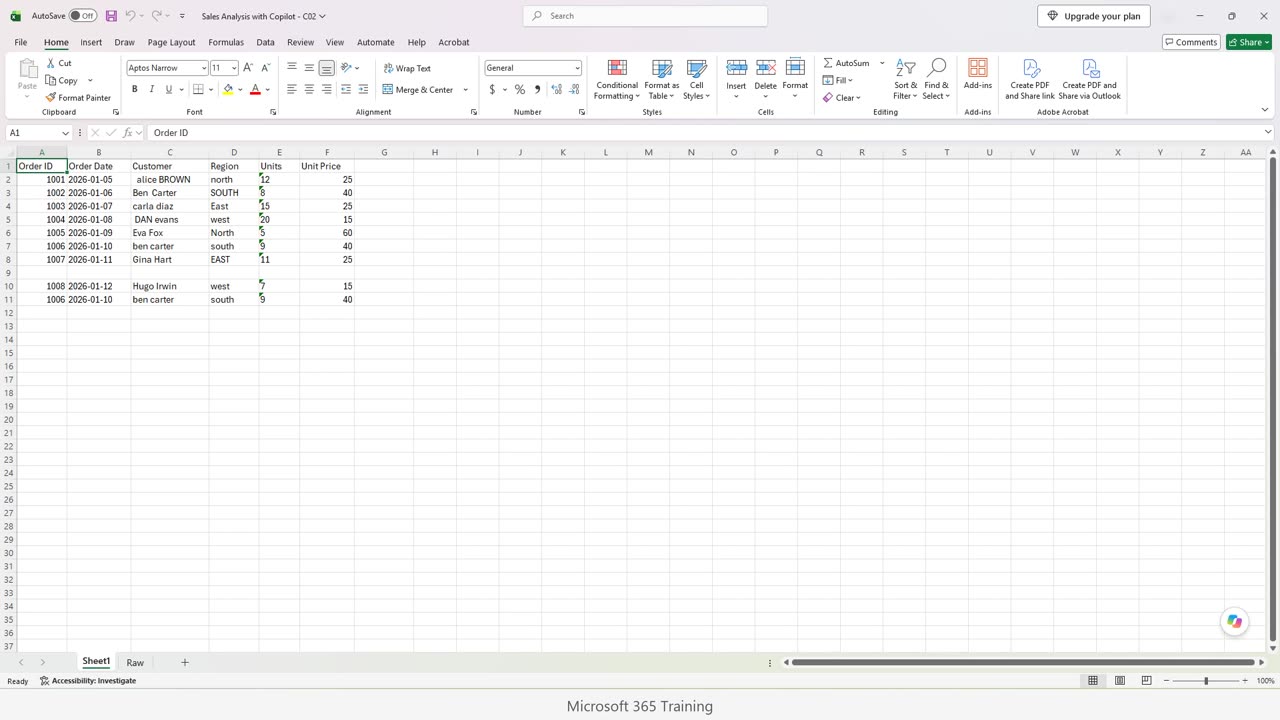
This is a small orders table, and it has six problems. Let's find them before we ask Copilot for help, because you must know what is wrong to check the fix.
One: some customer names have extra spaces, and the capital letters are all over the place.
Two: the regions are written in different ways. North, north, and SOUTH with a space at the end. To Excel, those are different values.
Three and four: the units and the dates sit on the left side of their cells. That is the sign of text. Numbers and dates should line up on the right.
Five: there is a blank row in the middle of the data. Six: order 1006 appears twice, so it would be counted twice in any total.
3. Keep a backup
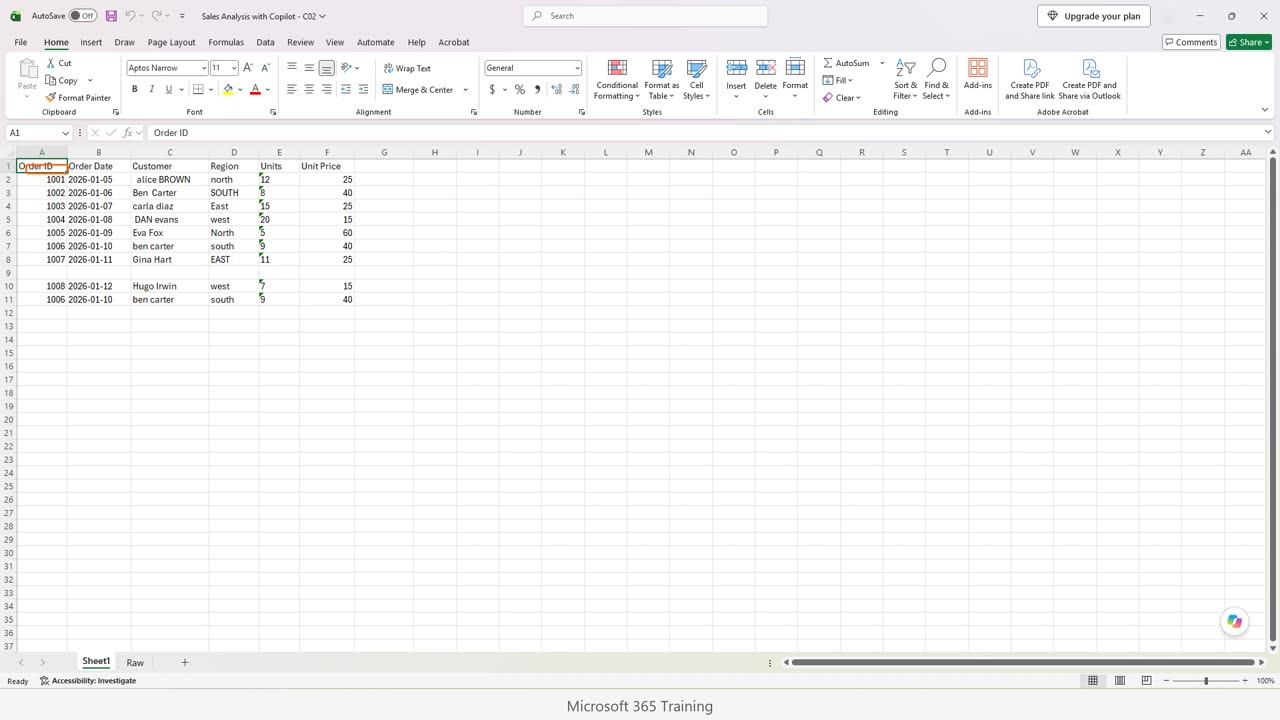
Notice the second sheet, named Raw. I made a copy of the untouched data there before we start. Always keep an original, so you can compare, or start over.
4. Clean with Copilot
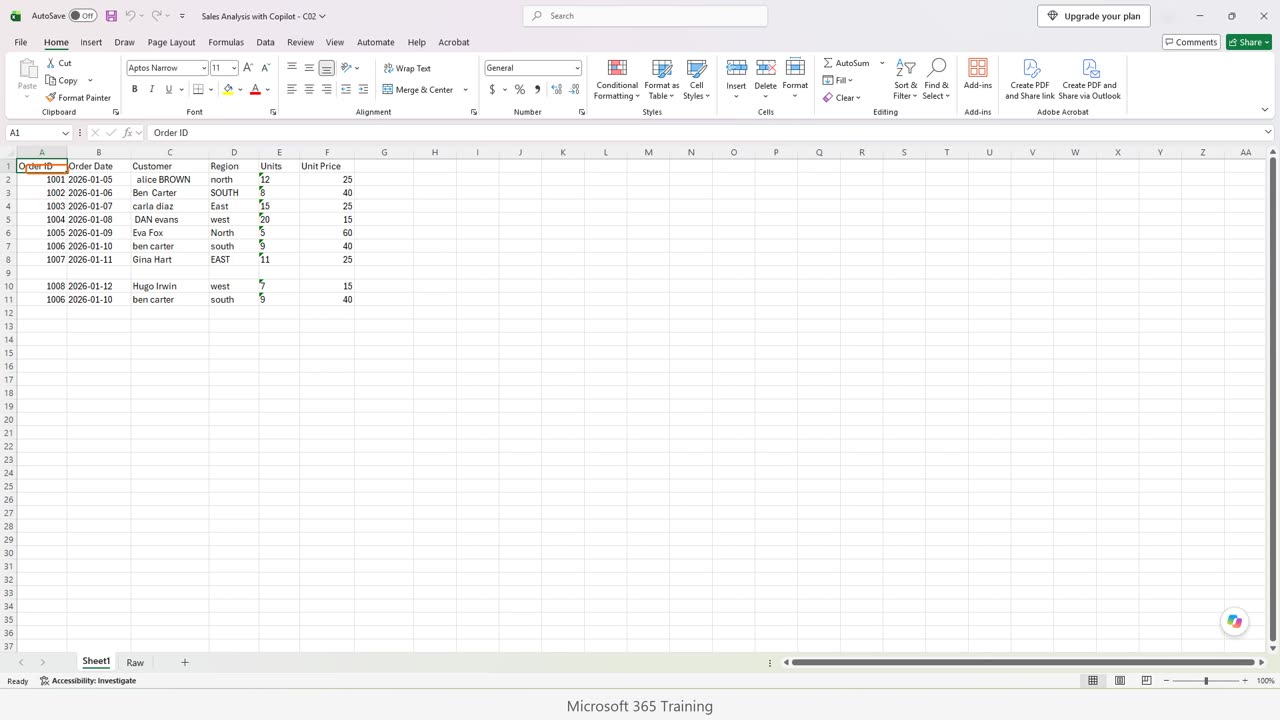
Now open Copilot, with the round button at the bottom right.
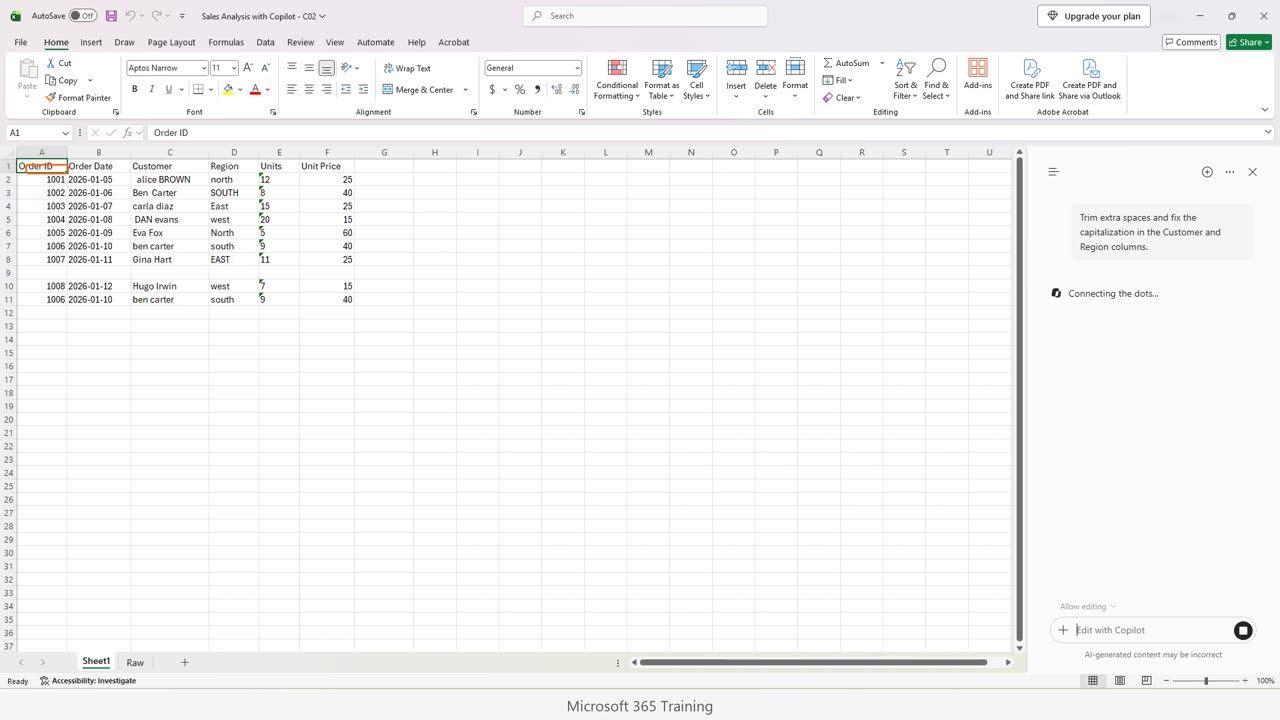
Let's start with the spaces and capital letters. Type a short, clear request. Name the columns, and say what you want done.
Copilot is reading the sheet. Extra spaces are a classic problem. A lookup for Ben Carter fails if the cell says Ben Carter with a space after it, and nothing on screen shows why.
The same goes for capital letters when you group or count. Clean names and regions are the foundation for every pivot table and chart later in this series.
5. Review, then proceed
Look carefully. Copilot has not changed anything yet. It lists the fixes it proposes, grouped by type, with the number of cells in each group.
This review step is a safety net. You can untick a group you do not want. When you agree with the list, click Proceed.
Copilot applies the fixes now.
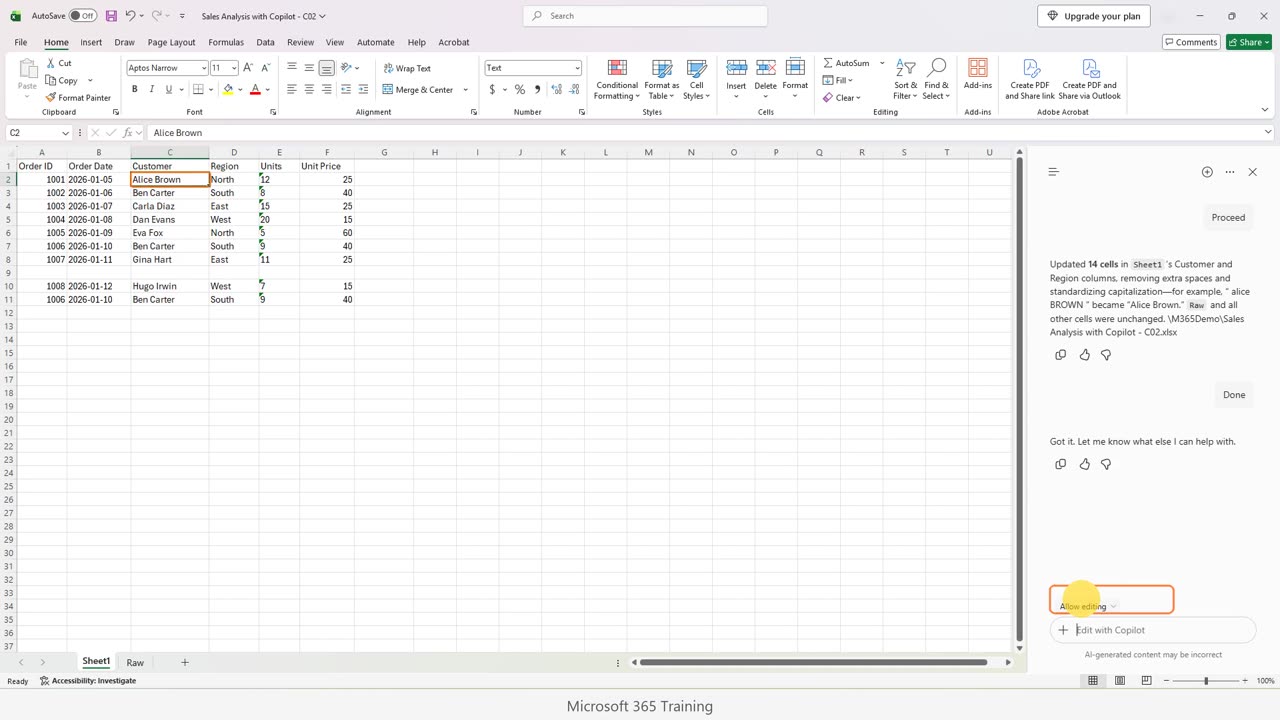
Done. Now check it yourself. Click the first customer name. It should read Alice Brown, with no extra spaces, and the regions should all start with a capital letter.
If you are happy with the change, click Done to keep it.
6. Numbers, dates and duplicates
Next problem: the text numbers and dates, the blank row, and the duplicate. This time we ask for everything in one request.
While Copilot works, think about why this matters. A sum ignores text, so text numbers break totals. A real date can be sorted and filtered by month. A text date is just letters.
Duplicates are even more dangerous, because they inflate your sales without any warning. This is why we check the review list carefully.
This list is longer, so scroll down inside the pane to read all of it.
Read what Copilot will change. It converts text to real numbers and dates, removes the duplicate row, and deletes the blank row. Removing rows is a real change, so be sure you agree.
This is exactly what the Raw sheet is for. If something looks wrong afterwards, you can compare the two sheets, or click Undo.
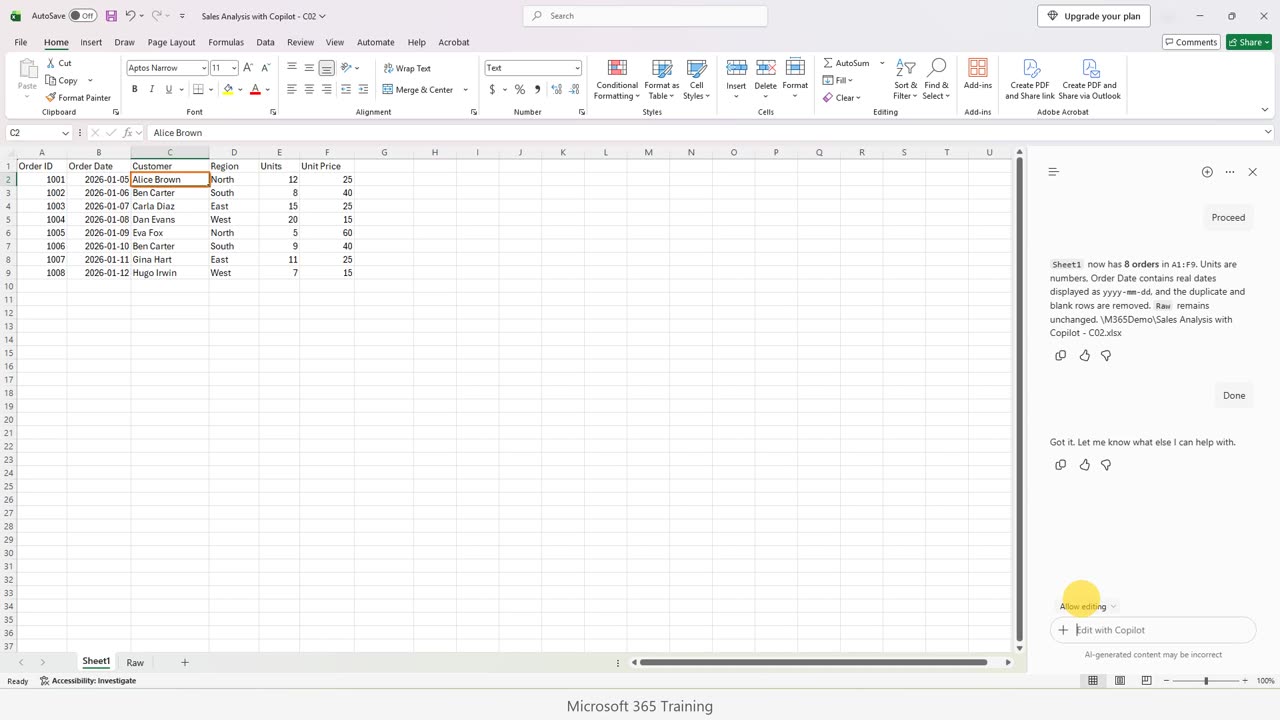
The blank row is gone, and order 1006 now appears once. The table has no gaps and no repeated orders.
Now look at the units and the dates. They moved to the right side of their cells, which means they are real numbers and real dates.
Keep it with Done.
7. Use the clean data
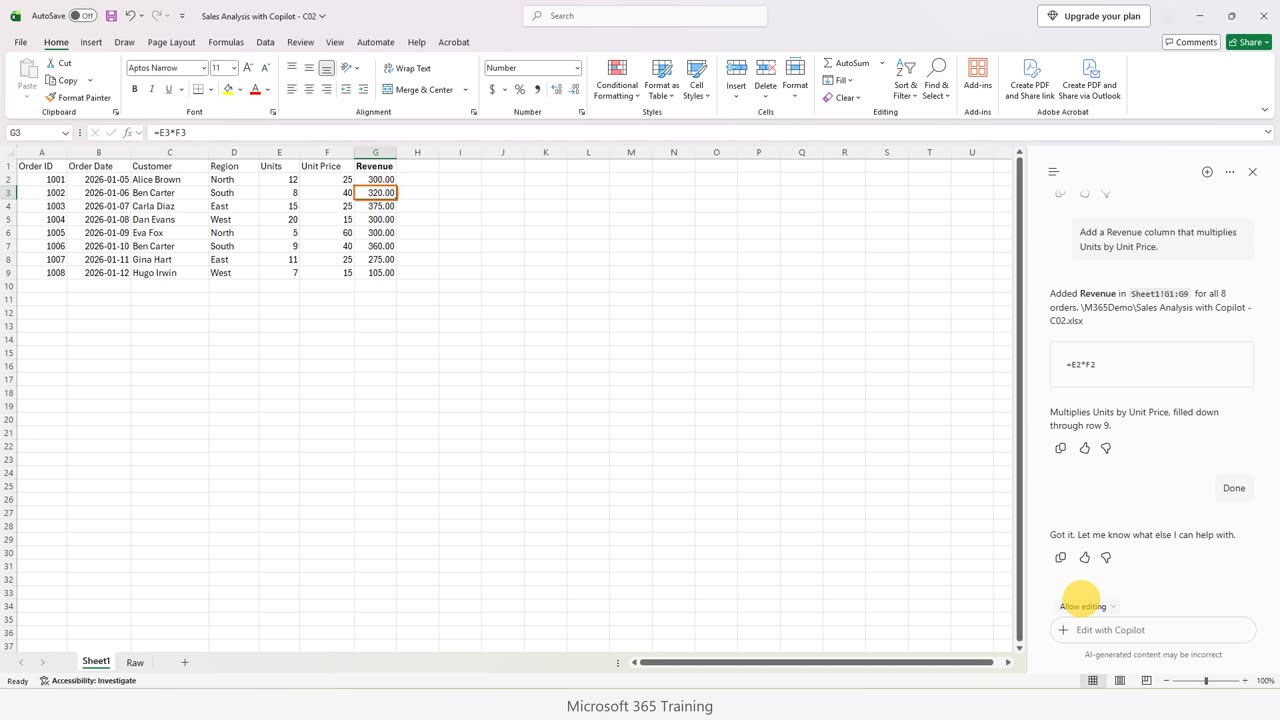
The data is clean, so we can use it. Let's add a Revenue column that multiplies units by price.
This works well only because the units are real numbers now. If they were still text, the multiplication would fail, or Excel would show an error.
That is the whole point of cleaning first. Clean data makes every later step simple.
The Revenue column is there. Click a revenue cell and check the formula, as we learned in the first episode.
Keep it with Done.
8. Ask what changed
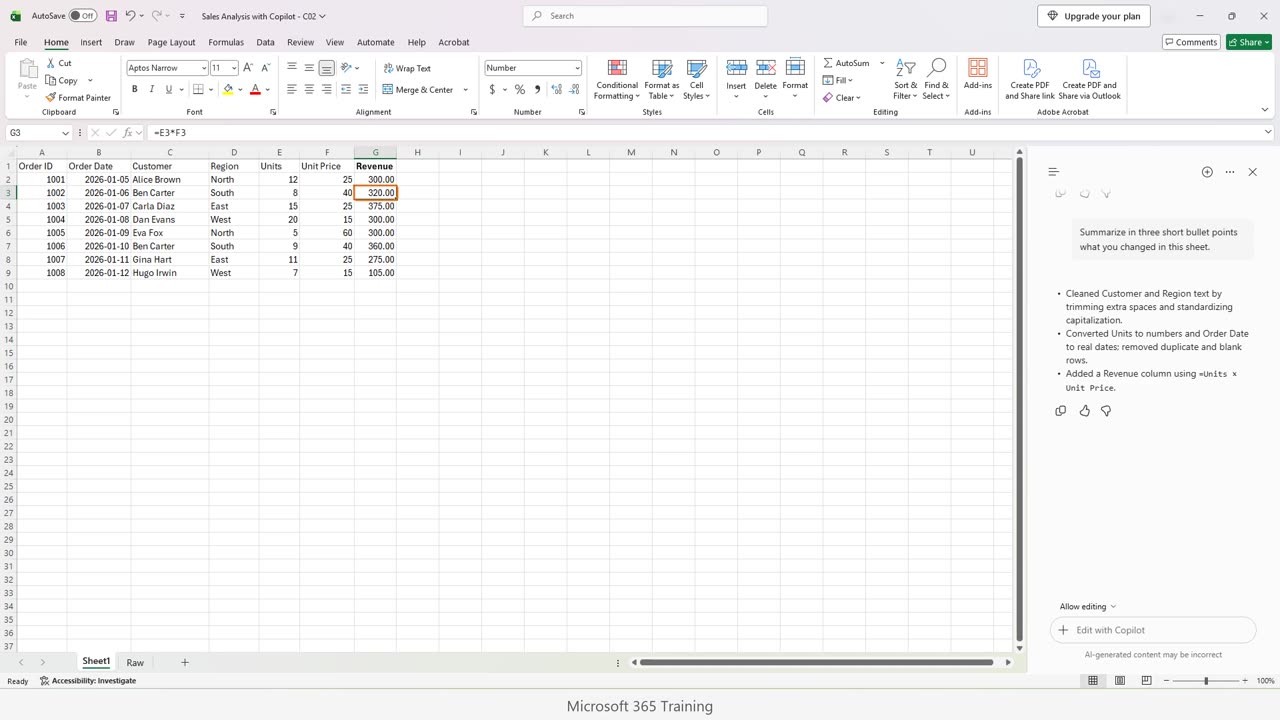
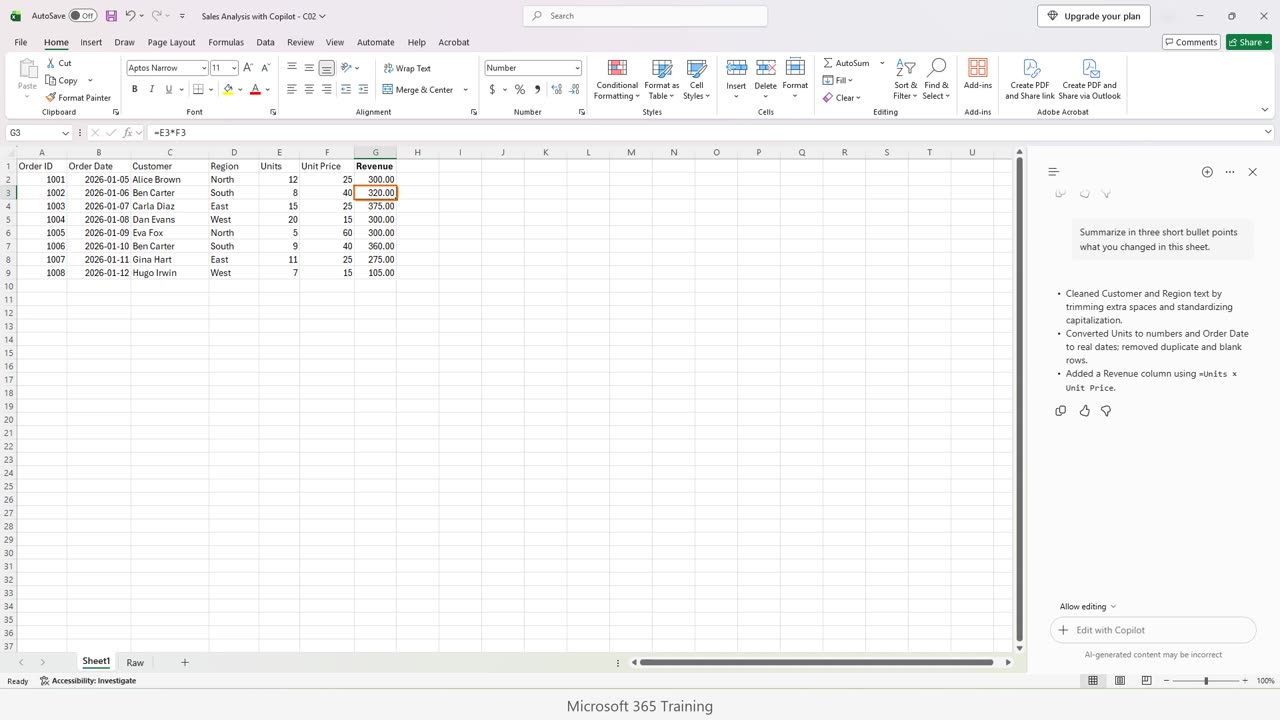
One last tip. You can ask Copilot to explain what it changed. Let's ask for a three point summary.
This kind of summary is useful for your own notes, and for a colleague who needs to know what happened to the data.
Read it, and compare it with what you saw. If the summary says something you did not see, investigate.
9. Four habits
To finish, here are four habits for cleaning data with Copilot. Keep a raw copy. Review the proposed fixes. Check each result. Use Undo when something looks wrong.
In the next episode we will write formulas with Copilot, and, more importantly, learn how to read and verify them. See you there.
If there is something you want to learn next, write it in the comments. Your requests decide what we teach in the next tutorials. Thanks for watching, and see you in the next one.
← Previous tutorial: Meet Copilot in Excel: Your First Prompts
Next tutorial: Fill 5,000 Rows in Excel in One Second (No Dragging) →