Excel Macros for Beginners (Record Your First Macro)
Record, run and save a simple macro.
- Record once
- Record a macro
- The same-cells trap
- Relative references
- Save as .xlsm
- Recap
Step by step
1. Record once
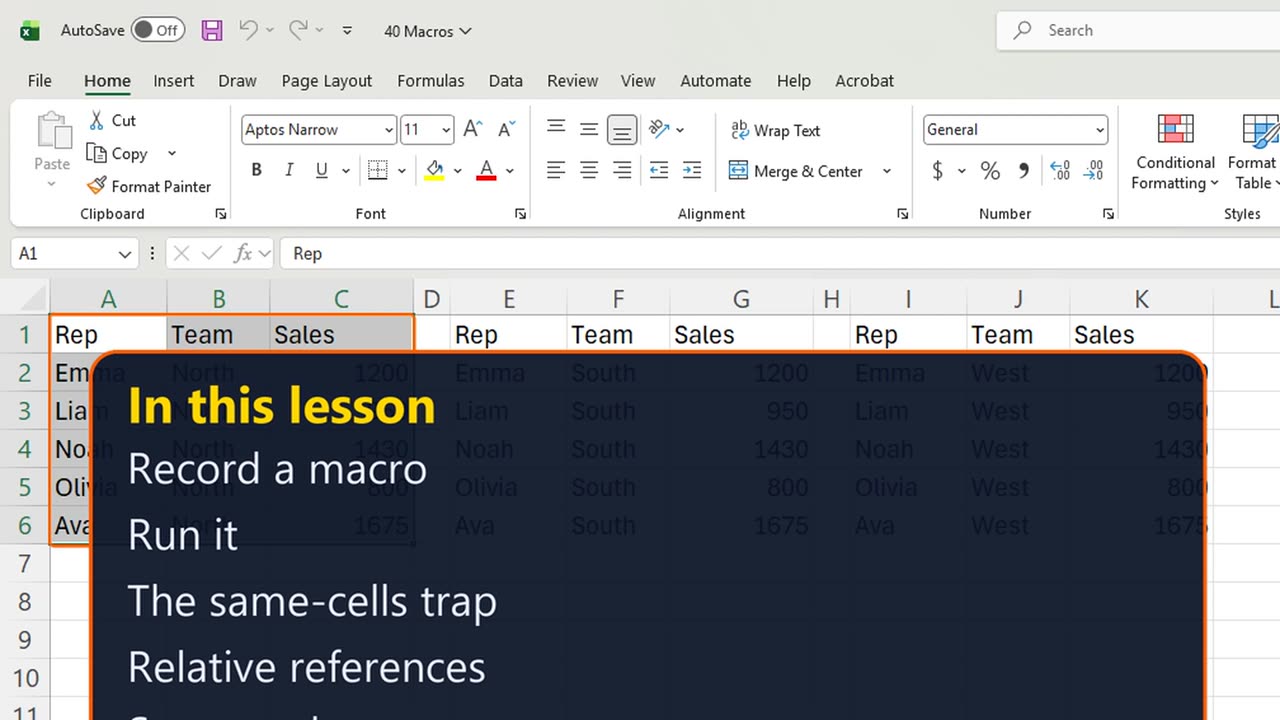
Every Monday you format the same report: bold headers, money in the last column. A macro records those clicks once and replays them in a second.
You will record a macro, run it with a shortcut, and see why most first macros only ever work in one place.
2. Record a macro
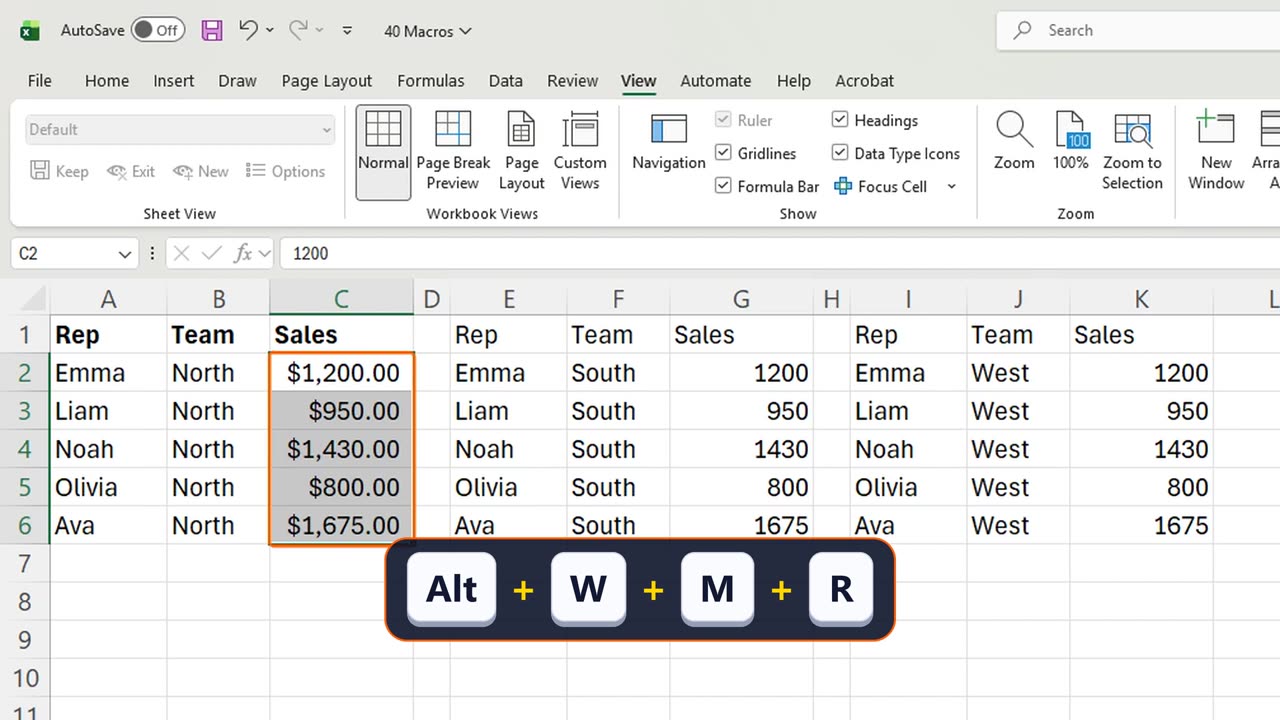
Click A1. Open View, Macros, Record Macro: Alt, W, M, R. Name it FormatReport, set the shortcut to Control Shift Q, and press Enter.
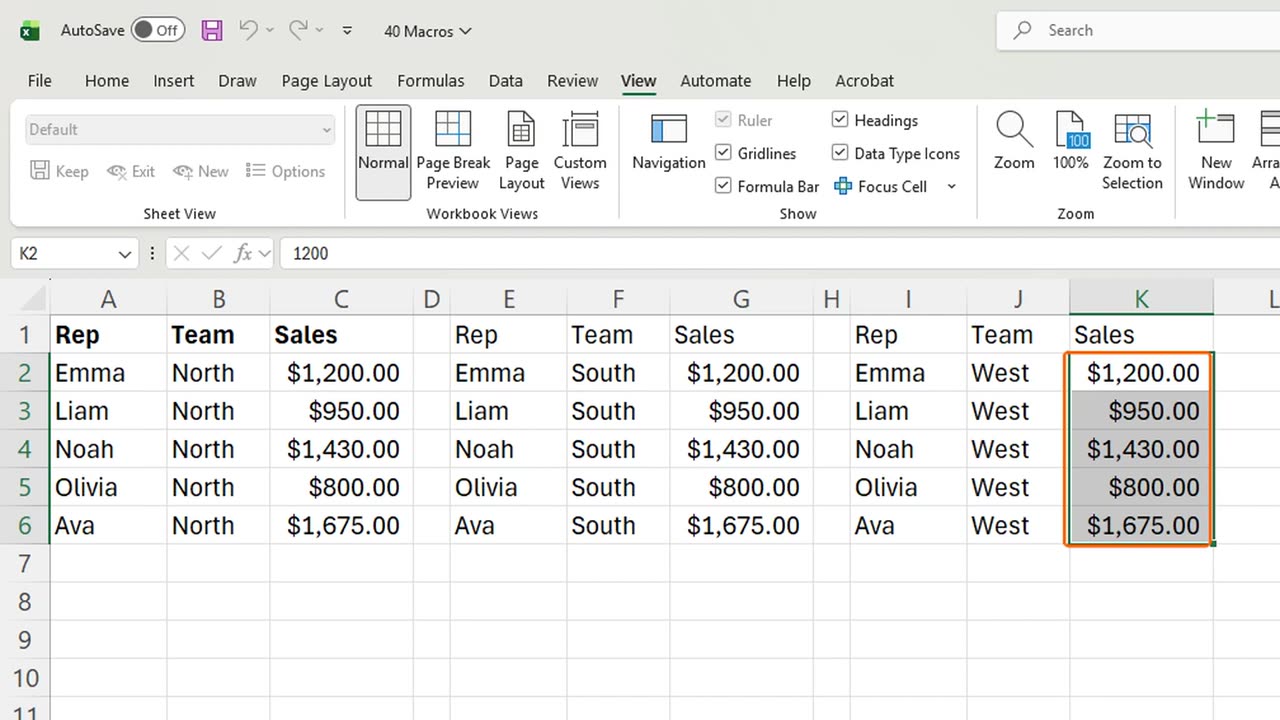
Excel is recording. Select A1 to C1 and press Control B. Then select C2 to C6 and press Control Shift 4.
Stop the recording with the same keys: Alt, W, M, R.
3. The same-cells trap
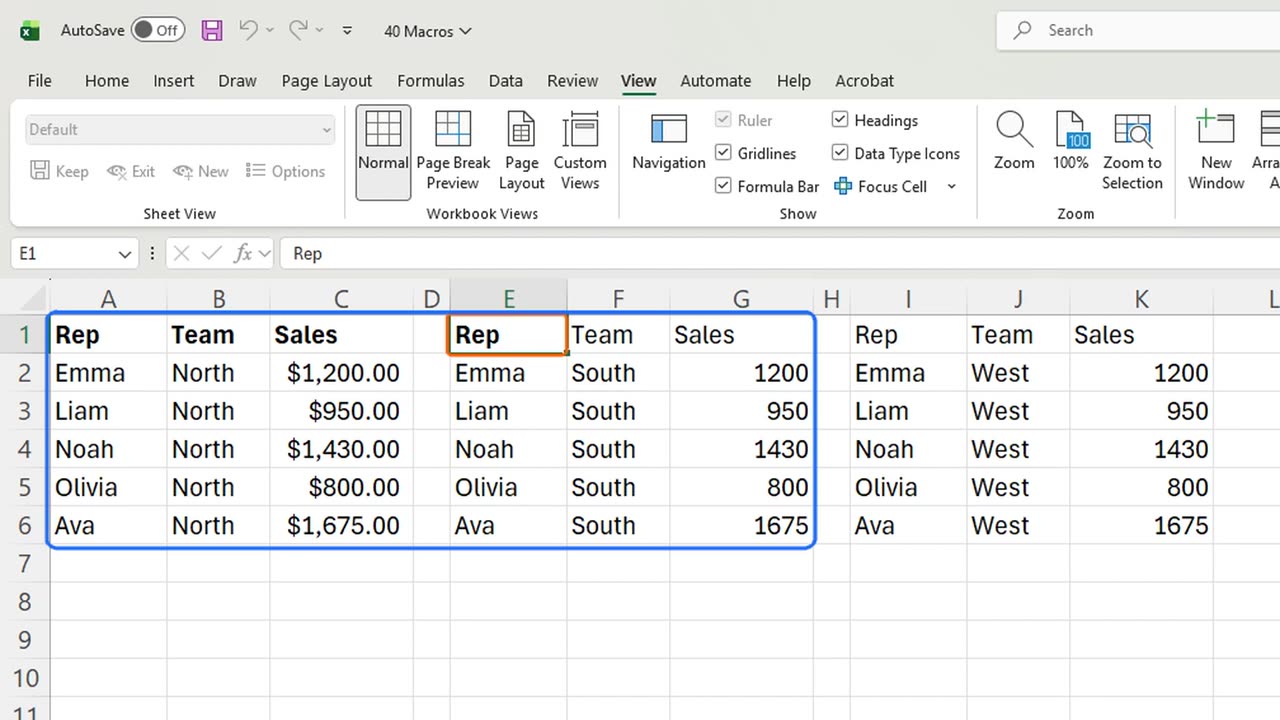
Now the second team's report in E to G. Click E1 and press Control Shift Q.
Nothing changed in E. The selection jumped back to column C. The macro recorded the exact cells, A1 to C1 and C2 to C6, so it formats those every time.
Quick pause: if you have ever recorded a macro that only worked once, a like really helps the channel. Here is the fix.
4. Relative references
Click E1. Turn on Use Relative References: Alt, W, M, U. Now the macro remembers moves, not addresses.
Record again: Alt, W, M, R, name it FormatBlock, give it Control Shift W, and Enter.
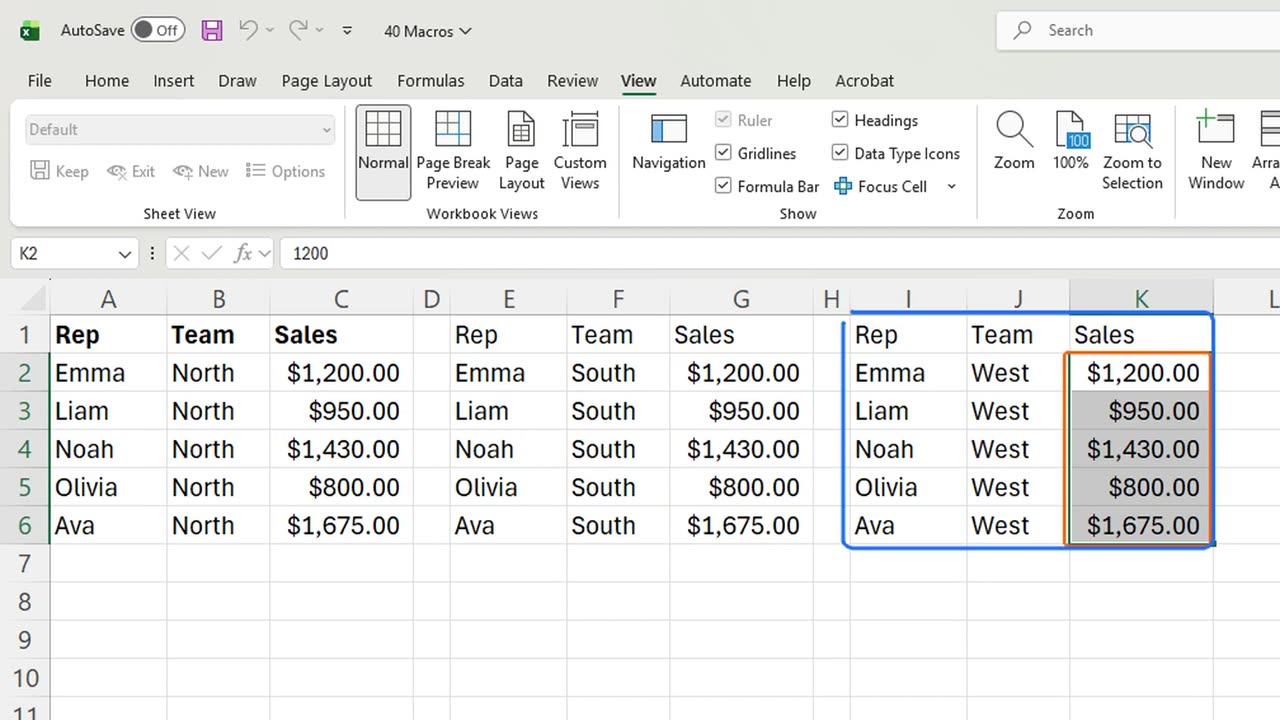
Press Shift and Right twice to select three headers, Control B. Then Down, Right twice, Shift and Down four times, Control Shift 4. Stop recording.
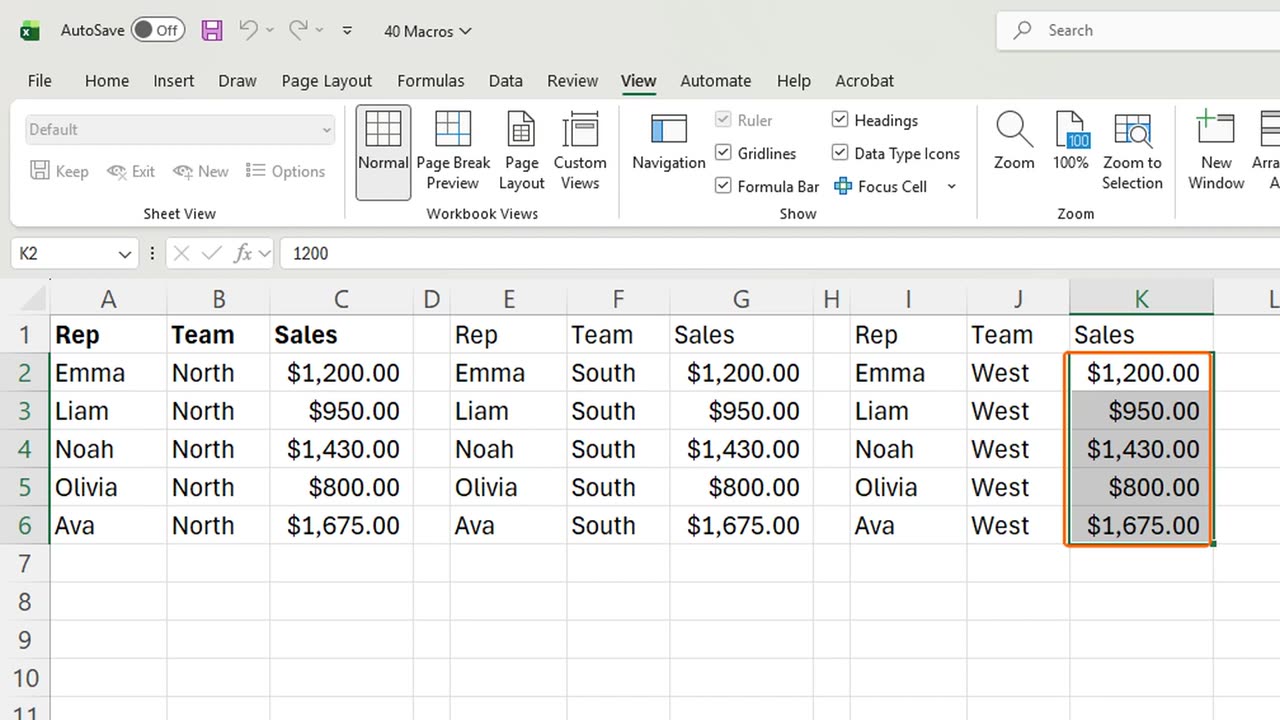
Now the third report in I to K. Click I1 and press Control Shift W. Bold headers, money format, right where you started.
5. Save as .xlsm
To keep macros, save the file as an Excel Macro-Enabled Workbook, dot x l s m. A normal dot x l s x file drops every macro when it closes.
6. Recap
Recap: Alt W M R records and stops, a shortcut runs it, Use Relative References makes it work anywhere, and dot x l s m keeps it.
In the next lesson, you will ask Copilot questions about your data.
Which boring task would you hand to a macro first? Tell me in the comments.
← Previous tutorial: Power Query Intro in Excel (Clean and Combine Data)
Next tutorial: Where to Go Next: VBA, Power BI and DAX →