Excel Data Validation: Drop-Down Lists and Rules
Create drop-down lists and restrict what can be typed in a cell.
- Intro
- A drop-down list
- The error message
- A number rule
- Input message
- Recap
Step by step
1. Intro
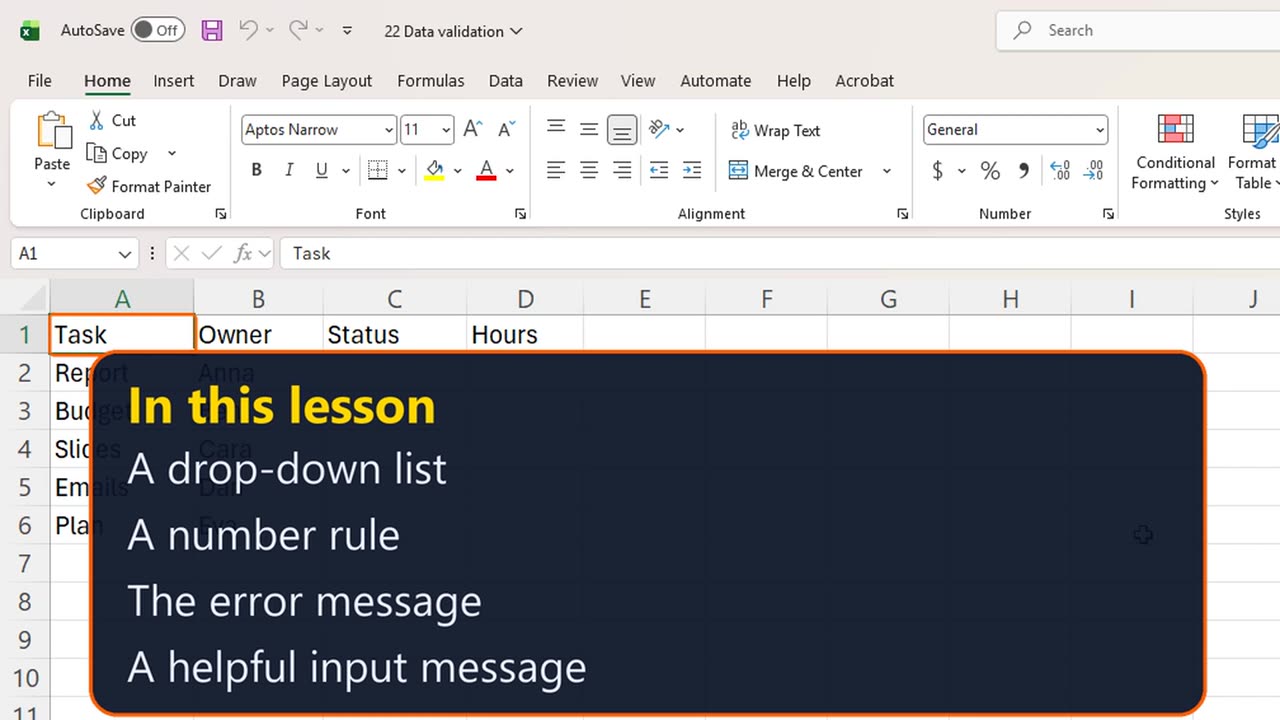
Welcome back. When several people fill in the same sheet, they type things in different ways. In this lesson, you will use Data Validation to control what can be typed in a cell.
You will build a drop-down list, and a rule that only accepts numbers in a range.
2. A drop-down list
Here is a task list. The Status column should only ever say Open, Done or Late. Without rules, someone will type finished, or done with a typo, and your filters and counts break.
Select C2 to C6. On the Data tab, open Data Validation, with Alt, A, V, V.
In Allow, choose List. In Source, type the choices, separated by commas: Open, Done, Late. Then click OK.
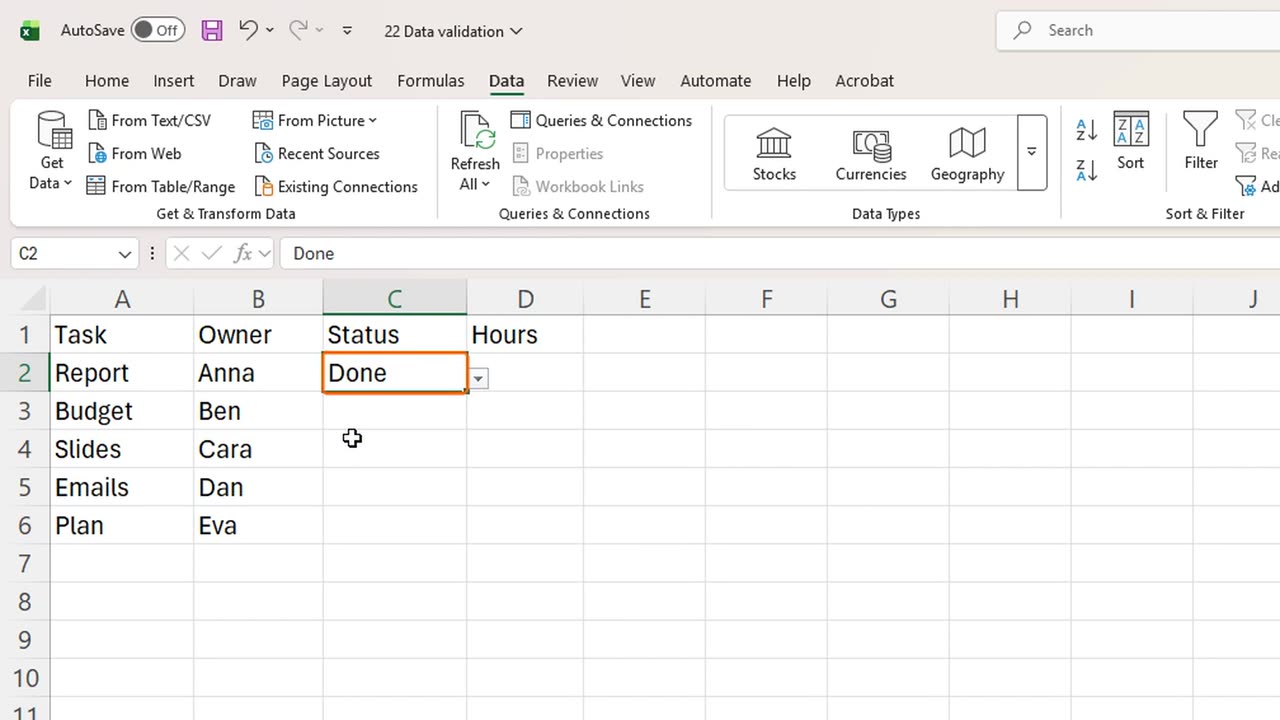
Click C2. A small arrow appears next to the cell. Click it, or press Alt and the down arrow, and pick Done.
3. The error message
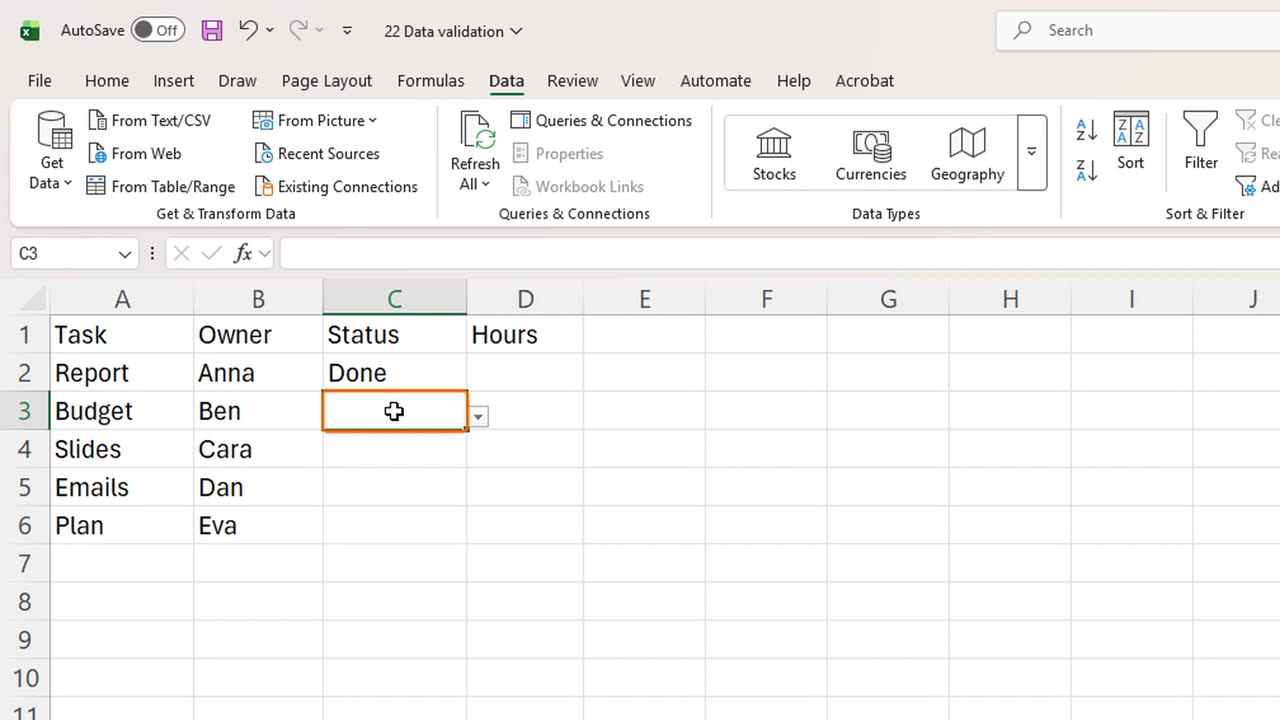
Now try to type something else. In C3, type finished, and press Enter.
Excel refuses it: the value does not match the rules of this cell. Press Escape to cancel, and the cell stays as it was.
4. A number rule
Next, the Hours column. Nobody should log zero hours, or more than forty. Select D2 to D6, and open Data Validation again.
In Allow, choose Whole number. Leave Data set to between. Type one as the minimum and forty as the maximum, and click OK.
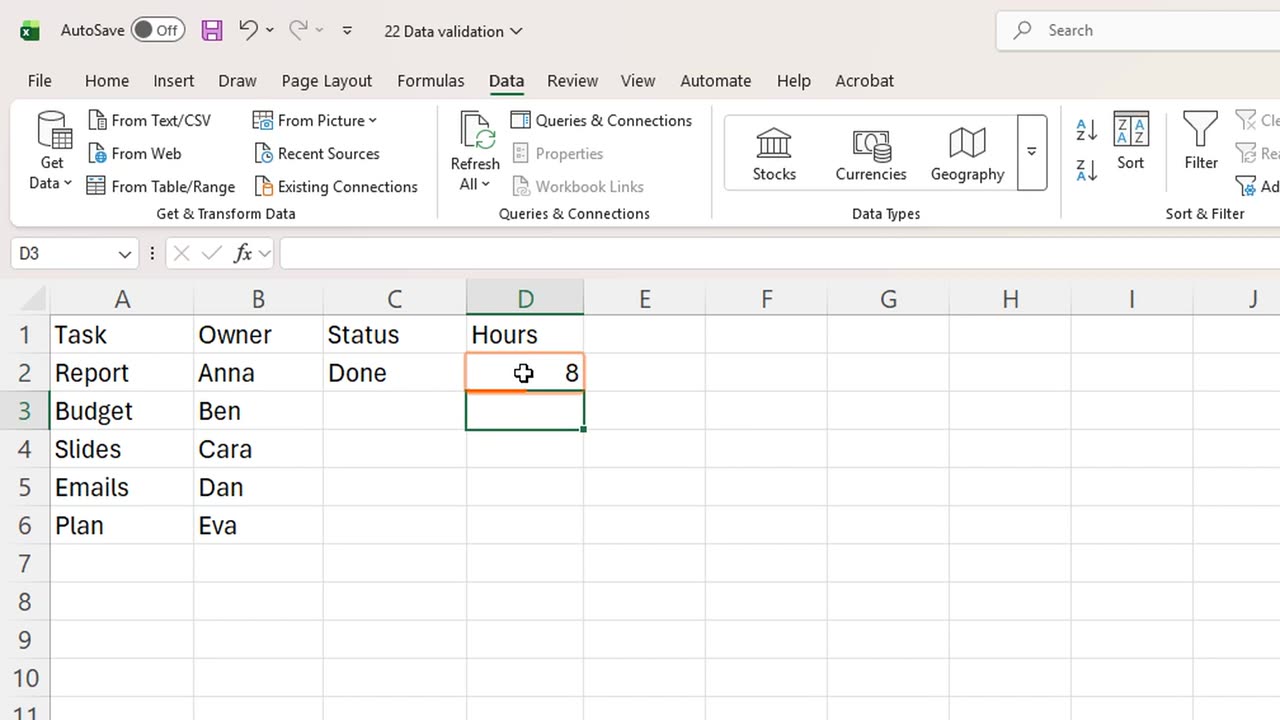
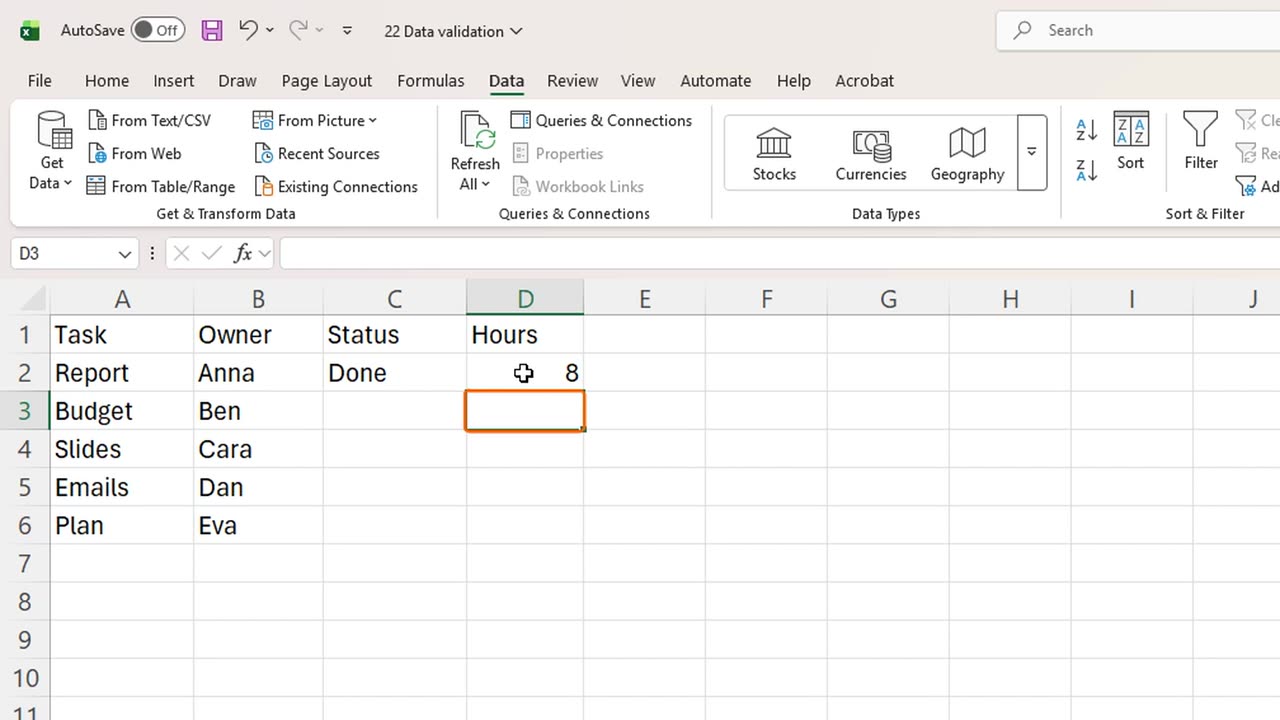
Test it. In D2, type fifty, and press Enter. Excel stops it. Press Escape, then type eight instead, and press Enter. That one is accepted.
5. Input message
Rules work best when people know them in advance. The Input Message tab of the same dialog shows a small tip as soon as someone clicks the cell, for example: enter whole hours, from one to forty.
One warning: validation checks typing, but values that are pasted from elsewhere can slip past it. Use Circle Invalid Data on the Data tab to find them.
6. Recap
Let's recap. Data Validation controls what goes in a cell. A List rule gives you a drop-down. A Whole number rule sets limits. And Excel blocks anything that breaks the rule.
In the next lesson, you will make cells change color on their own, with Conditional Formatting.
If there is something you want to learn next, write it in the comments. Your requests decide what we teach in the next tutorials. Thanks for watching, and see you in the next one.
← Previous tutorial: Remove Duplicates in Excel (Find and Delete Repeats)
Next tutorial: Conditional Formatting in Excel (Highlight Cells Automatically) →