Excel Formula Auditing: Trace Precedents and Show Formulas
Find where a formula gets its numbers and debug with Evaluate Formula.
- Intro
- Show formulas
- Trace precedents
- Trace dependents
- Evaluate formula
- Finding mistakes
- Recap
Step by step
1. Intro
Welcome back. In this lesson, you will learn how to inspect a formula that someone else wrote, or that you wrote a month ago: where its numbers come from, what depends on it, and how it calculates step by step.
These skills are called formula auditing. They turn a mysterious sheet into one you can understand, and they are the best way to find mistakes.
2. Show formulas
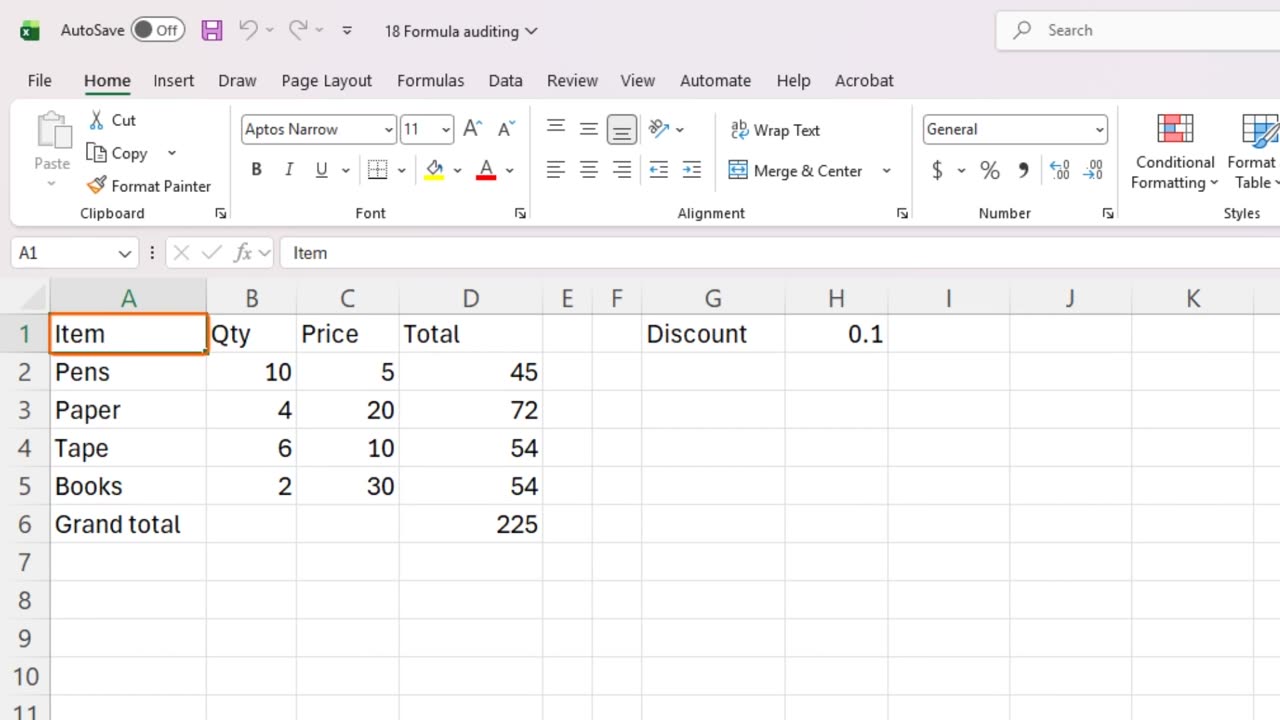
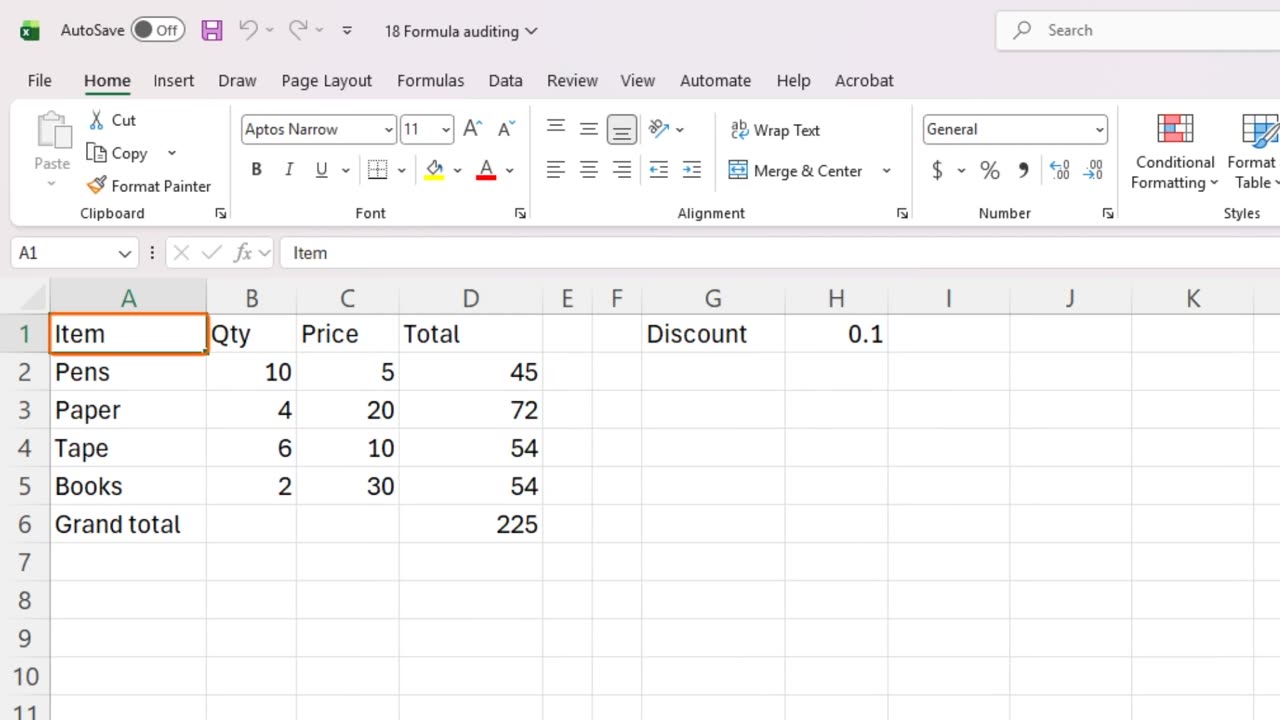
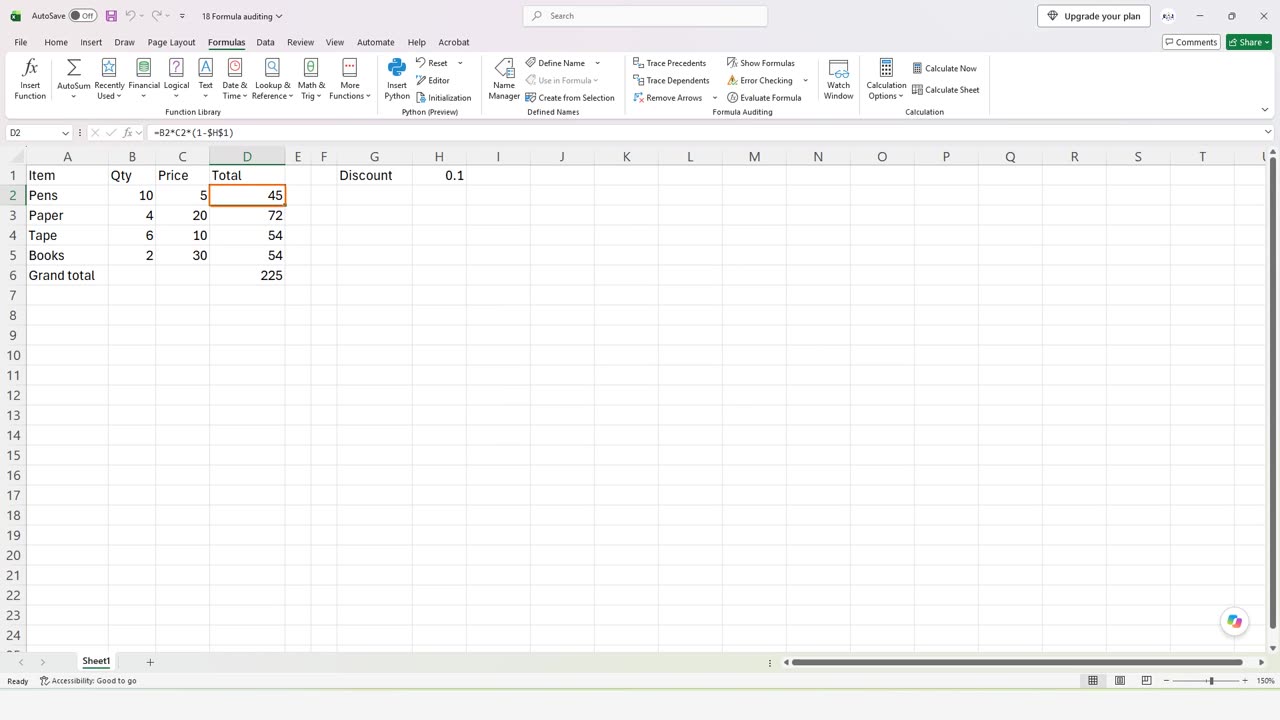
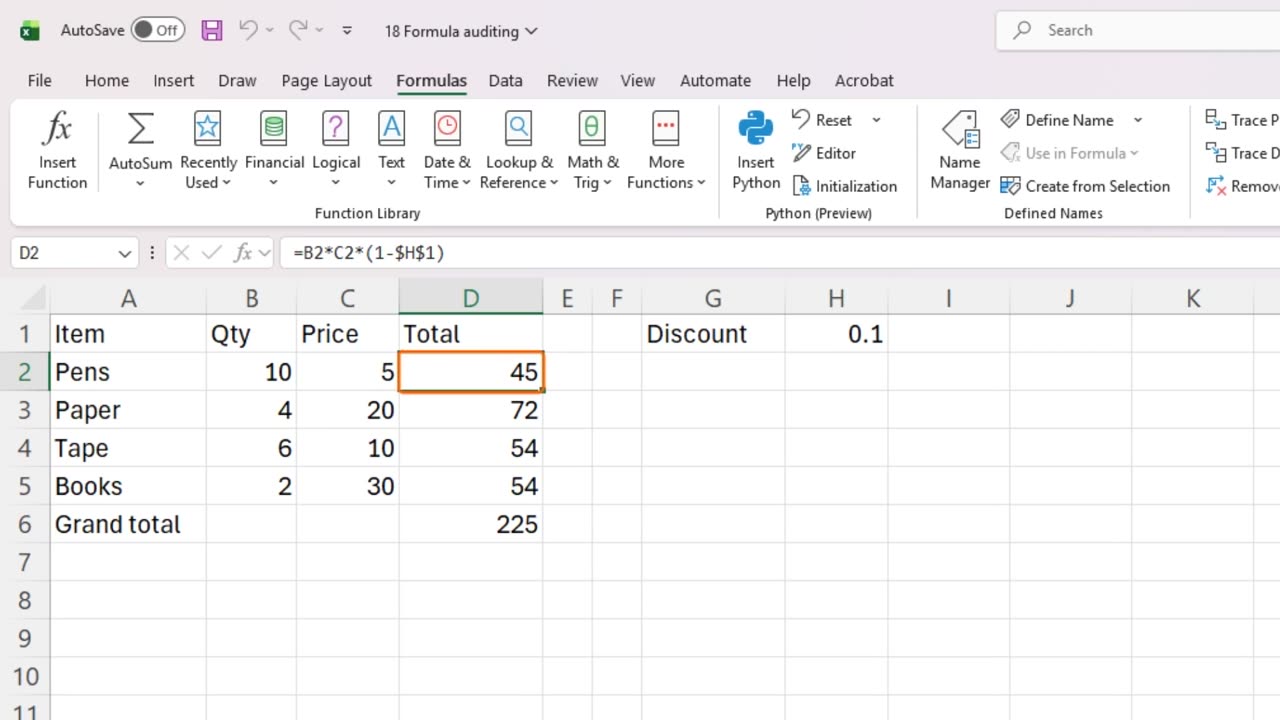
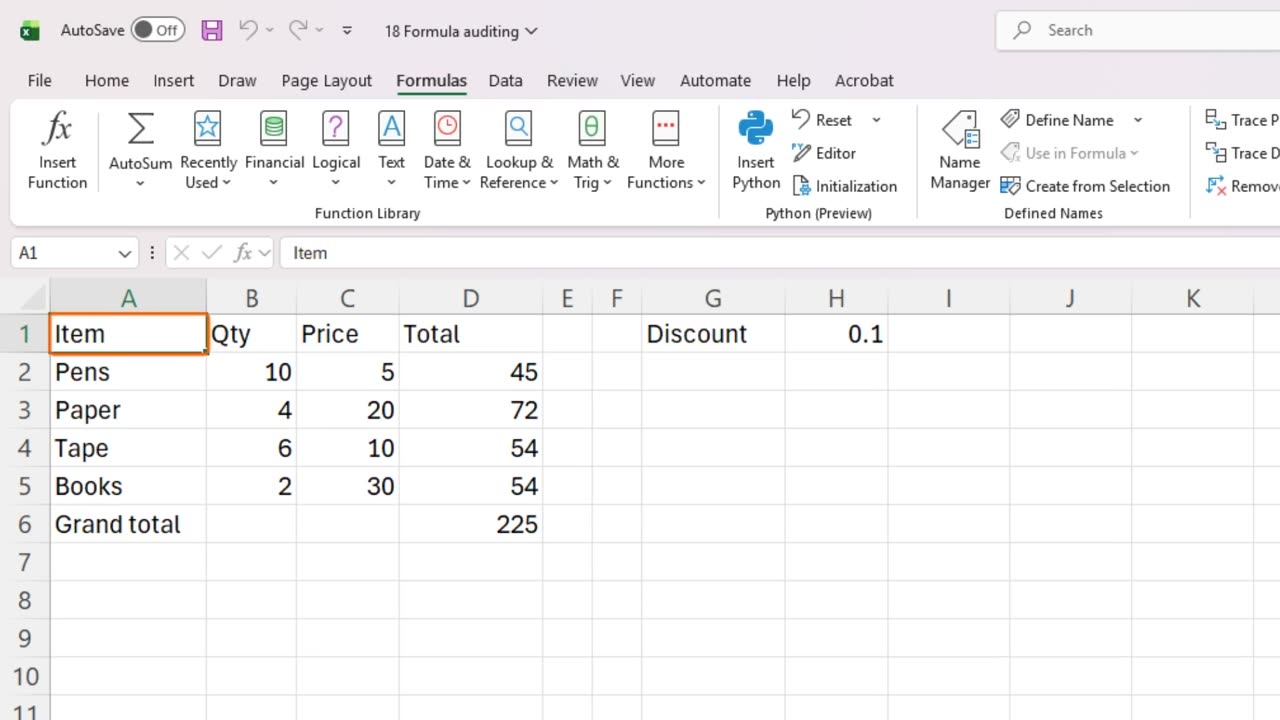
Here is a small order sheet. Each line has a quantity and a price, a total with a discount, and a grand total at the bottom. The discount rate sits in cell H1.
First, let's see all the formulas at once. Press Control and the backtick key, which is next to the number one.
Every cell now shows its formula instead of its result. This is the fastest way to review a whole sheet. Look for formulas that are different from their neighbors, or numbers typed where a formula should be.
Press the same keys again to go back to the results.
Shortcut: Ctrl + `
3. Trace precedents
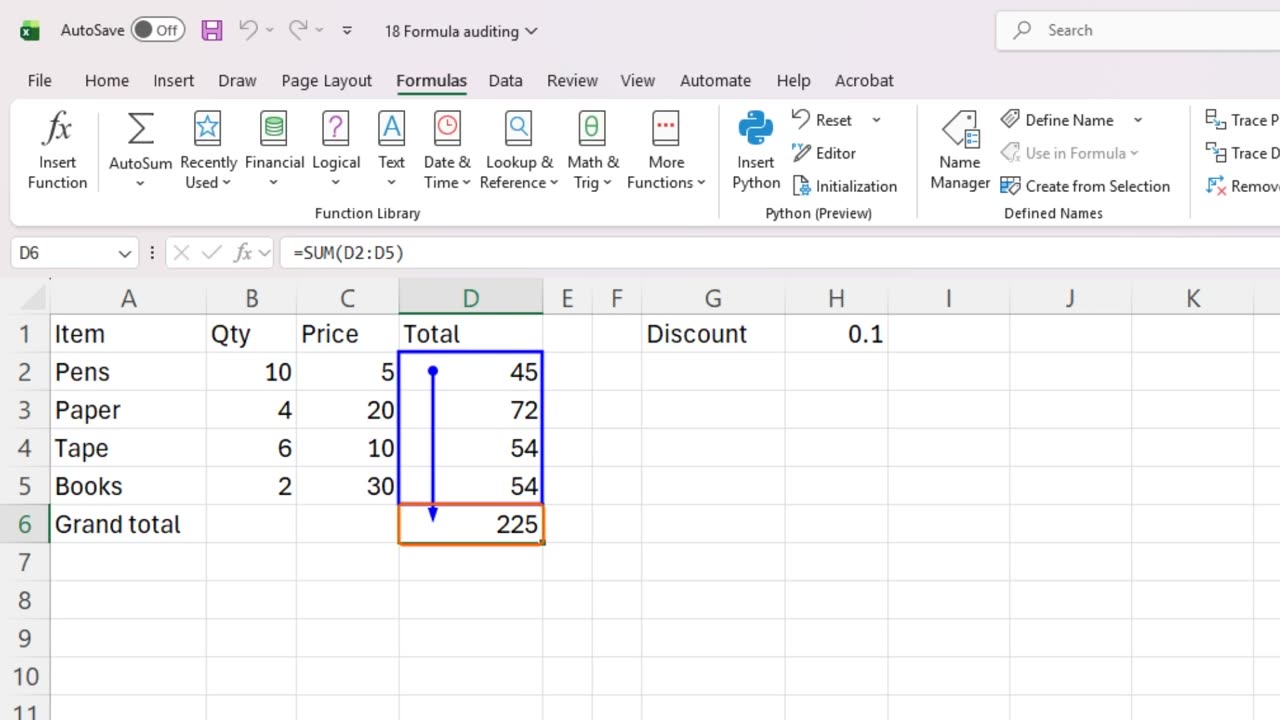
Now, click the grand total in D6. We want to know which cells feed this number. Press Alt, then M, then P. This is Trace Precedents.
Blue arrows appear, from the cells D2 to D5 to the total. These are the precedents: the cells that this formula depends on.
4. Trace dependents
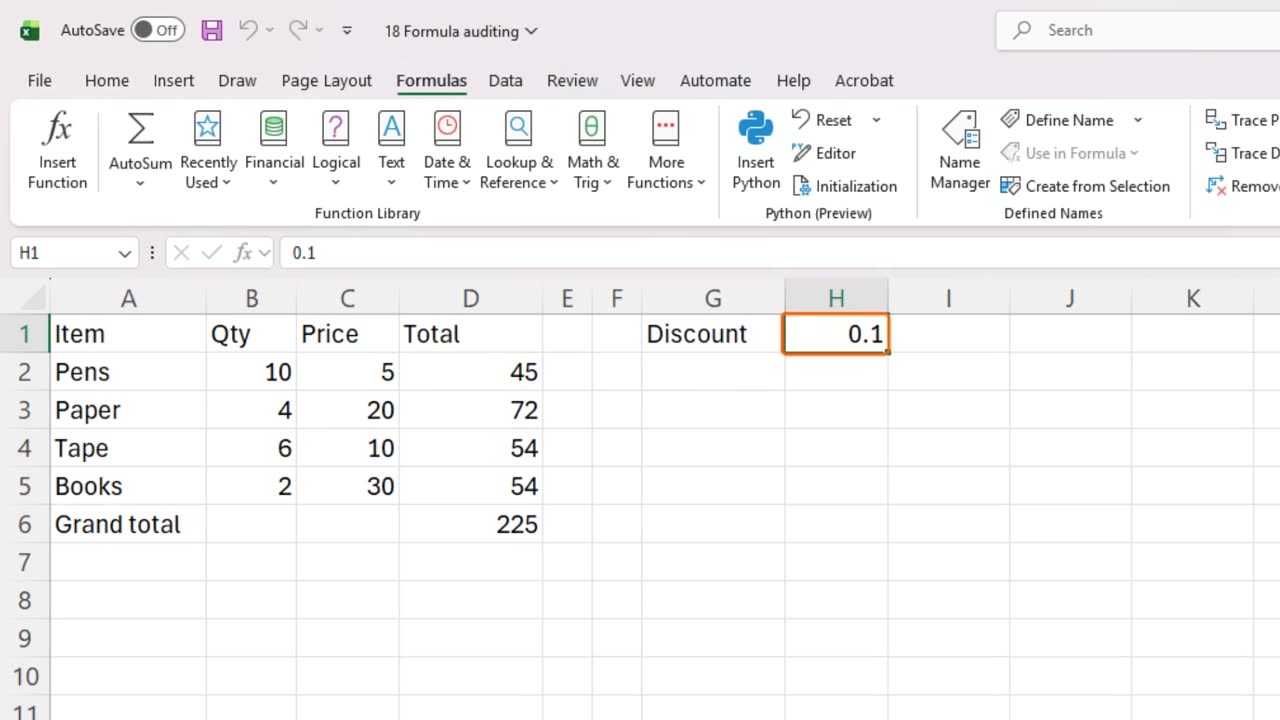
Press Alt, M, A, A to remove the arrows. Now let's go the other way. Click the discount rate in H1, and press Alt, M, D. This is Trace Dependents.
The arrows now point from H1 to every total that uses the discount. These are the dependents: the cells that would change if you changed the discount. Check this before you delete or change an important cell.
Remove the arrows again with Alt, M, A, A.
5. Evaluate formula
The third tool is the most powerful: Evaluate Formula. It shows how Excel calculates a formula, one step at a time. Click D2, and we will open it with Alt, M, V.
A box opens, showing the formula, with one part underlined. The underlined part is what Excel will calculate next. Press Enter to evaluate it.
Excel replaced the first reference with its real number. Press Enter again, and again. Each press solves one more piece.
Step by step, the formula shrinks, until only the final answer is left. If a result ever surprises you, this shows exactly which step went wrong. Press Escape to close the box.
6. Finding mistakes
Let's use these tools to find a mistake. Imagine one total was typed as a plain number, instead of a formula. Show the formulas again with Control backtick, and look closely.
Formulas look the same in each row, so this sheet is healthy. A number in the middle of the column, without an equals sign, would stand out immediately. Go back to results with Control backtick.
Also watch for the small green triangle in the corner of a cell. It is Excel's own warning that something looks unusual, such as a formula that differs from its neighbors.
Shortcut: Ctrl + `
7. Recap
Let's recap. Control backtick shows all formulas. Trace Precedents shows where a number comes from. Trace Dependents shows what relies on a cell. And Evaluate Formula calculates step by step.
That completes Module 2 on formulas and functions. In the next module, you will work with data: sorting, filtering, tables and more.
If there is something you want to learn next, write it in the comments. Your requests decide what we teach in the next tutorials. Thanks for watching, and see you in the next one.
← Previous tutorial: Excel Named Ranges (Make Formulas Easy to Read)
Next tutorial: Meet Copilot in Excel: Your First Prompts →