Excel Date Functions: TODAY, NOW, DATEDIF, EOMONTH
Work with dates: today, differences, months and weekdays.
- Intro
- Dates are numbers
- TODAY and NOW
- DAYS
- DATEDIF
- EOMONTH
- Common mistakes
- Recap
Step by step
1. Intro
Welcome back. In this lesson, you will work with dates in Excel: how to show today's date, how to count days and months between two dates, and how to find the end of a month.
You will meet TODAY, NOW, DAYS, DATEDIF and EOMONTH. But first, a secret that makes everything about dates easier to understand.
2. Dates are numbers
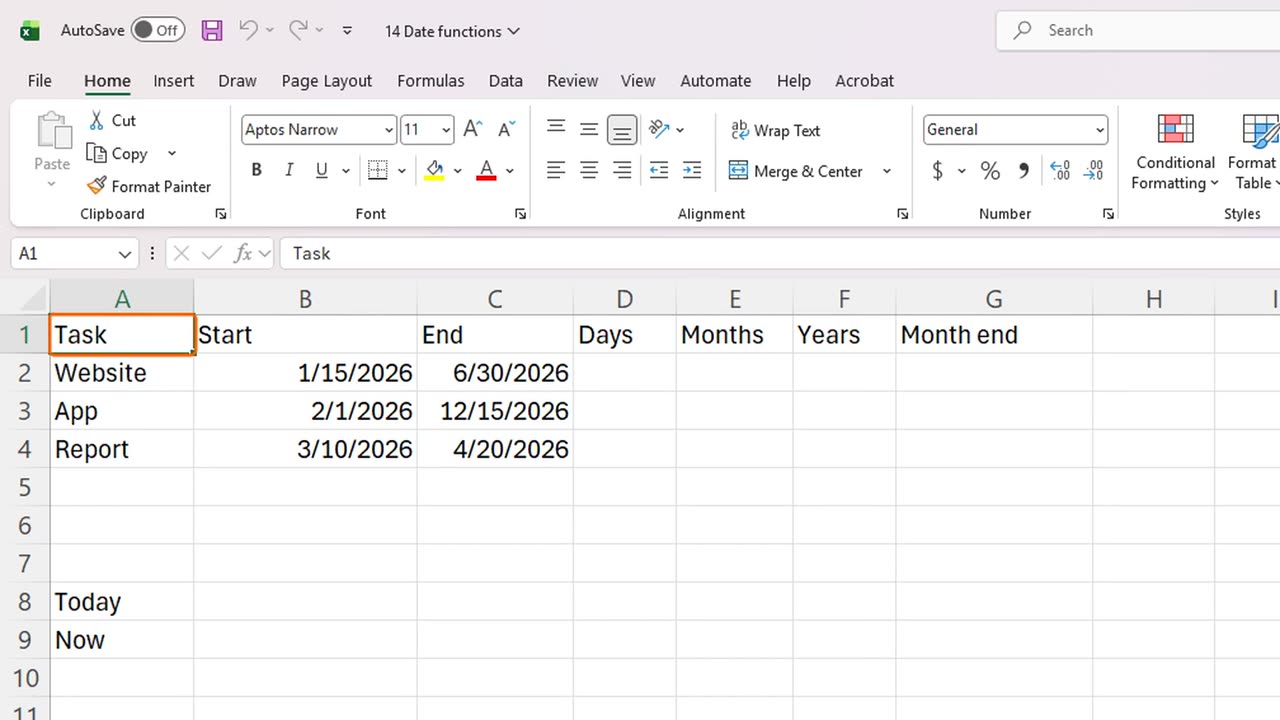
Here is a small project plan with a start date and an end date for each task. Each task has a real date, aligned to the right.
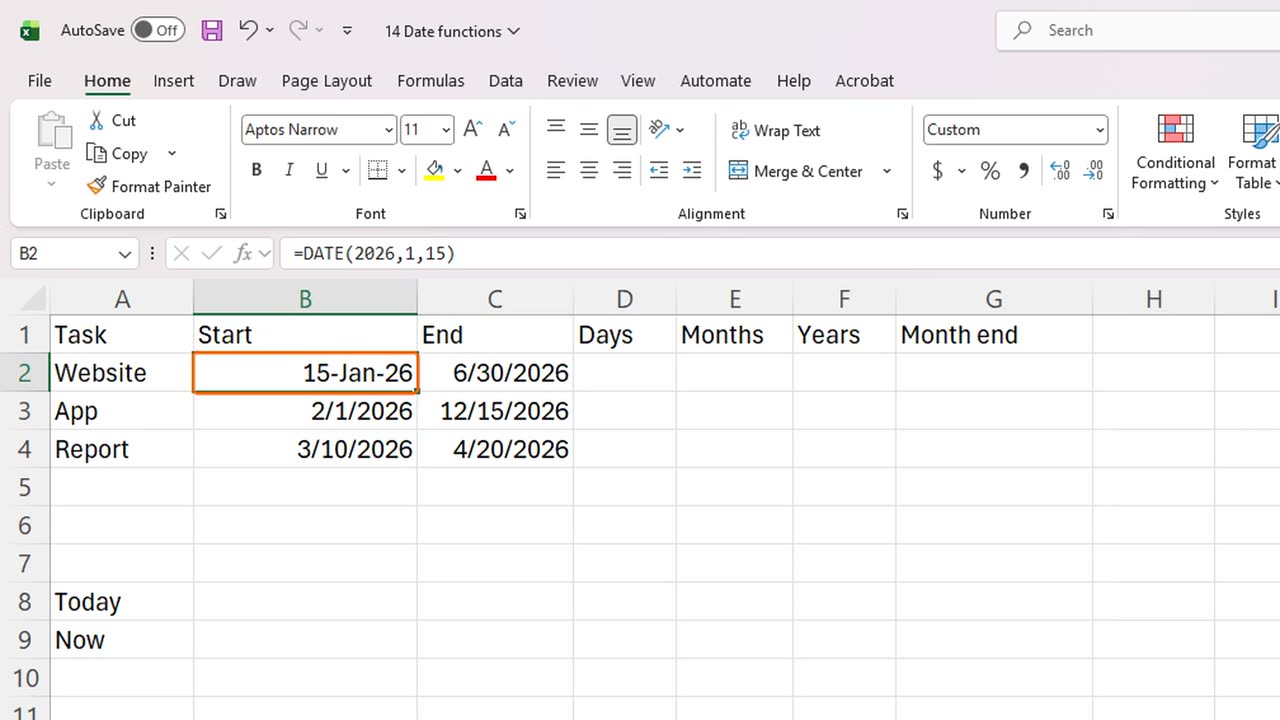
Here is the secret: Excel stores every date as a number. Select the first start date, and press Control Shift tilde to show it as a plain number.
The date is really the number 46037. It counts the days since the year nineteen hundred. That is why Excel can add and subtract dates. Press Control Shift 3 to turn it back into a date.
Shortcut: Ctrl + Shift + ~ Ctrl + Shift + 3
3. TODAY and NOW
Let's start with the two functions that show the current date. TODAY gives today's date, and NOW gives the date and the time. Click B8 and type equals TODAY, open and close brackets.
TODAY takes nothing inside the brackets, but the brackets are still needed. In B9, type equals NOW, brackets, to add the time as well.
These two update every time the workbook opens or recalculates. So never use them to record a fixed date, such as an invoice date. For that, type the date, or press Control semicolon.
=TODAY()=NOW()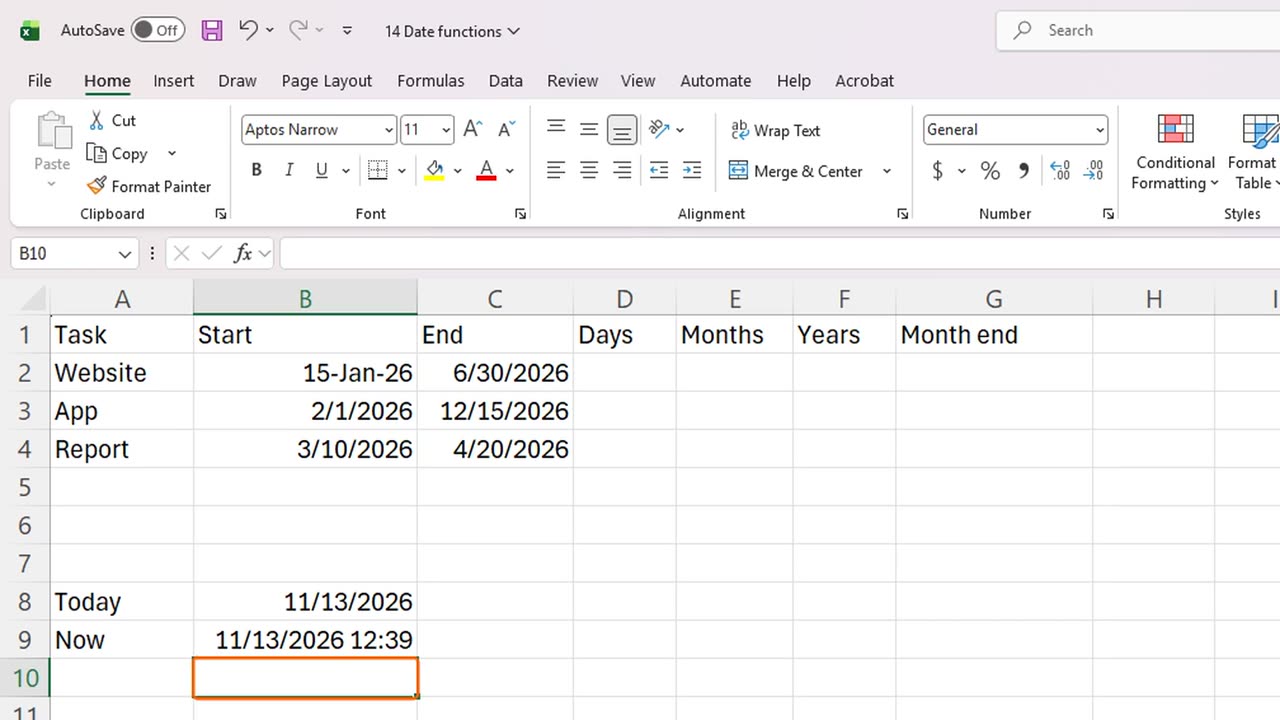
4. DAYS
Now let's measure time between dates. The simplest way to count days is the DAYS function. Click D2 and type equals DAYS, open bracket, the end date C2, comma, the start date B2.
Notice the order: the end date comes first, then the start date. Fill the formula down to D4.
You can also simply subtract the two dates. End minus start gives the same answer. Remember that dates are just numbers.
=DAYS(C2,B2)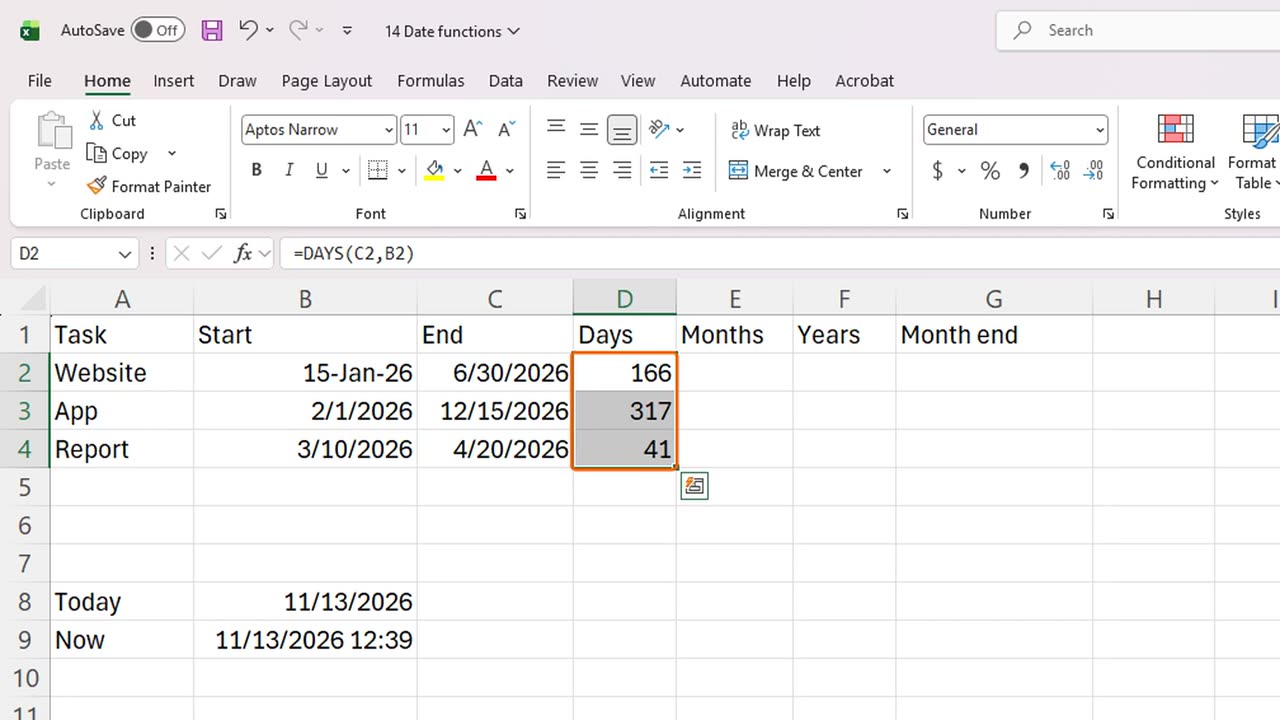
5. DATEDIF
What if you want months or years, not days? For that, there is a special function: DATEDIF. Click E2 and type equals DATEDIF, B2, comma, C2, comma, the letter m in quotes.
The letter m means complete months. The first project runs five complete months. Fill it down. Be careful: here, the start date comes first.
Use the letter y for complete years. In F2, type equals DATEDIF, B2, comma, C2, comma, the letter y in quotes. This is how you calculate an age from a birth date.
Fill it down. Short projects show zero years, and the longer one also shows zero, because it lasts less than twelve months.
A tip: DATEDIF is a hidden function. Excel will not suggest it while you type, and it does not appear in the function list, but it works perfectly.
=DATEDIF(B2,C2,"m")=DATEDIF(B2,C2,"y")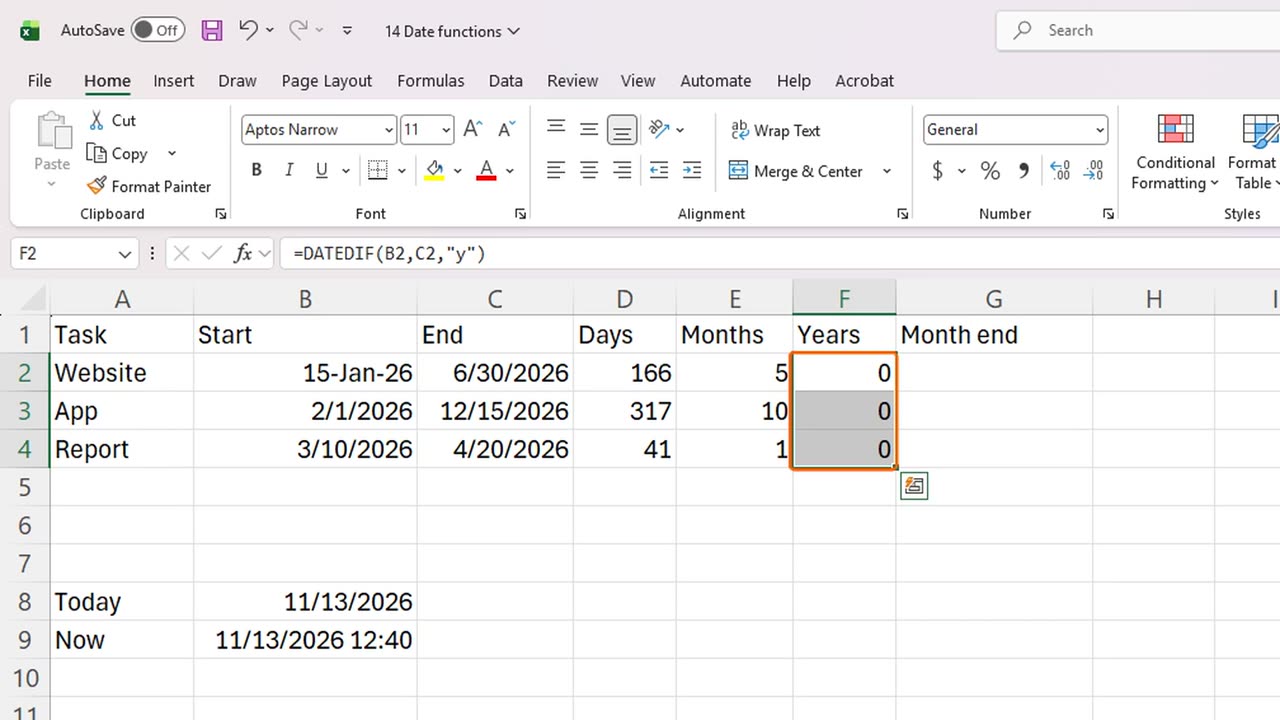
6. EOMONTH
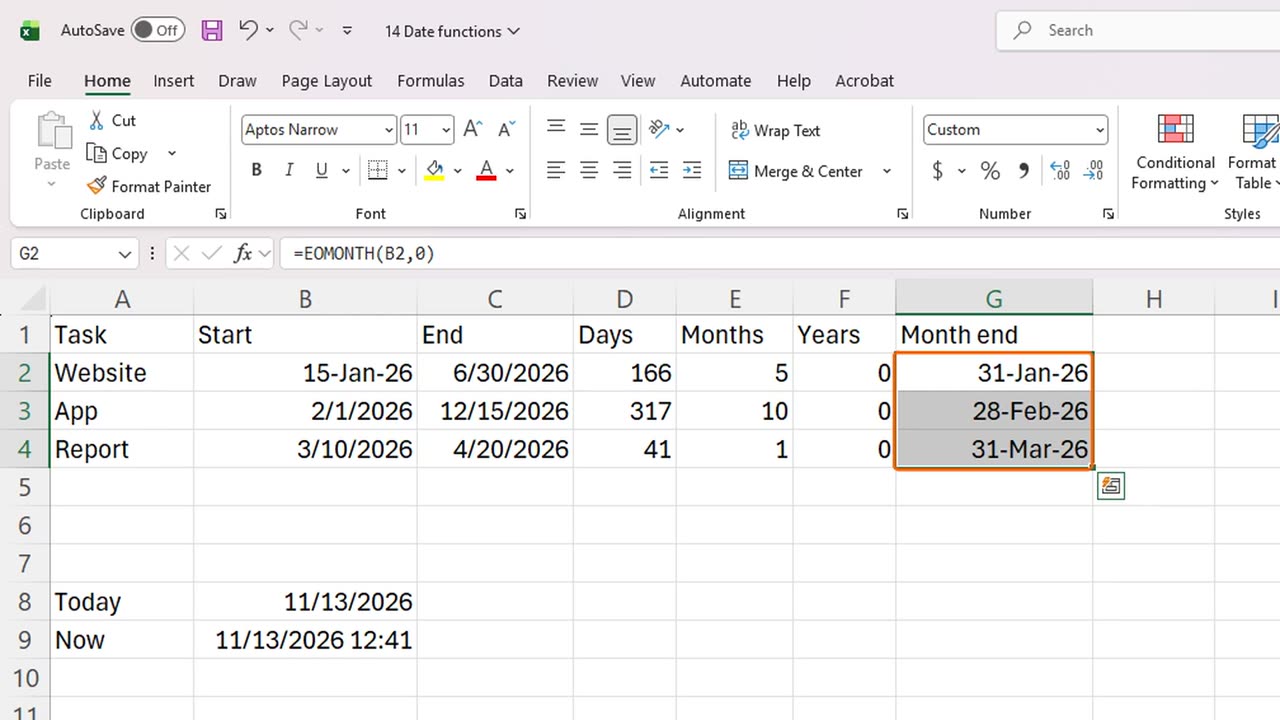
Finally, EOMONTH finds the last day of a month. In G2, type equals EOMONTH, B2, comma, 0. The zero means this month. A one would mean next month.
Excel shows a plain number again, because EOMONTH returns the serial number. Click the cell and press Control Shift 3 to format it as a date. Then fill it down.
Every row now shows the last day of its month: the thirty first of January, the twenty eighth of February, and the thirty first of March.
=EOMONTH(B2,0)Shortcut: Ctrl + Shift + 3
7. Common mistakes
Here are three common mistakes. Dates typed as text, which sit on the left and cannot be calculated. A plain number that should be a date, which you fix with a date format. And mixing up day and month order in different regions.
8. Recap
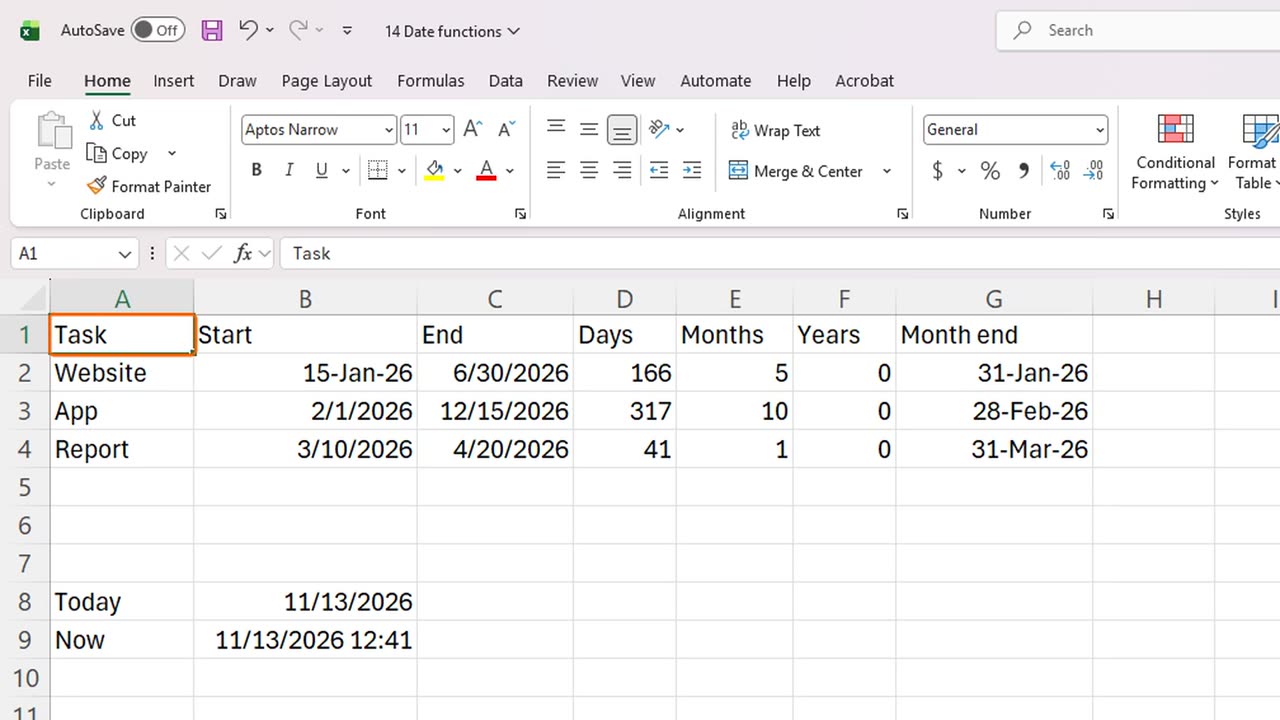
Let's recap. Dates are numbers. TODAY and NOW show the current date and time. DAYS and DATEDIF measure time between dates. And EOMONTH finds the end of a month.
Next time, you will learn to understand Excel errors, such as N slash A and divide by zero, and how to hide them with IFERROR.
If there is something you want to learn next, write it in the comments. Your requests decide what we teach in the next tutorials. Thanks for watching, and see you in the next one.
← Previous tutorial: Excel Text Functions: LEFT, RIGHT, MID, LEN, TRIM, CONCAT
Next tutorial: Fix Excel Errors: #N/A, #DIV/0!, #REF! and IFERROR →