Relative vs Absolute References in Excel ($ Explained)
Why formulas change when copied, and how $ and F4 lock a reference.
- Intro
- The problem
- Relative references
- Absolute references
- The four forms
- Mixed references
- The rule
- Recap
Step by step
1. Intro
Welcome back. In this lesson, you will solve one of the most confusing things for beginners: why a formula changes when you copy it, and how to stop that with the dollar sign.
You will learn what relative and absolute references are, the F4 shortcut, and mixed references, which let you build a whole multiplication table with one formula.
2. The problem
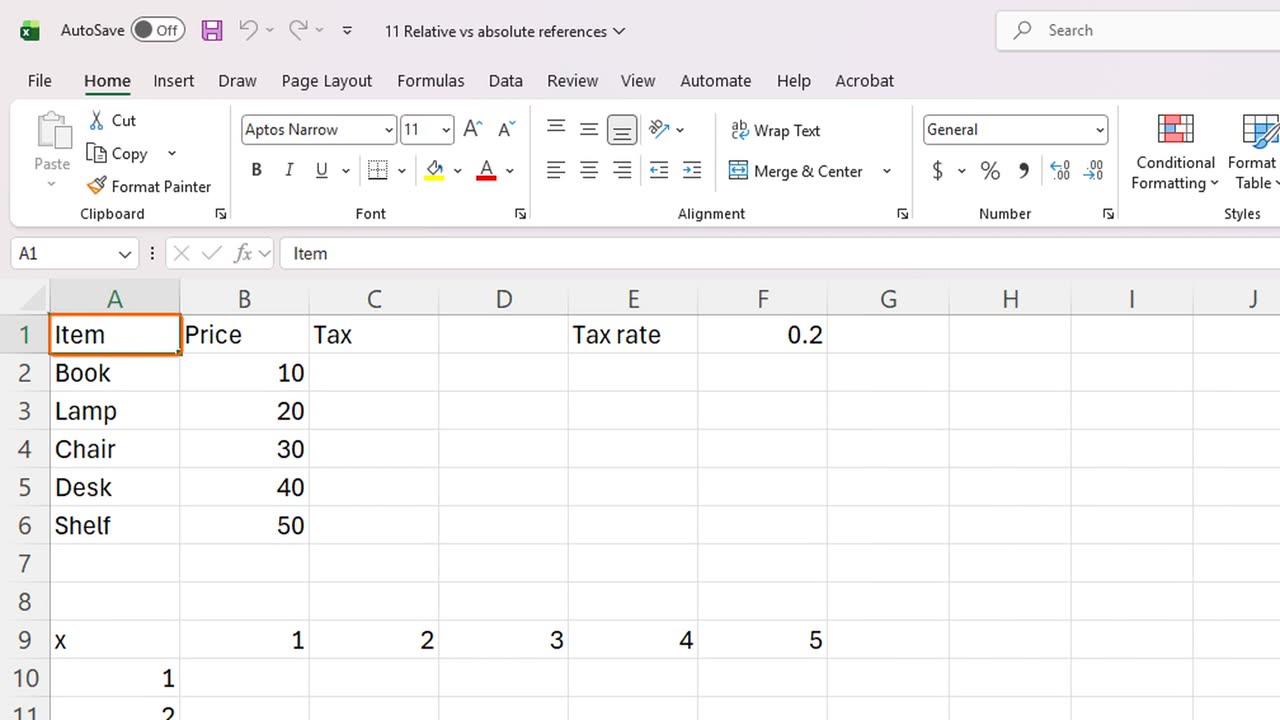
Here is a price list. We want to add tax to every item. The tax rate, twenty percent, is stored once, in cell F1.
In C2, the tax for the first item is the price times the tax rate. Click C2, and type equals B2, star, F1.
It works. Ten times twenty percent is two. Now, like in the last lessons, drag the fill handle down to C6.
Something is wrong. Only the first result is correct, and the rest show zero. Why?
=B2*F1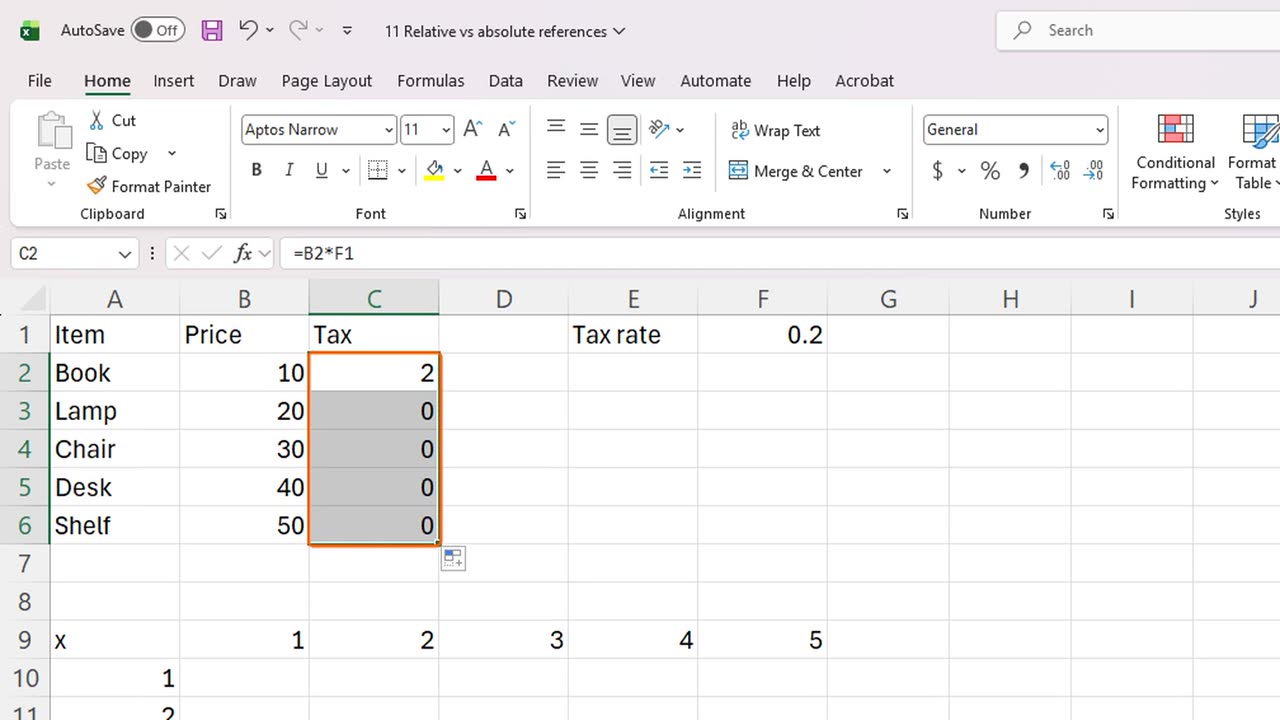
3. Relative references
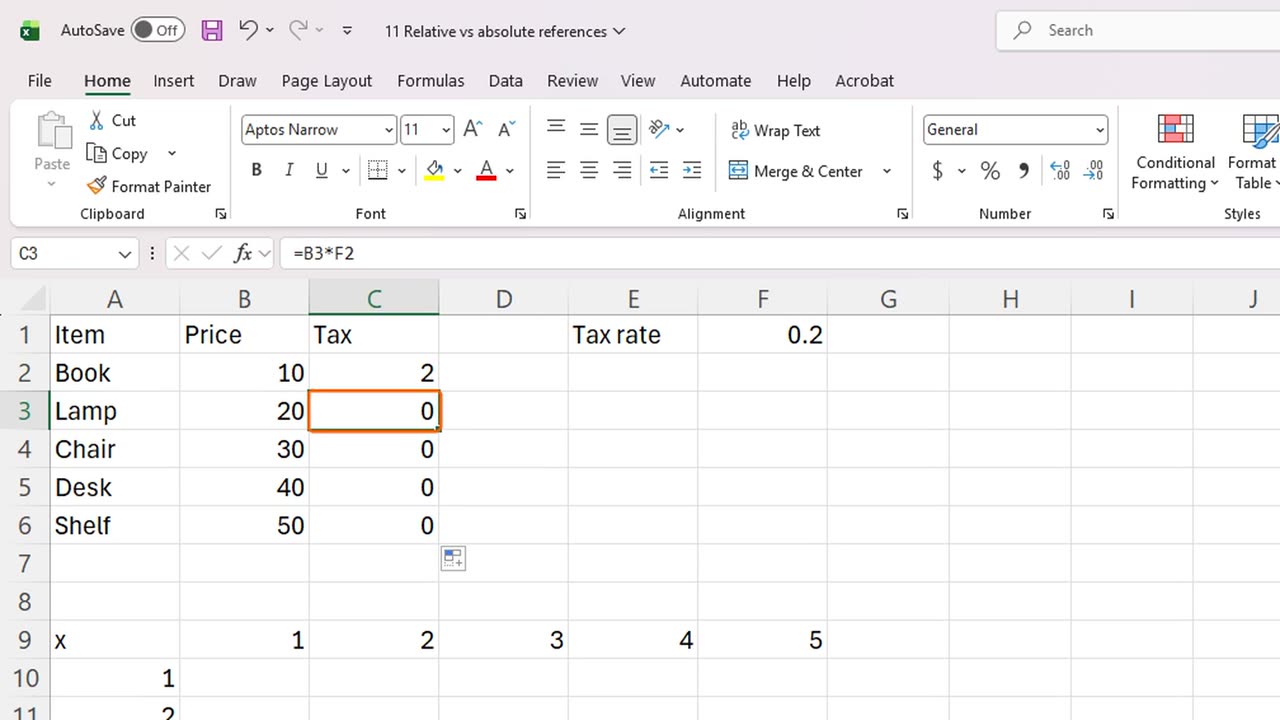
Click C3 and look at the formula bar. It says equals B3 star F2. When we copied the formula down, Excel moved every reference down by one row, including the tax rate. F2 is empty, so the answer is zero.
This behavior is called a relative reference. It is relative to the cell holding the formula. Usually, this is exactly what we want, as with the price in column B.
4. Absolute references
But the tax rate must never move. We need an absolute reference, which stays fixed. You make it absolute with dollar signs.
Click C2 again and retype the formula: equals B2, star, F1. Now, before you press Enter, press the F4 key.
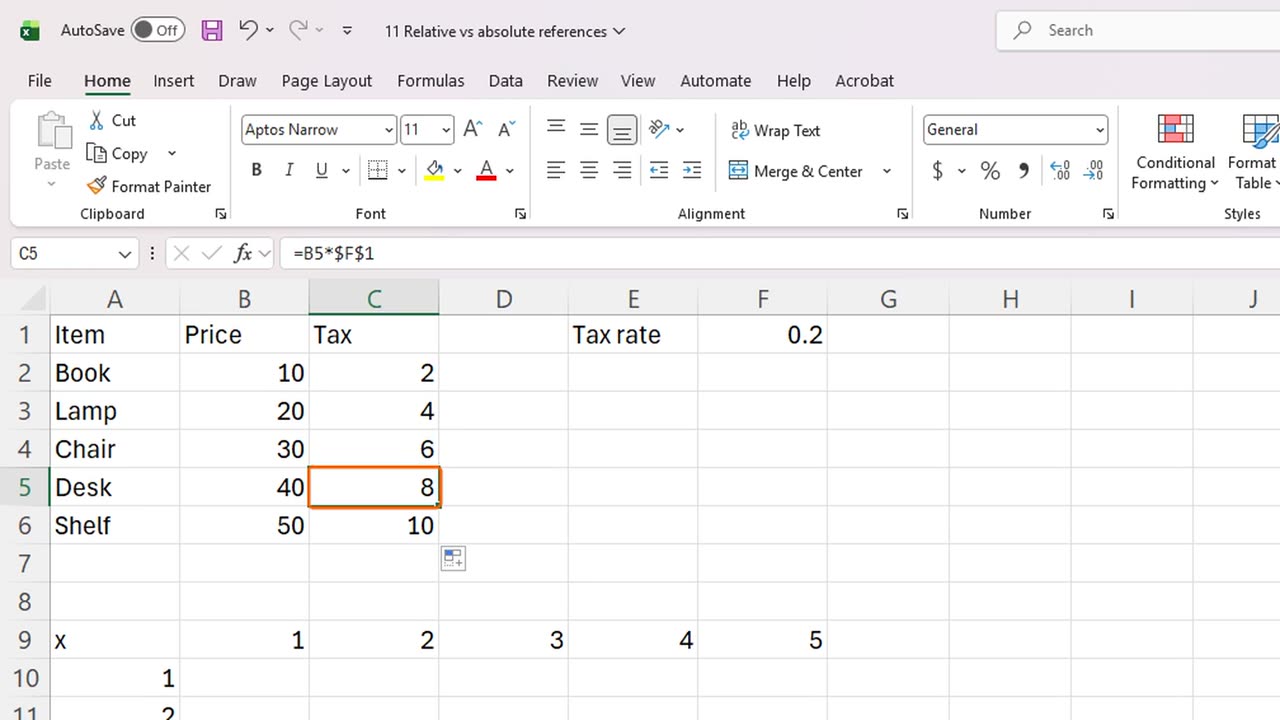
Excel added dollar signs: dollar F dollar 1. The first dollar locks the column, and the second dollar locks the row. Press Enter.
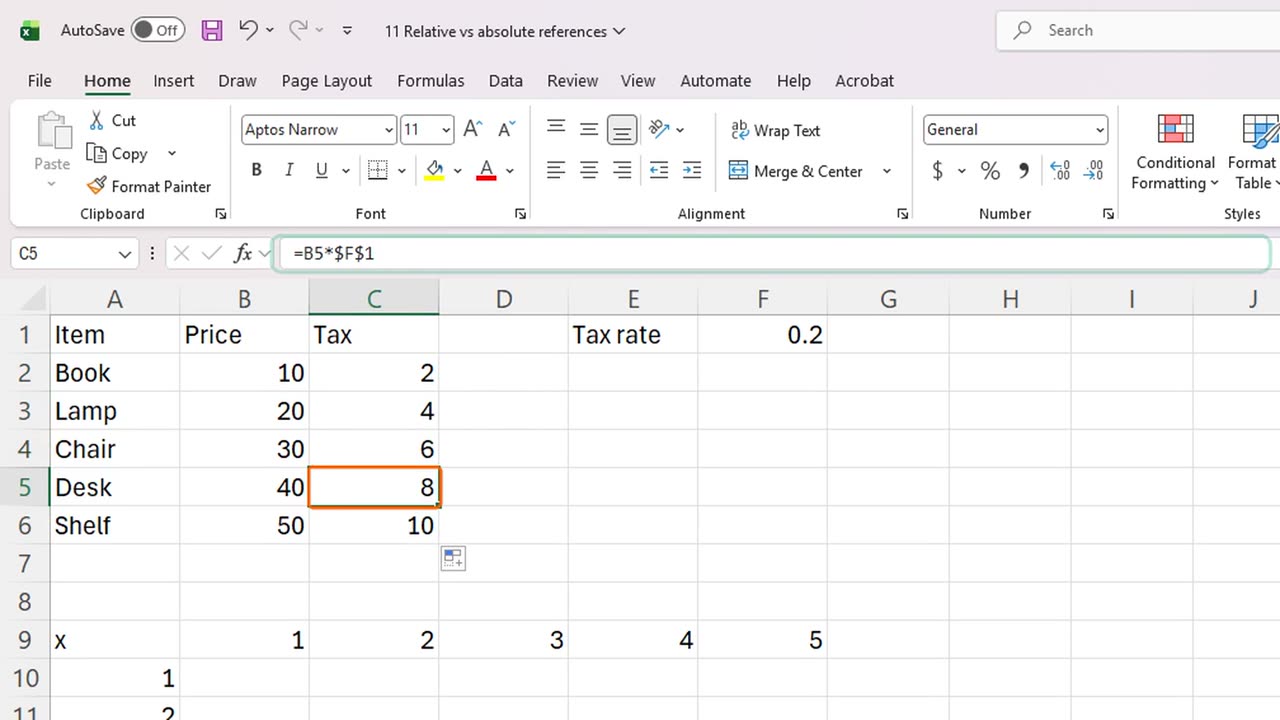
Now fill the formula down again. Select C2, and drag the fill handle to C6.
Every result is correct now: two, four, six, eight, ten. Click C5, and look at the formula bar. The price moved to B5, but the tax rate stayed locked on F1.
=B2*F1Shortcut: F4
5. The four forms
Press F4 repeatedly and the reference cycles through four forms. Dollar F dollar 1 is fully absolute. F dollar 1 locks only the row. Dollar F 1 locks only the column. And F 1 with no dollars is fully relative.
6. Mixed references
Locking only the row or only the column is called a mixed reference. Let's see why it is useful, with a multiplication table.
Here are the numbers one to five across the top, and one to five down the side. We want to fill the whole grid with a single formula.
Click B10 and type equals B dollar 9, star, dollar A 10. The row of the top number is locked, and the column of the side number is locked.
Now drag the fill handle to the right, to F10. Then, with the row still selected, drag it down to F14.
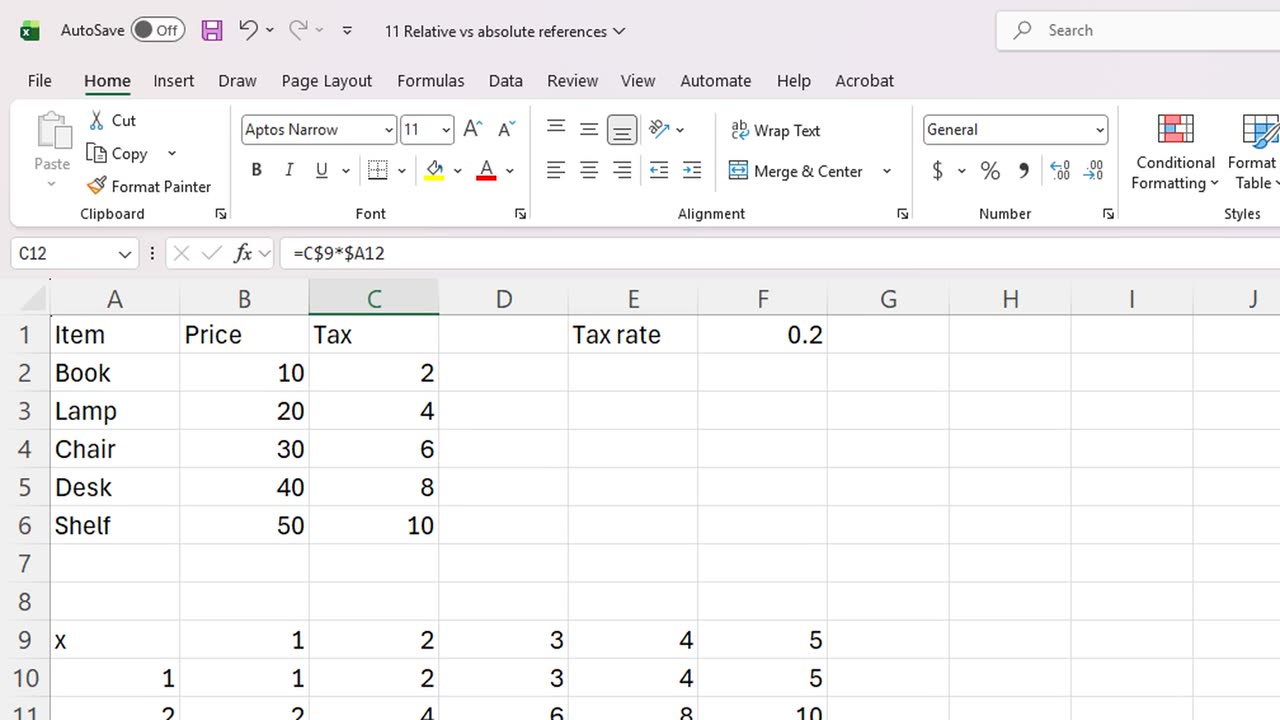
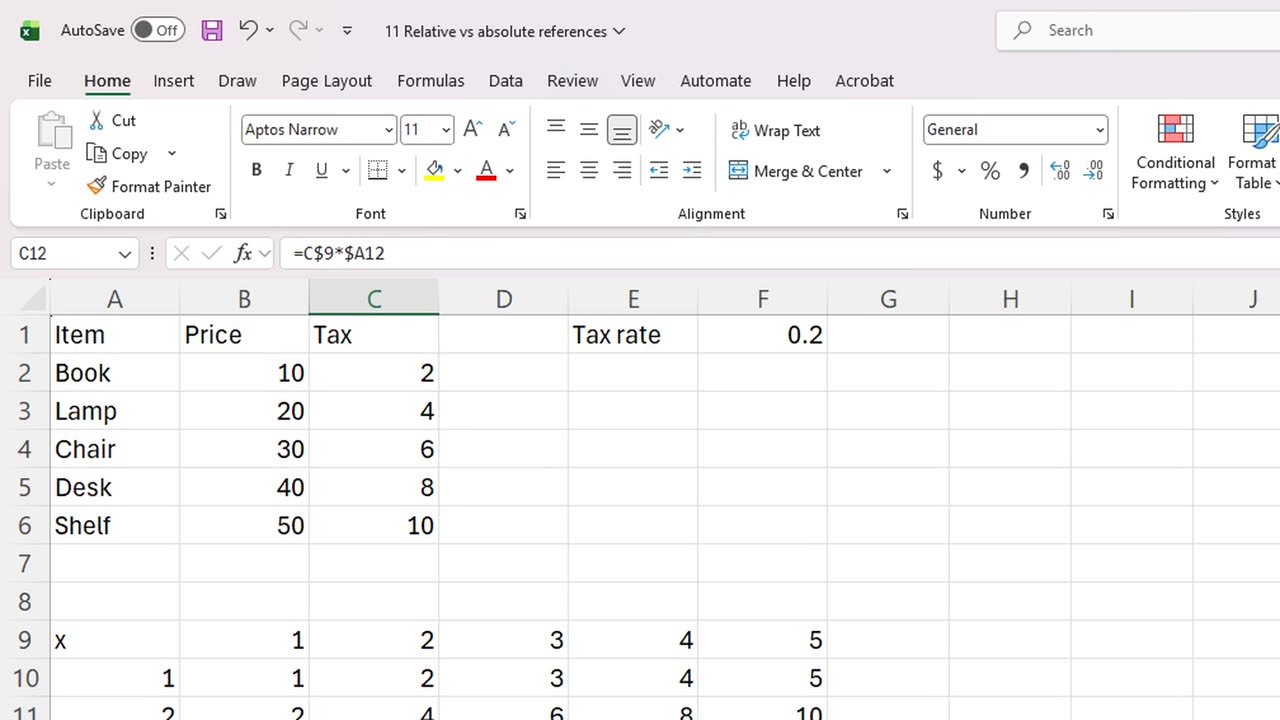
The whole multiplication table is filled, from one single formula. Click C12 and check: the top number is two, and the side number is three, so six.
If you had used plain relative references, the numbers would have drifted, and the table would be wrong. Mixed references keep one half fixed, and let the other half move.
=B$9*$A10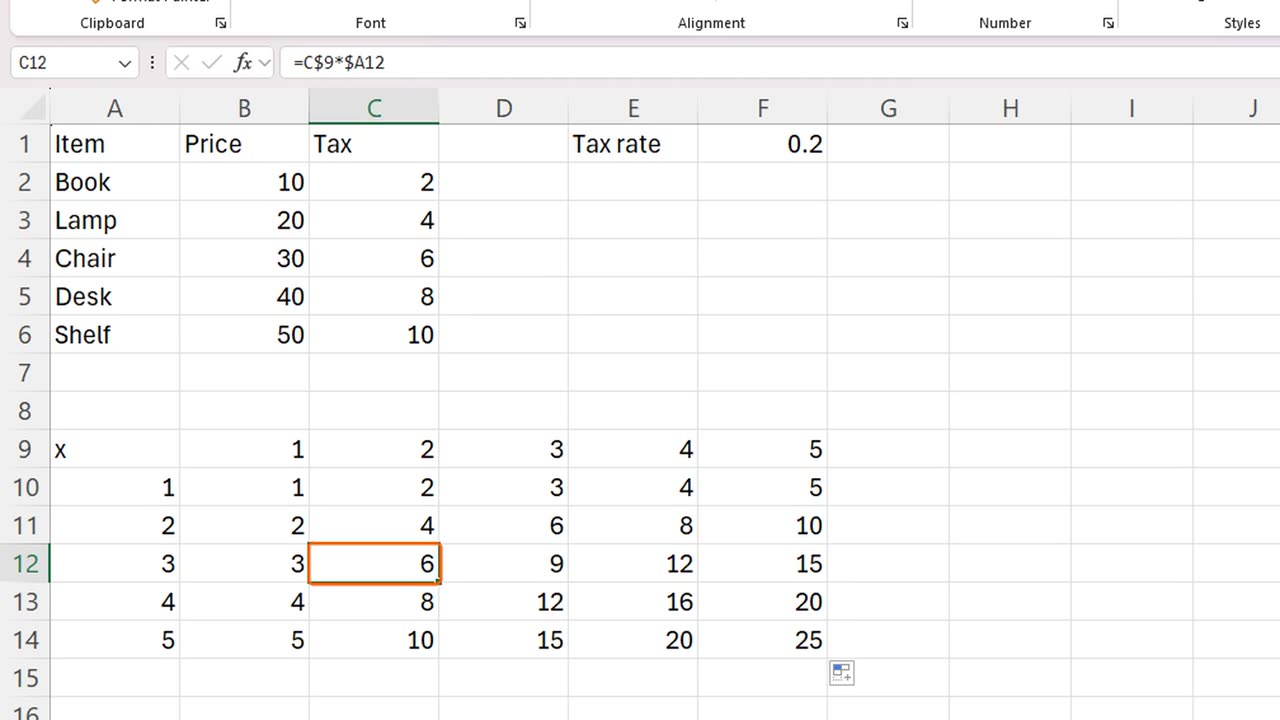
7. The rule
Here is a quick rule. Ask yourself: when I copy this formula, which part must not move? If it must not move at all, use dollar before both. If only the row must stay, or only the column, use one dollar.
A common error is forgetting the dollar signs and getting zeros or wrong numbers after a copy. When that happens, click a result in the middle of the column and check the formula bar.
8. Recap
Let's recap. A relative reference changes when you copy. An absolute reference, with dollars, stays fixed. F4 adds the dollars for you. And a mixed reference locks only the row or only the column.
Next time, you will teach Excel to make decisions with the IF function.
If there is something you want to learn next, write it in the comments. Your requests decide what we teach in the next tutorials. Thanks for watching, and see you in the next one.
← Previous tutorial: SUM, AVERAGE, MIN, MAX and COUNT in Excel
Next tutorial: Excel IF Function for Beginners (with Examples) →