SUM, AVERAGE, MIN, MAX and COUNT in Excel
The five most-used functions, AutoSum and the status bar quick totals.
- Intro
- The data
- SUM
- AVERAGE
- MIN and MAX
- COUNT and COUNTA
- Separate cells
- AutoSum
- Quick totals
- Live updates
- Common mistakes
- Recap
Step by step
1. Intro
Welcome back. In this lesson, you will learn the five functions that people use more than any others in Excel: SUM, AVERAGE, MIN, MAX and COUNT.
You will also learn AutoSum, a keyboard shortcut that writes a sum for you, and the quick totals that Excel shows at the bottom of the screen without any formula at all.
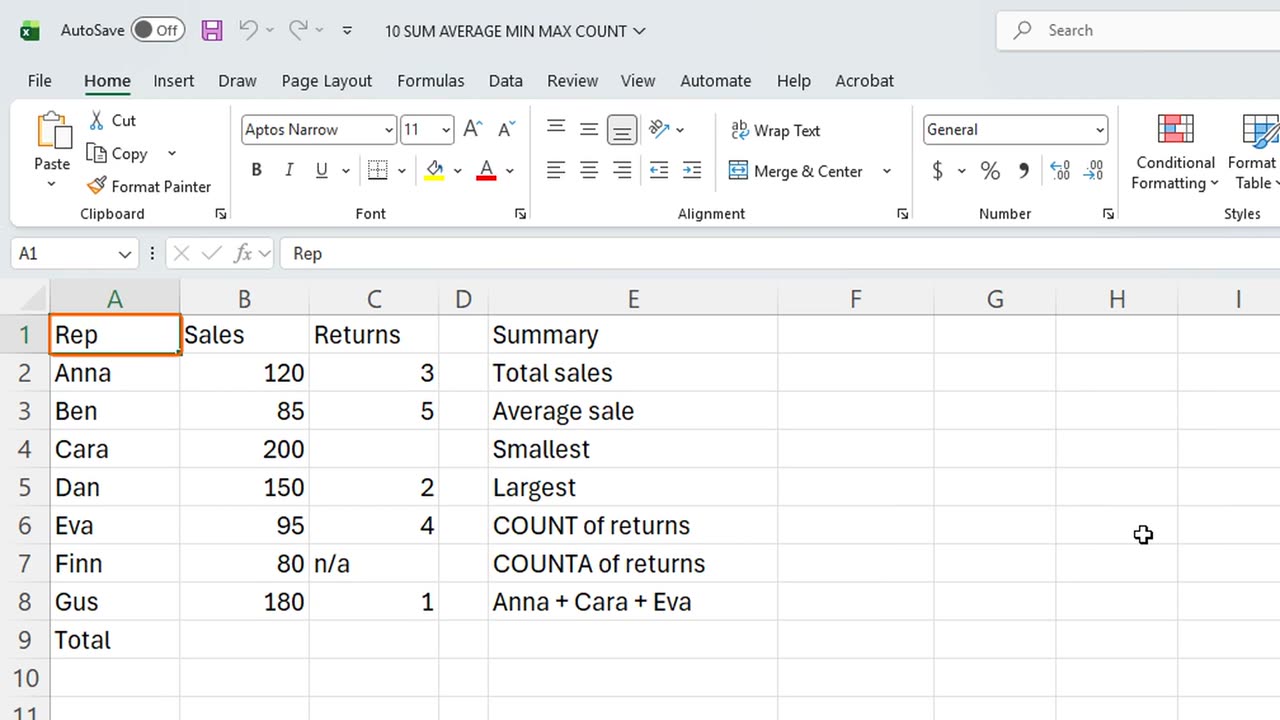
2. The data
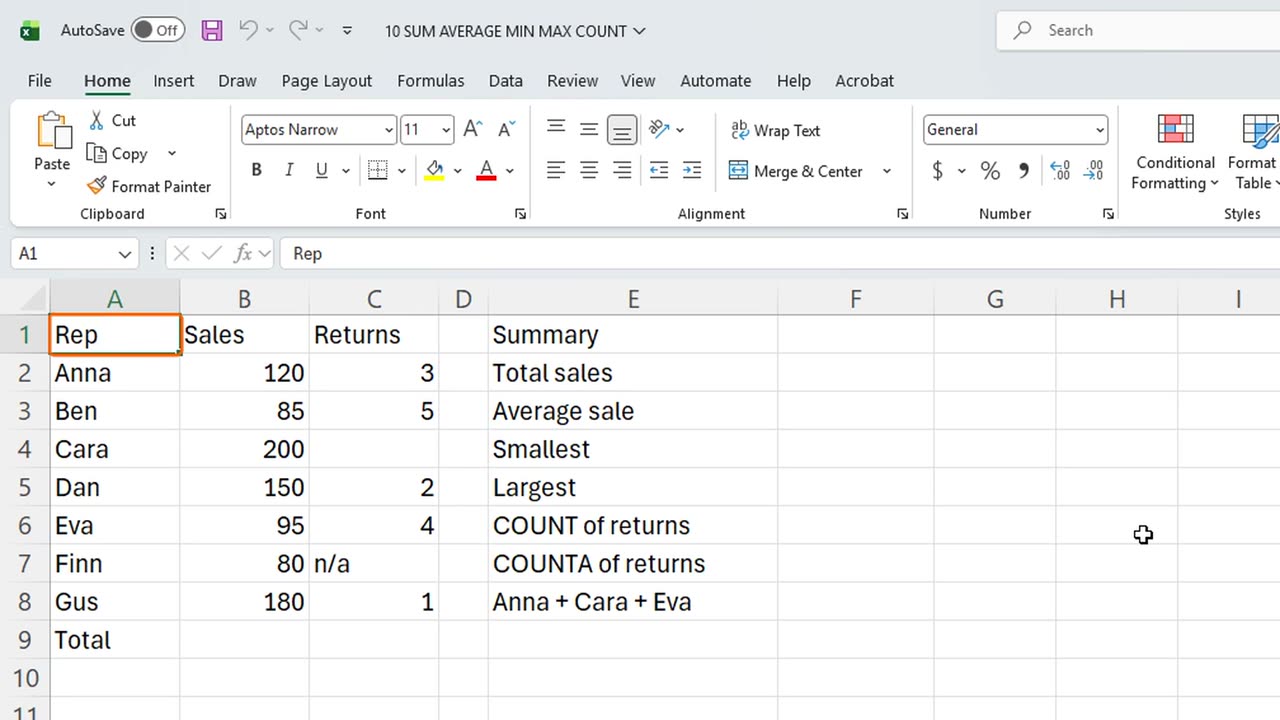
Here are the monthly sales of seven people. Column B has the sales, and column C has the number of returned items, with a few gaps and one piece of text.
3. SUM
Let's start with SUM, the most used function in Excel. It adds up numbers. Click F2, and type equals SUM, open bracket, B2, colon, B8, close bracket.
Let's read it. The function name is SUM. Inside the brackets is the range, B2 colon B8, which means every cell from B2 down to B8. The colon means: from here to there.
The result is nine hundred and ten. Every function follows the same pattern: a name, then brackets, then the things you give it, called arguments.
=SUM(B2:B8)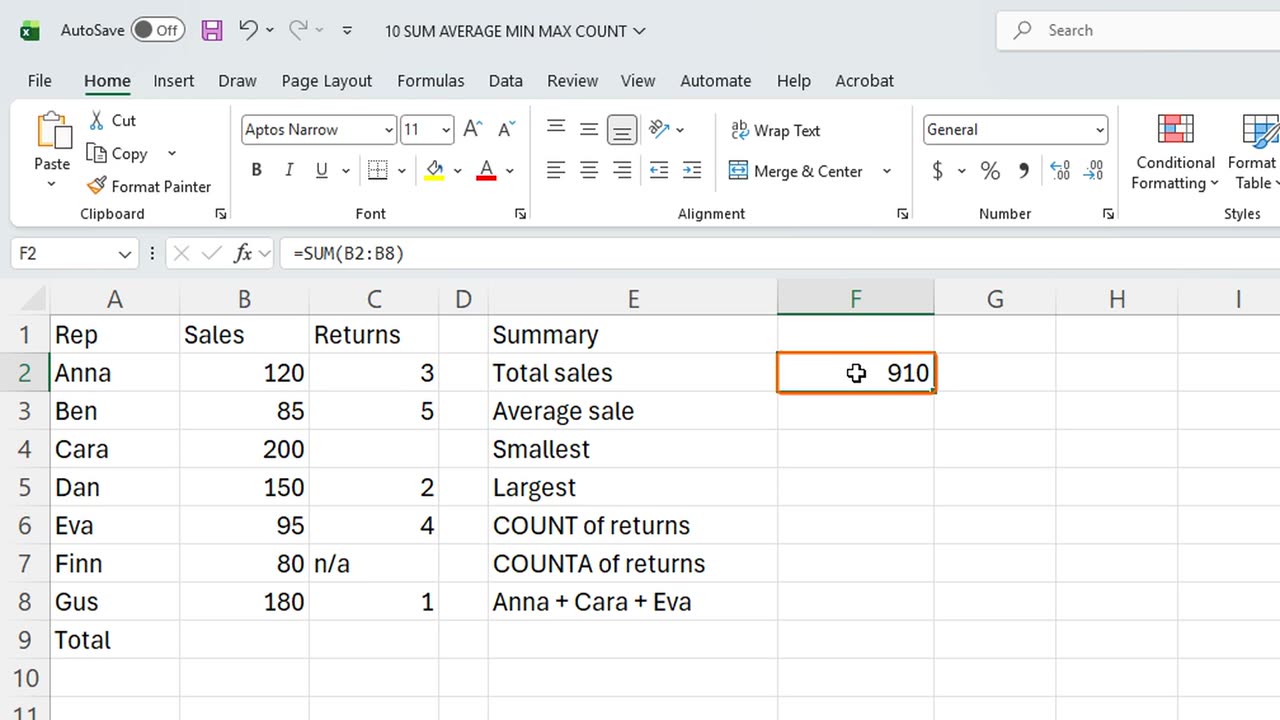
4. AVERAGE
Next, AVERAGE. Click F3 and type equals AVERAGE, B2 colon B8. Average adds the numbers, and divides by how many there are.
The average sale is one hundred and thirty. Nine hundred and ten divided by seven.
=AVERAGE(B2:B8)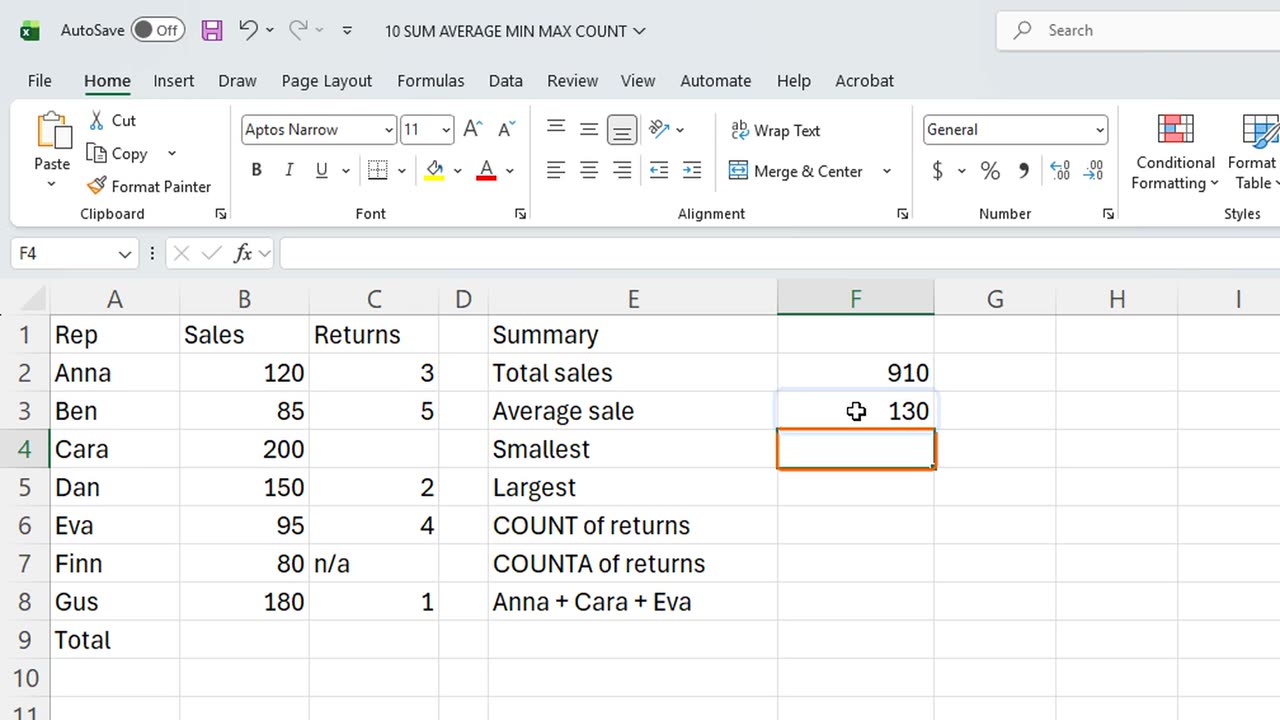
5. MIN and MAX
Now MIN and MAX. They find the smallest and the largest number. In F4, type equals MIN of B2 to B8. In F5, equals MAX of B2 to B8.
The smallest sale is eighty, and the largest is two hundred. This is a quick way to spot your best and your weakest result.
=MIN(B2:B8)=MAX(B2:B8)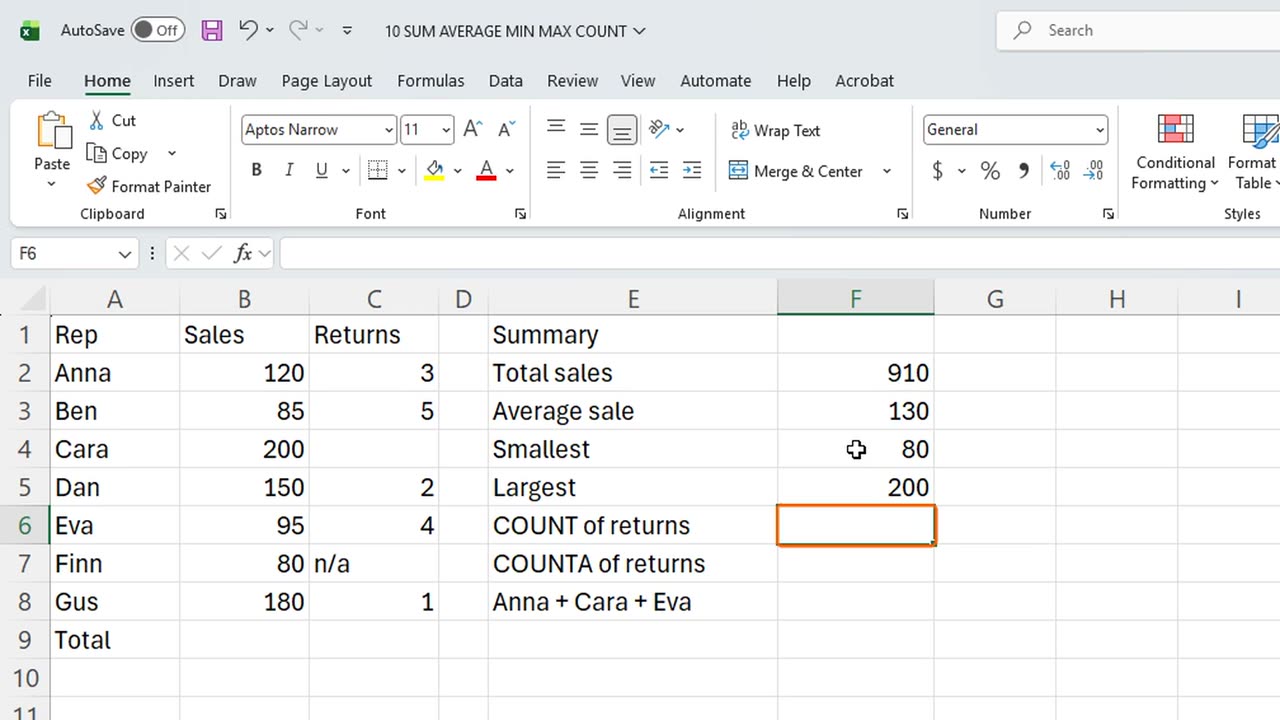
6. COUNT and COUNTA
Finally COUNT. It counts how many cells contain numbers. Click F6 and type equals COUNT, C2 colon C8. We use column C, because it has gaps and text.
The answer is five. COUNT counts only the numbers. It ignores the blank cell, and it ignores the text n slash a.
To count everything that is not empty, use COUNTA. In F7, type equals COUNTA, C2 colon C8.
That gives six: five numbers, plus the text. Only the truly empty cell is skipped. Remember: COUNT is for numbers, COUNTA is for anything.
=COUNT(C2:C8)=COUNTA(C2:C8)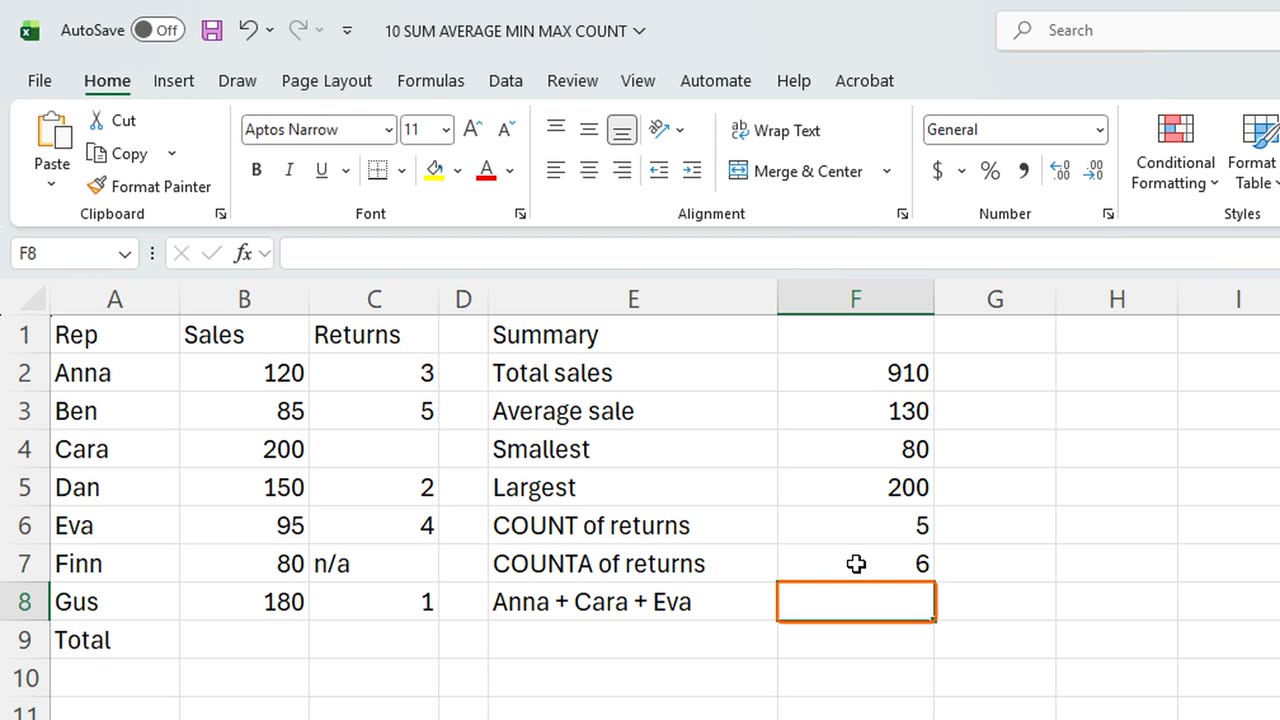
7. Separate cells
Sometimes the cells you want are not next to each other. Separate them with commas. In F8, type equals SUM, B2, comma, B4, comma, B6.
A colon means a range, and a comma means separate cells. That small difference matters a lot.
=SUM(B2,B4,B6)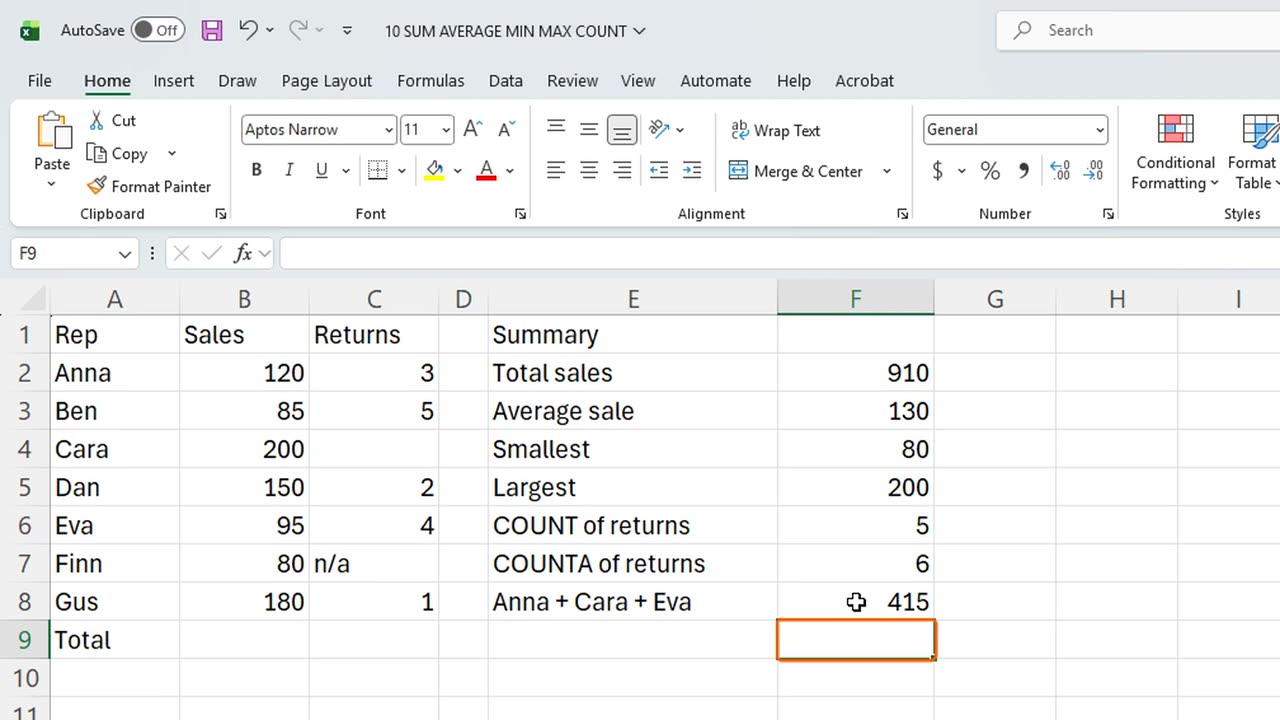
8. AutoSum
Writing functions by hand is a good skill, but Excel has a shortcut for sums. Click B9, right under the numbers.
Press Alt and the equals key. Excel writes the SUM for you, and guesses the range above. Check that the dotted border covers the right cells, and press Enter.
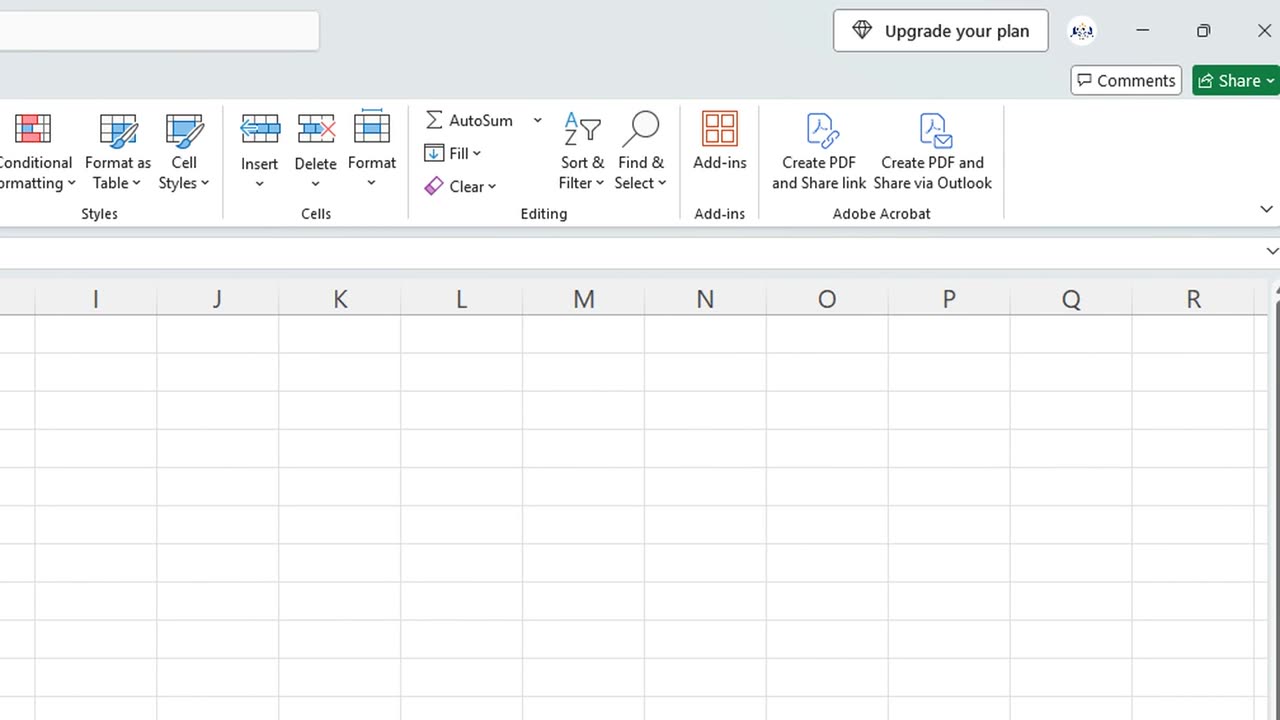
AutoSum also lives on the Home tab, in the Editing group. It has a small arrow with more functions: Average, Count, Max and Min.
Shortcut: Alt + =
9. Quick totals
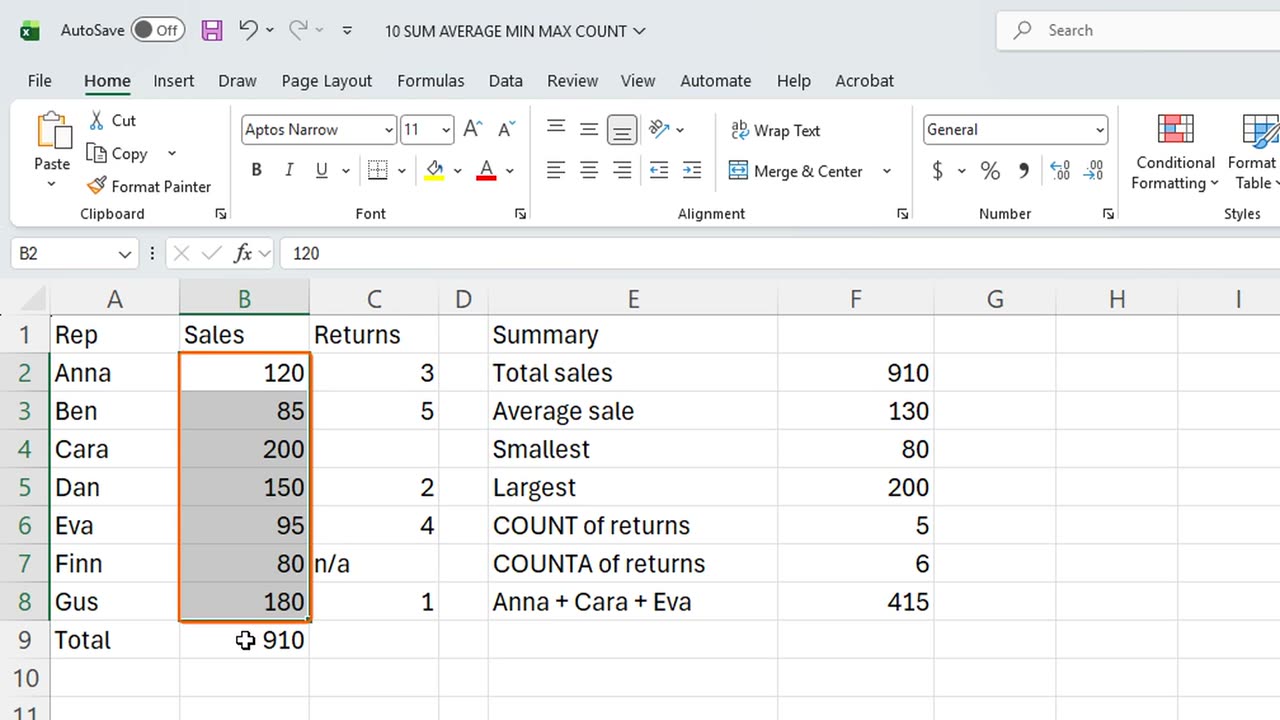
Now the no-formula way. Select the numbers in B2 to B8 and look at the status bar at the bottom of the window.
Excel shows the average, the count and the sum instantly. Nothing is written in any cell, so this is perfect for a quick check.
Right-click the status bar to add more, such as Minimum and Maximum. Choose what you want to see.
10. Live updates
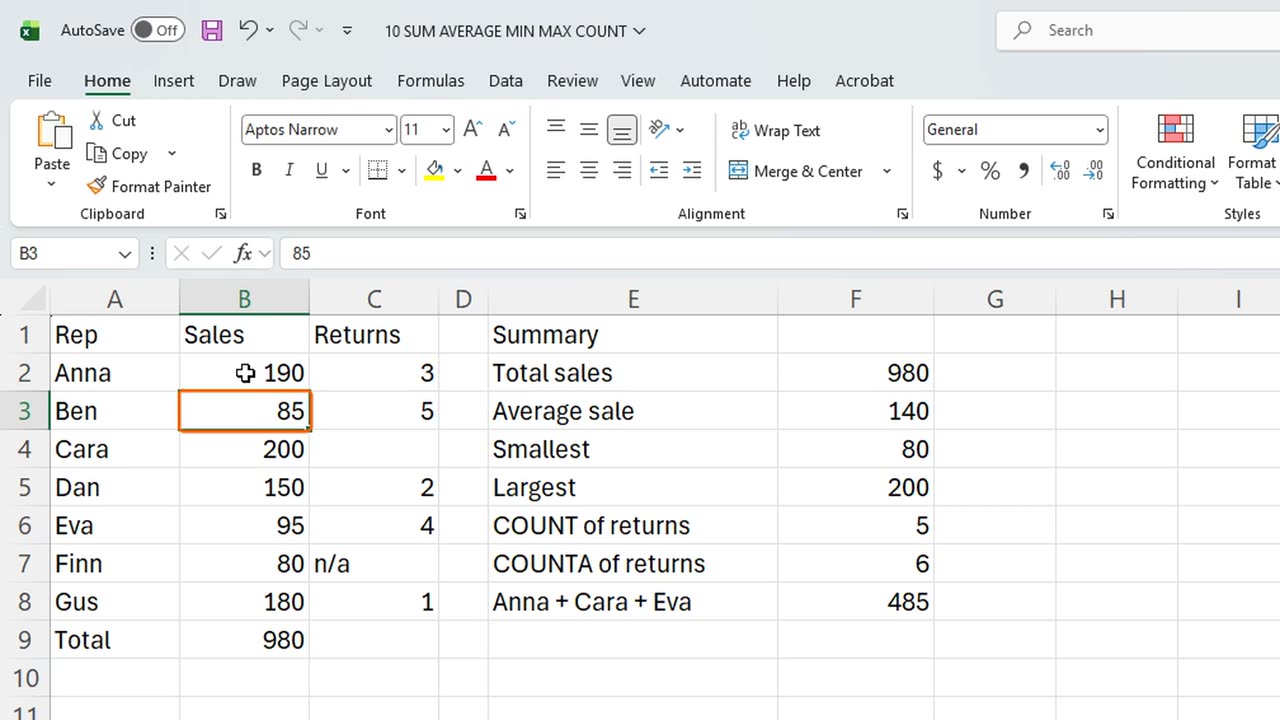
Now the best part. Click B2, and change the first sale to one hundred and ninety. Press Enter.
Every function updated at once. The sum, the average, the largest value, even the AutoSum below. This is why we use functions instead of typing results.
11. Common mistakes
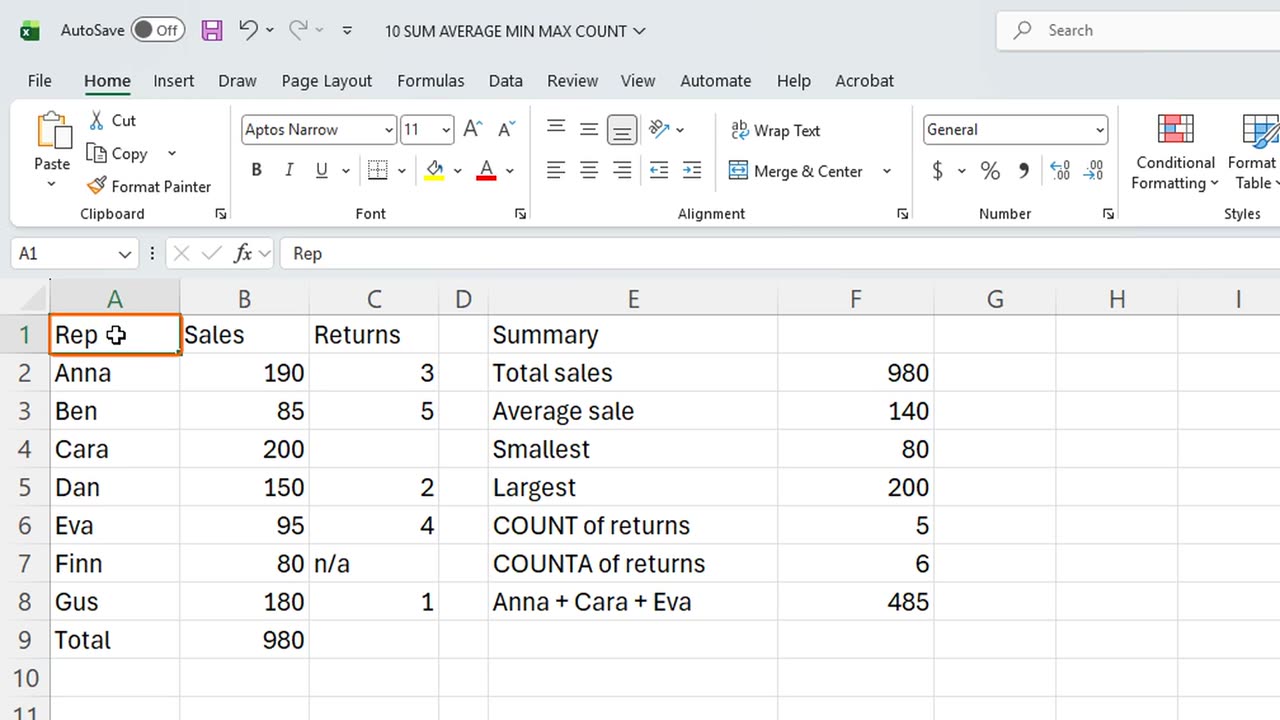
Here are three common mistakes. First, numbers stored as text are ignored by SUM, so check that your numbers are aligned to the right.
Second, a range that is too short. If you add a row, check that your range includes it. Third, COUNT versus COUNTA, which we saw a minute ago.
12. Recap
Let's recap. SUM adds. AVERAGE finds the mean. MIN and MAX find the smallest and the largest. COUNT counts numbers, and COUNTA counts anything that is not empty.
Remember Alt plus equals for AutoSum, and the status bar for quick checks. Next time, you will learn why formulas change when you copy them, and how the dollar sign locks a reference.
If there is something you want to learn next, write it in the comments. Your requests decide what we teach in the next tutorials. Thanks for watching, and see you in the next one.
← Previous tutorial: Save, Print and Share Excel Files (Beginner Tutorial)
Next tutorial: Relative vs Absolute References in Excel ($ Explained) →