Meet Copilot in Excel: Your First Prompts
Where Copilot lives in Excel, how to write a first prompt, how to check the result and how to undo it.
- Welcome
- Open Copilot
- Your first prompt
- Check the result
- Keep or undo
- Ask a question
- Three rules
Step by step
1. Welcome
Welcome to the Copilot series. Over the next episodes we will build one real project together: a sales analysis workbook, with Copilot as our assistant.
Each episode is a small step. We start with the basics, then we create data, write formulas, build summaries and charts, and finish with a one page dashboard.
In this first episode, you will learn where Copilot lives in Excel, how to ask it for something, how to check what it did, and how to undo it when it is wrong.
One note before we start. Copilot needs a Microsoft 365 account that includes it, and Microsoft changes its features often. Everything here was recorded in November 2026, so your screen may look a little different.
2. Open Copilot
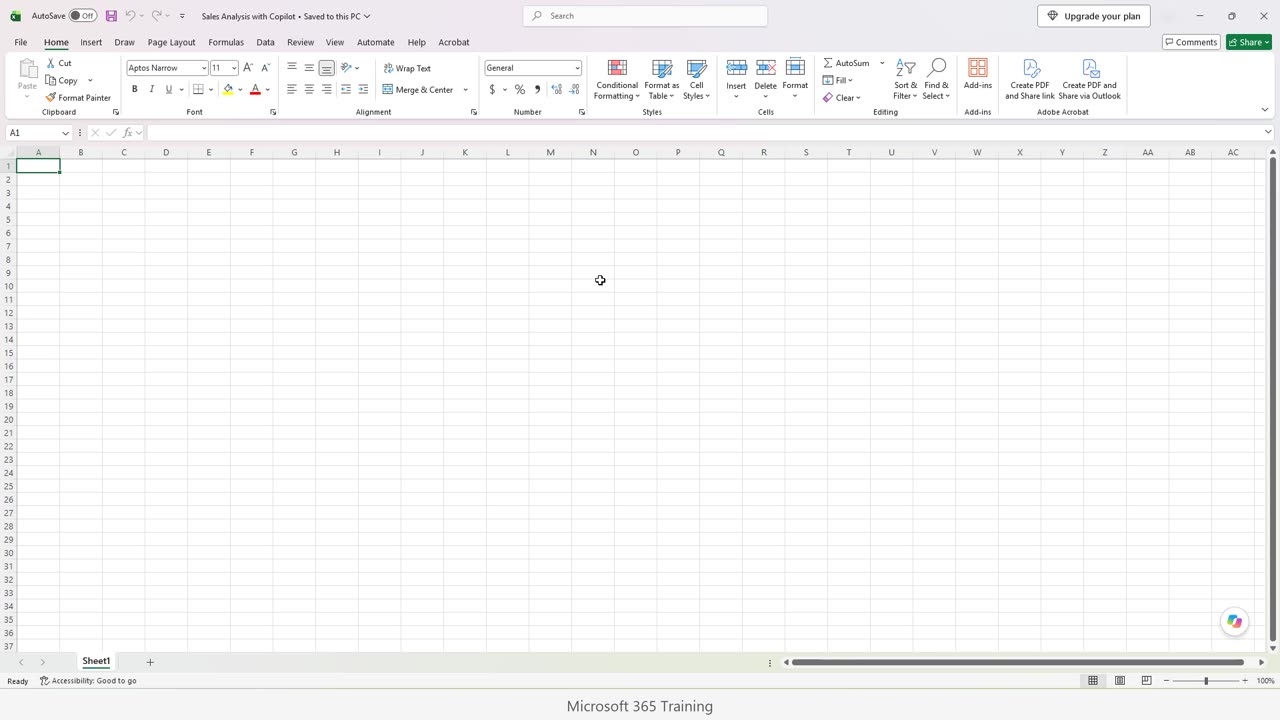
This is a blank workbook. In the bottom right corner of the grid, there is a round Copilot button. Let's click it.
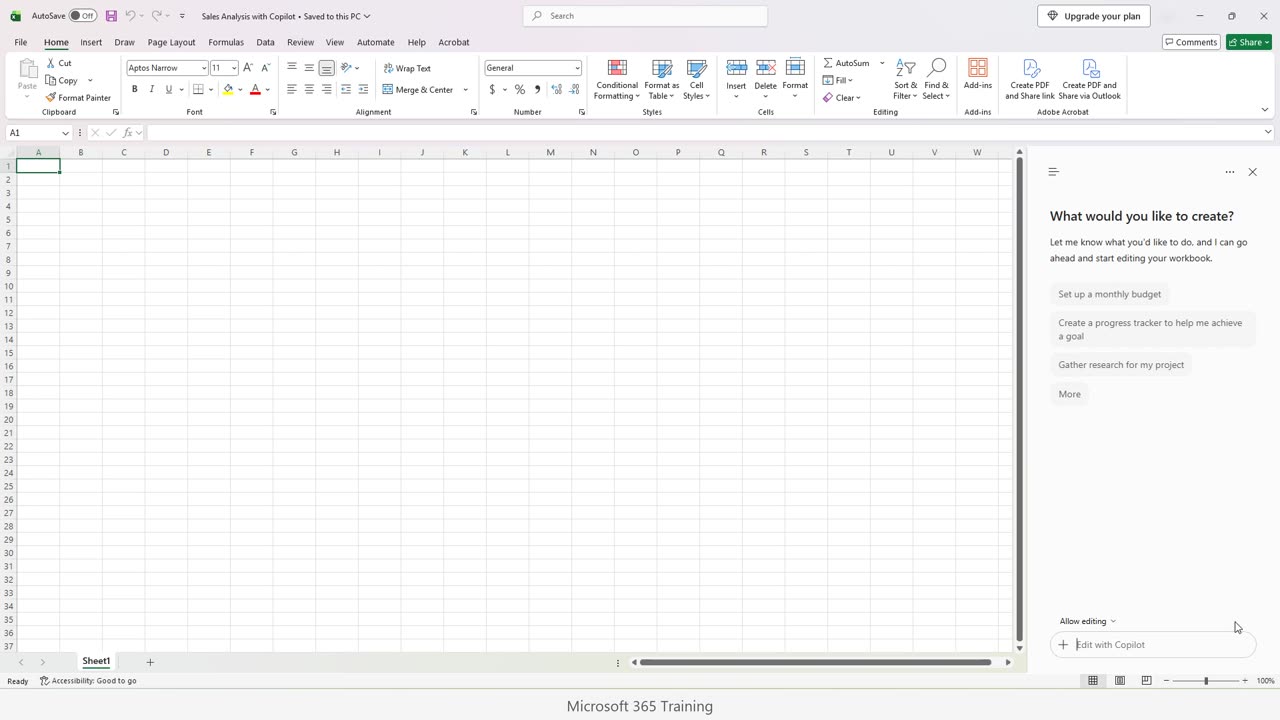
A pane opens on the right side. This is where you talk to Copilot, in plain English. It also offers ideas, such as setting up a monthly budget, to show you what it can do.
At the bottom is the box that says Edit with Copilot. That is where you type your request.
Just above it, the Allow editing setting decides what Copilot is permitted to do.
With editing allowed, Copilot can change your cells. With it off, Copilot only answers questions and cannot touch your data. While you are learning, keep it on, but always check the result.
3. Your first prompt
Before we type, here is a simple recipe for a good prompt. Say what you want, say where it should go, and say what it should look like.
Now click the box and type. I am typing slowly so you can read along. Notice that I name the cells, the columns, and the number of rows.
Copilot has the request now. It reads it, plans the steps, and then edits the sheet. This can take from ten seconds to about a minute, so give it a moment.
Notice that Copilot shows its progress. It does not guess in one jump. It breaks your request into smaller steps, and the pane tells you what it is working on.
This is also why a clear prompt matters. The more exact your columns, rows and formulas are, the less Copilot has to guess.
4. Check the result
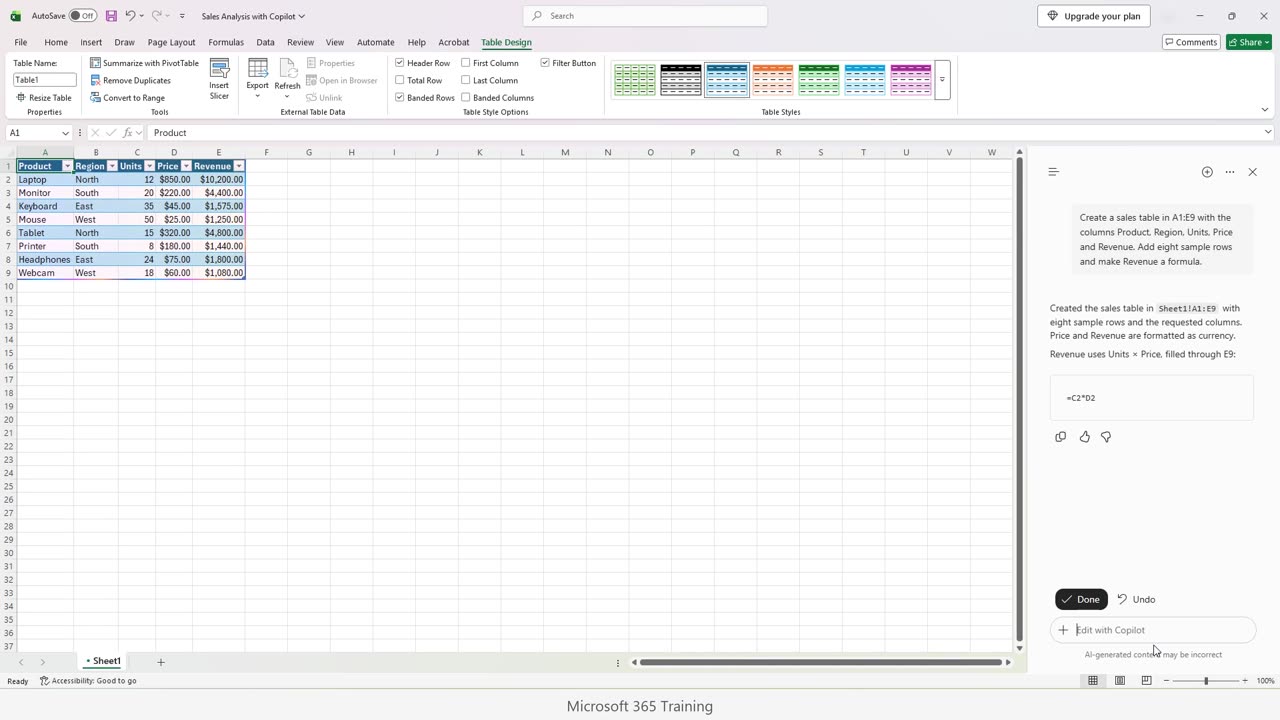
Done. Copilot filled the table, and added a Revenue column. Eight rows of sample data, with headers on top.
In the pane, Copilot explains what it did. It created the table in A1 to E9, and it tells you the formula it used for Revenue.
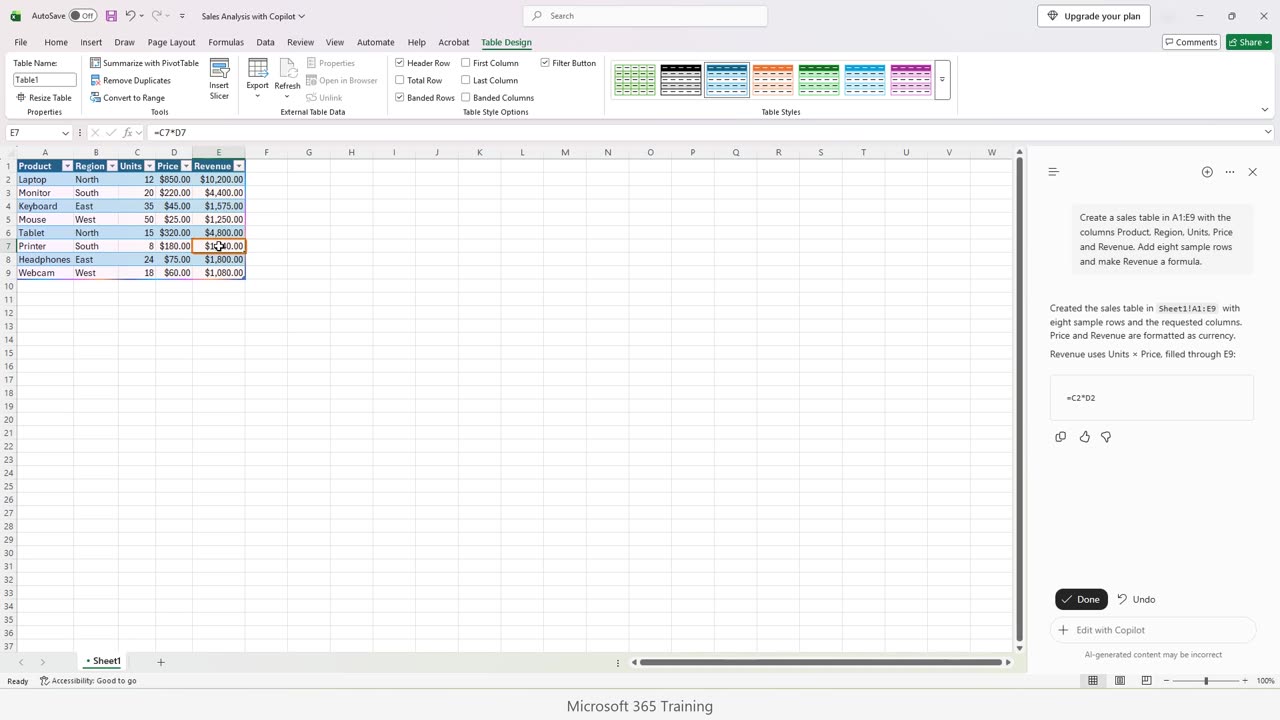
Now the most important habit: check the work. Click a Revenue cell and look at the formula bar.
It multiplies Units by Price. That is correct. Click another row to be sure, because Copilot is fast, but it can still make mistakes.
Also look at the numbers themselves. Do the prices look sensible? Do the totals add up? Copilot can invent sample data, so never use made up numbers as if they were real.
5. Keep or undo
Under the answer, Copilot offers two buttons: Done, and Undo. Done keeps the changes. Undo reverses everything Copilot just did.
Let's keep this table and click Done.
Next, let's try a second request on the same table. We will ask for a Total row. Again, I type slowly.
While it works, remember: Copilot sees your sheet. The better organized your data is, with clear headers and no blank rows, the better its answers will be.
It also works best with tables. Our data is a proper Excel table now, so Copilot understands where it starts and where it ends.
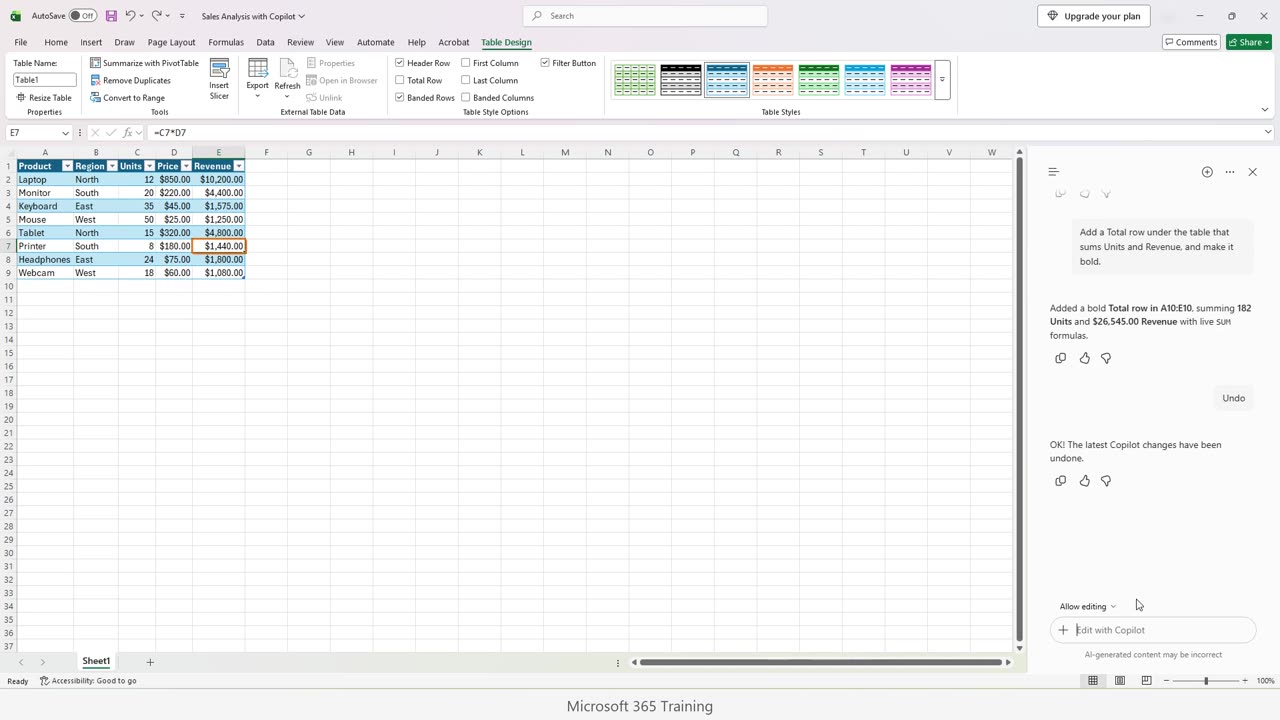
Copilot added a Total row below the table. Check it: the totals should match the sum of the rows above.
Now suppose we did not want that row. Click Undo.
The Total row is gone, and our table is back exactly as it was. Undo makes it safe to experiment.
6. Ask a question
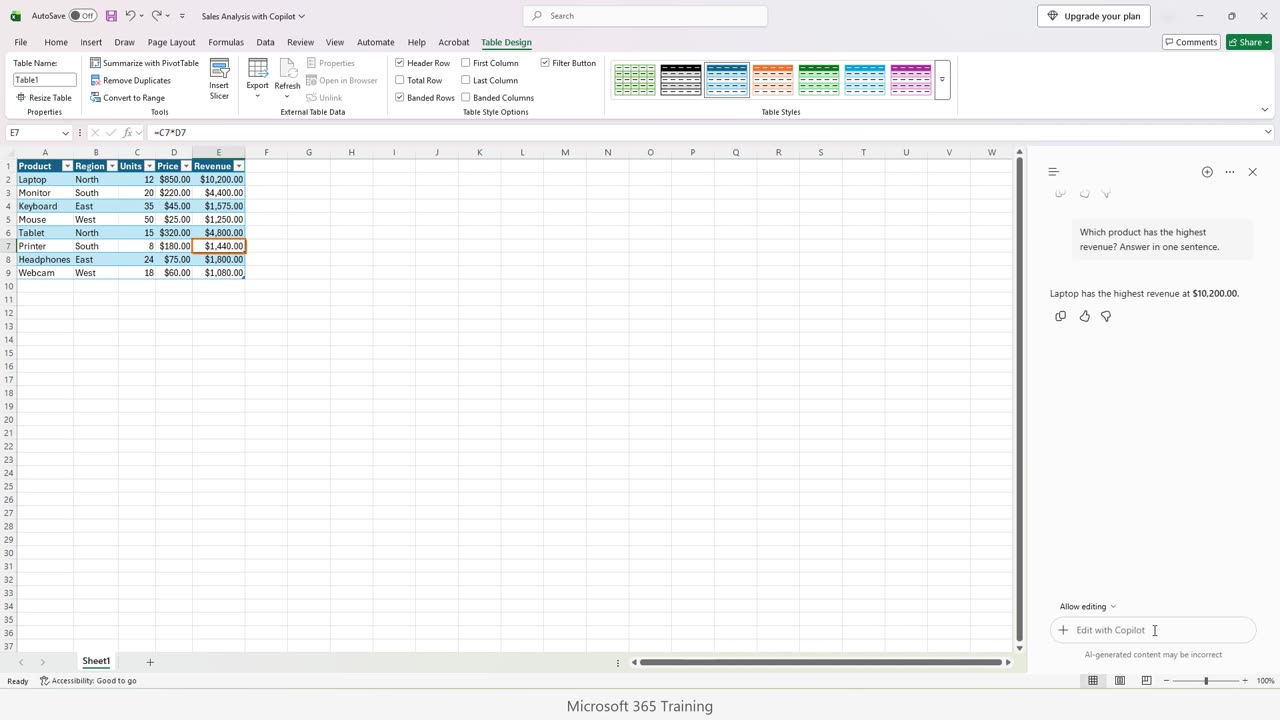
Copilot is not only for editing. You can also ask it questions about your data. Let's ask which product has the highest revenue.
Copilot reads the table and works out the answer. Watch the pane.
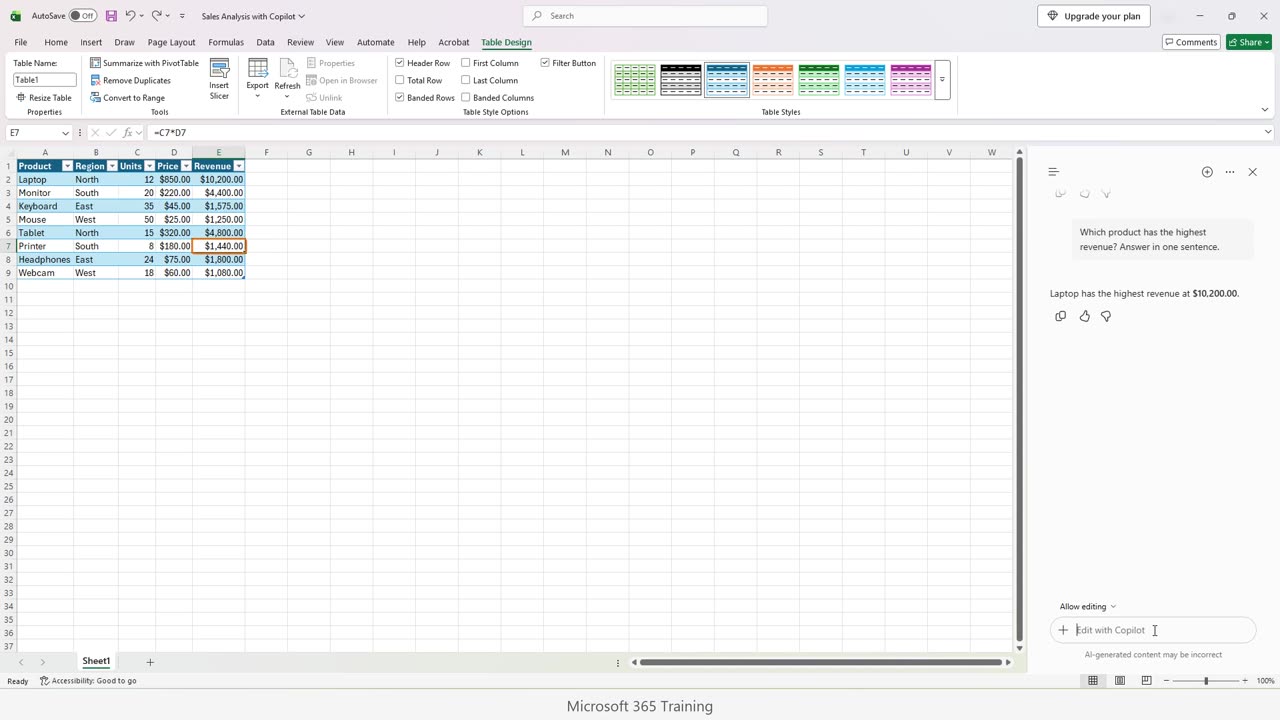
Here is the answer, in plain words. A question like this does not need a formula, a filter or a sort. You can check it yourself by looking at the Revenue column.
7. Three rules
Let's finish with three rules. One: be specific. Two: check every result. Three: use Undo freely.
Do not paste private or confidential data into any AI tool unless your organization allows it. We will use only sample data in this series.
In the next episode we will use Copilot to create a larger sales dataset, and to clean messy data.
If there is something you want to learn next, write it in the comments. Your requests decide what we teach in the next tutorials. Thanks for watching, and see you in the next one.
← Previous tutorial: Excel Formula Auditing: Trace Precedents and Show Formulas
Next tutorial: Clean Messy Data with Copilot in Excel →